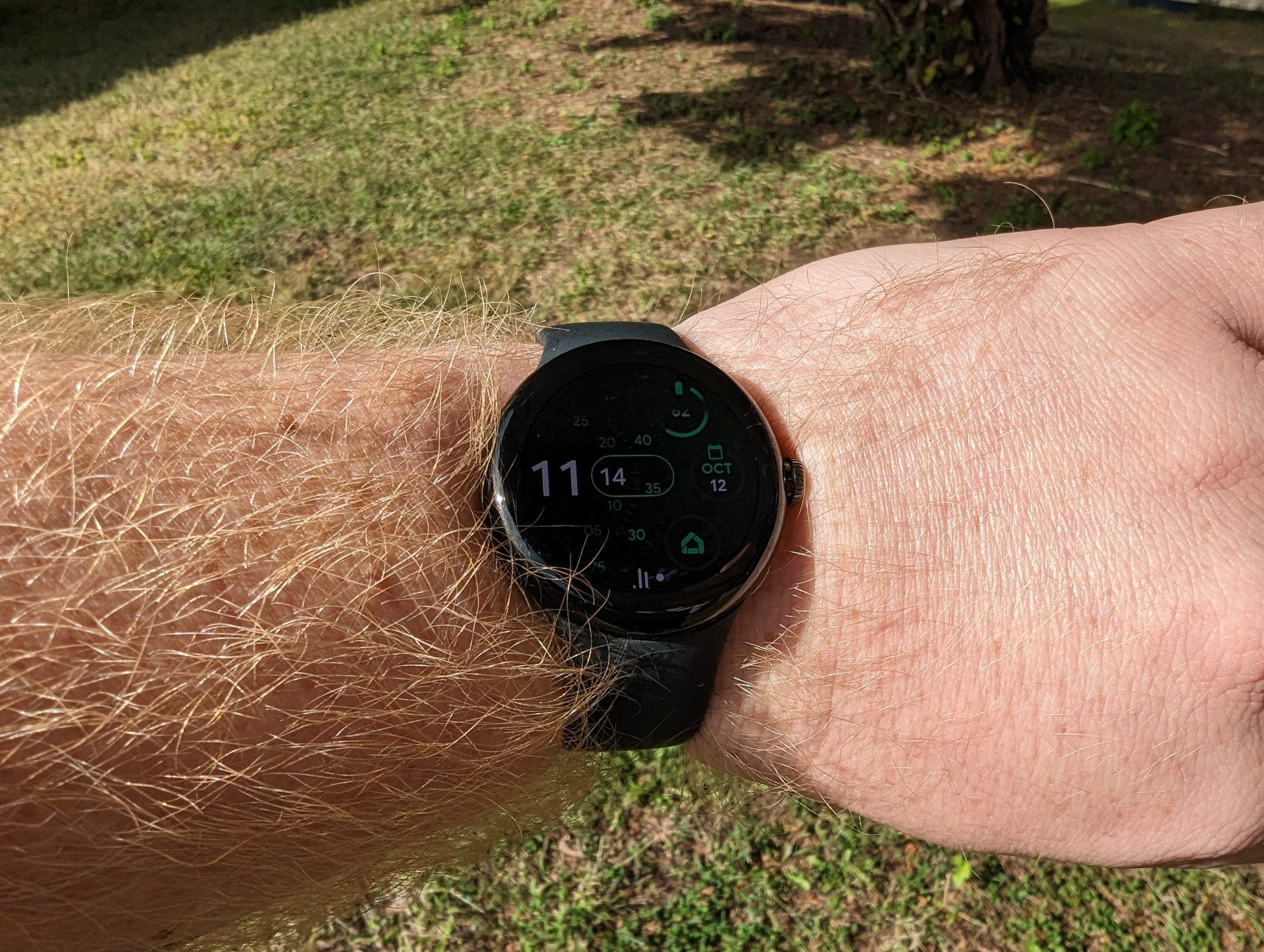
It’s one thing for a company to release a new smartwatch onto the market, complete with many fun and exciting features. But something else to consider is the potential for software updates after the device has been released. Not only are updates important to provide new features or changes, but it’s also important to have a device that is supported to receive security updates. This is true with almost every smartwatch on the market today, including Google’s all-new Pixel Watch.
Update Google Pixel Watch
Out of the box, your Pixel Watch will be running Wear OS version 3.5, and there is likely a “bug fix” update available. It’s impressive to see Google quickly releasing an update, patching any last-minute issues that could have caused problems for users. Following the official announcement, Google confirmed that the Pixel Watch would receive up to three years of major Android updates and at least five years of security updates.
With that in mind, you might wonder how to update your Google Pixel Watch. Luckily, you don’t have to worry about using your paired Android phone to do so.
Update Requirements
However, the company does provide a few “requirements” to download and install an update to the Pixel Watch successfully:
Requirements to update Google Pixel Watch:
- On its charger
- Battery is at least 50%
- Your Pixel Watch is connected to Wi-Fi
As a rule of thumb, we always recommend just leaving any smartwatch connected to its charger throughout the update process. Of course, Google states that this is a requirement, but that’s only to ensure that your Pixel Watch won’t run out of battery while the update is being downloaded and installed. With that in mind, here’s how you can update Google Pixel Watch:
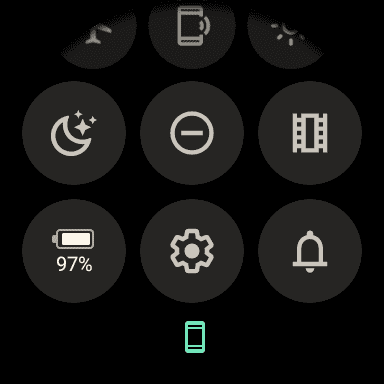

- From your Pixel Watch, swipe down on the watch face to reveal the Quick Settings panel.
- Tap the Settings (cog icon) button.
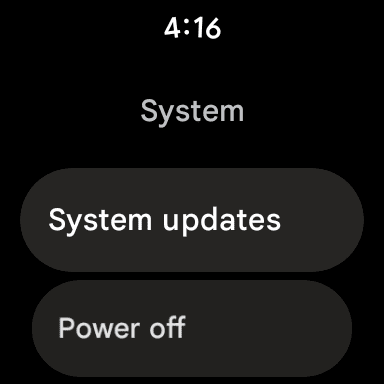
- Scroll down and tap System.
- Tap System updates.
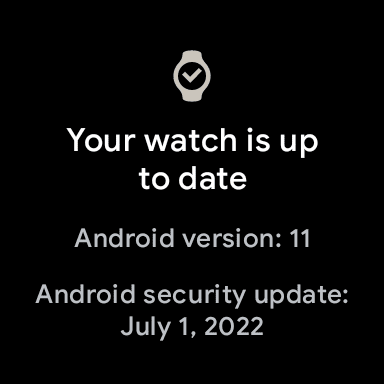
If an update is available, you’ll likely see a prompt informing you that the downloading process has started. Depending on the update’s size, this may take just a few minutes or take a little while longer. We recommend not trying to update Google Pixel Watch if there’s a chance that you will find yourself needing to take it off the charger.
Once the update has finished downloading, the Pixel Watch will reboot, showing an “Installing update…” message. During this time, it’s extremely important to leave your Pixel Watch connected to its charger, as you don’t want to interrupt the update installation process.
After the update is finished being downloaded and installed on your Pixel Watch, the device will reboot and then show your watch face once it’s done. Additionally, you can open the Google Pixel Watch app on your Android phone to check the status. When opening the app, you’ll see either a Disconnected or Connected message beneath the watch preview.