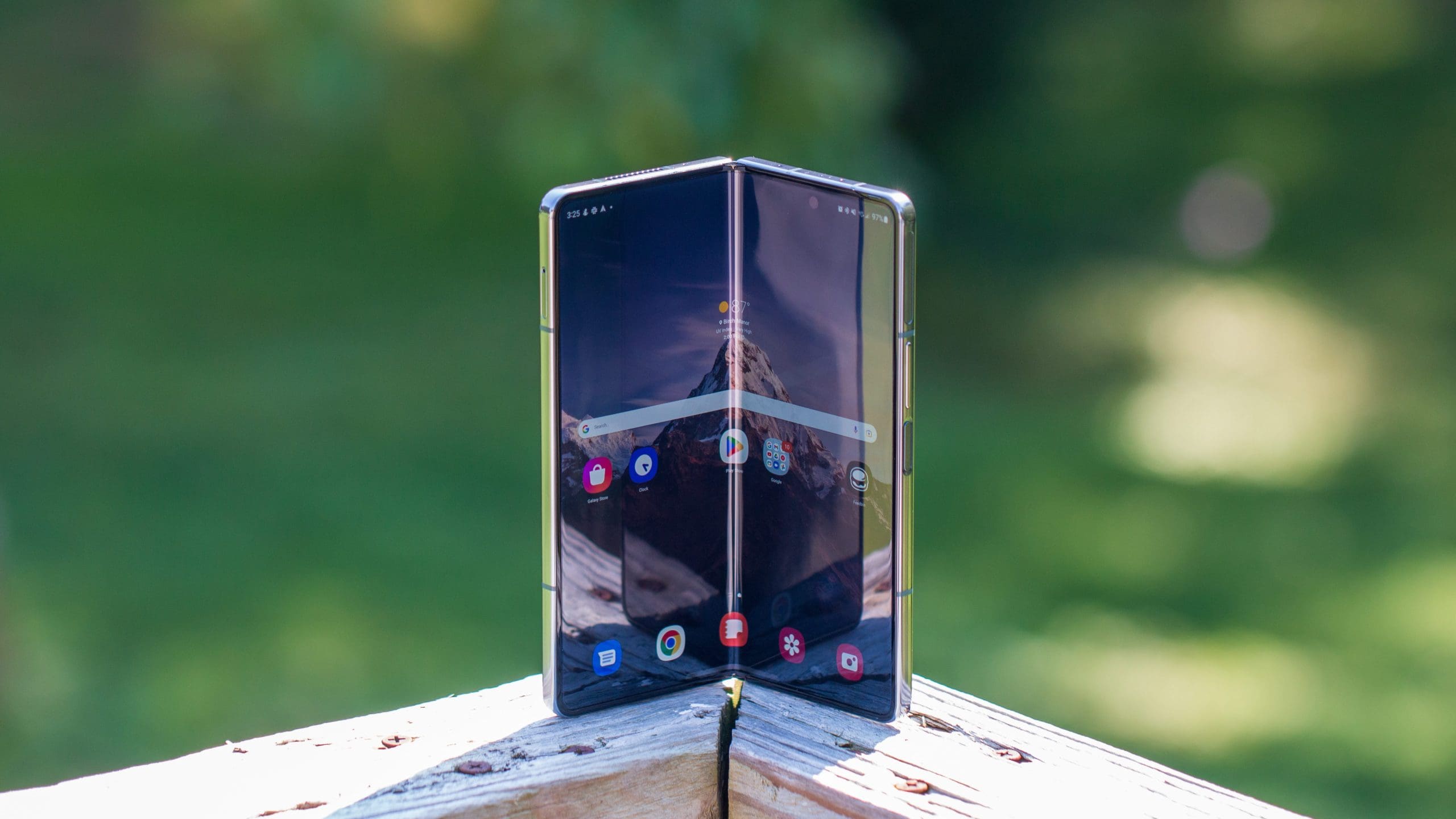
Having a smart assistant right on your Android phone is extremely helpful and useful. The possibilities are endless, from turning lights on and off in your home to sending messages when your hands are full.
Although Google, Apple, and Amazon have a significant lead in the smart assistant department, some companies have tried to combat the big boys. Samsung is arguably the largest company to try and take on the trifecta of smart assistants with Bixby. But even though it’s built into your phone, you will probably want to turn off Bixby on the Galaxy Z Fold 4 in favor of Google Assistant.
Contents
Bring Back The Power Menu
As with many other Galaxy phones, Samsung tries to “force” you into using Bixby right out of the box. Instead of having a traditional Power Menu when you press and hold the Power button, Samsung opts to use this as the default method for activating Bixby. It’s an extremely frustrating proposition that can easily be remedied if you don’t mind jumping into the Settings app.
- Open the Settings app on your Galaxy Z Fold 4.
- Scroll down and select Advanced Features.
- Tap Side Key.
- Under Press and hold, select Power off menu.
After you disable Bixby from the Side Button, you’ll be presented with the traditional Power Menu whenever you press and hold down the Side button. This transforms it back into the Power Button we’ve been accustomed to for years.
Turn off “Hi Bixby” Voice Detection
Another way that Samsung wants you to use Bixby is with your voice. Much like Apple’s Siri and Google Assistant, you can summon Bixby with a simple “Hi Bixby” phrase. Once your Galaxy Z Fold 4 recognizes the request, a small pop-up menu will appear at the bottom, ready for you to ask Bixby some questions. Here’s how you can disable Bixby from appearing with voice detection:
- Locate and open the Bixby app on your Galaxy Z Fold 4.
- Tap the Setting gear icon in the bottom right corner of the pop-up screen that appears.
- Tap Voice wake-up.
- If needed, tap the toggle at the top of the page to the Off position.
Now, you will no longer need to worry about your Galaxy Z Fold 4 accidentally triggering Bixby with your voice. If you want to try Bixby out, you can still do so by opening the Bixby app on your phone. But it won’t be an “in your face” approach, and you can use your Galaxy Z Fold 4 the way you want.
Bixby Is Still Hanging Around
On the one hand, you might think having Bixby on your Galaxy Z Fold 4 is bad. And while it doesn’t come close to being as reliable as Google Assistant or Amazon Alexa, there are a couple of good reasons Bixby is still hanging around.
For one, Bixby Routines makes it possible to perform a wide array of automation right on your device. And with the Bixby Routines+ app found within Good Lock, you can set up and enjoy “supercharged” automation on your phone. And the best part about it all is that even if you turn off Bixby on Galaxy Z Fold 4, you still have access to Bixby Routines and Routines+.