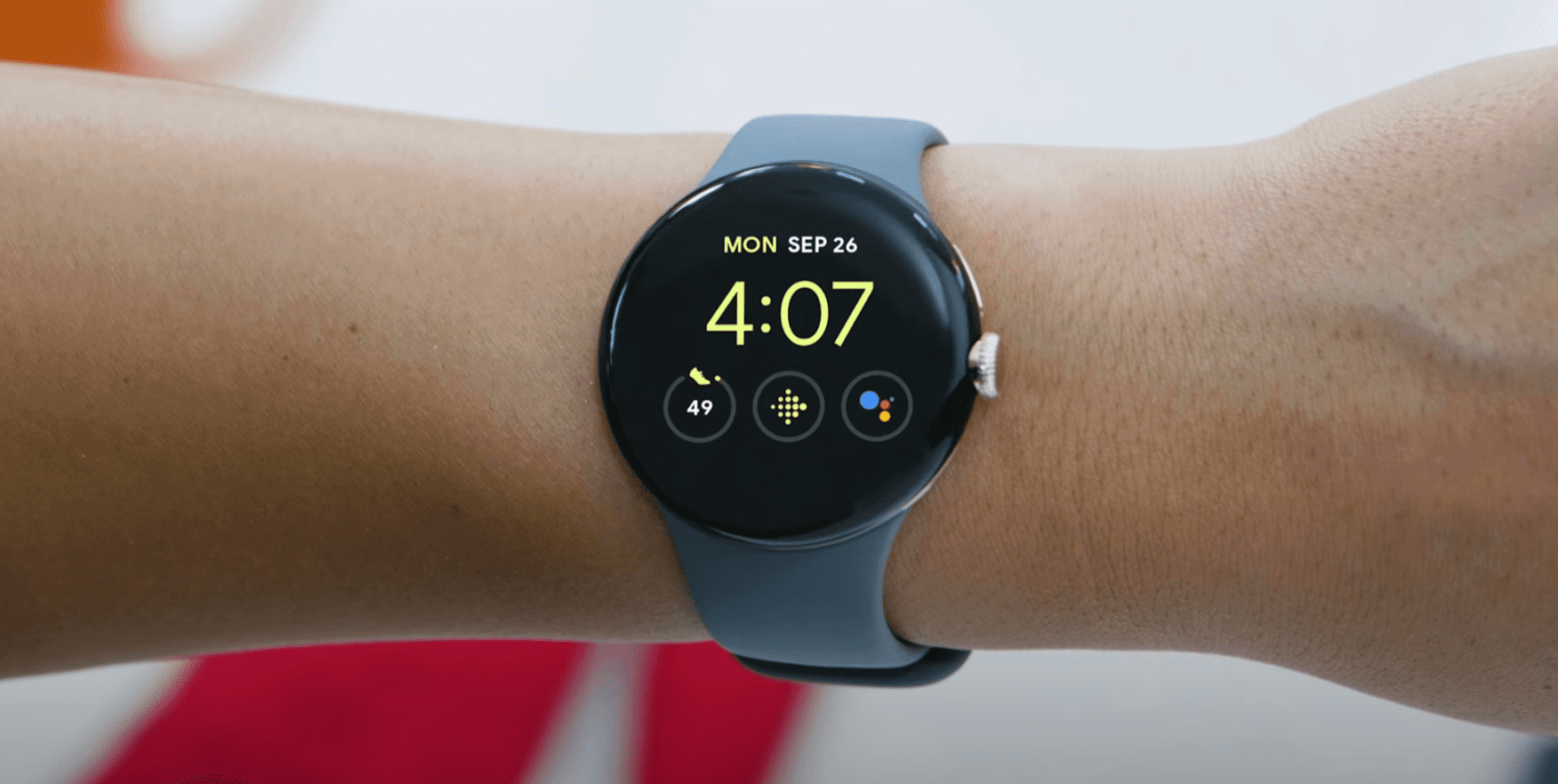
At the end of the day, smartwatches are still supposed to function as a watch. It’s cool being able to keep track of your health and fitness, while also seeing whatever notifications are coming through on your phone. And as wearables have gotten better, smartwatch makers along with battery improvements are making it easy to just glance at your wrist to see the time.
This is done through a feature known as the “Always-on Display”, and is available on practically every new smartwatch. However, the problem with having this feature enabled is that it will inevitably cause your battery to drain faster than you might expect. Even with the improvements to the software and optimizations for battery life, the truth is that if your smartwatch’s screen is on, it’s draining more battery.
How to Turn Off Always-on Display on Pixel Watch
Unfortunately, this also applies to Google’s new Pixel Watch, which is rated for 24 hours of battery life on a single charge. It outperforms the Apple Watch in that regard, but in practice, it falls a bit short of the claims made by Google. One easy way that you can instantly improve battery life is to turn off Always-on Display on Pixel Watch. And here’s how you can do so:
- Wake your Pixel Watch by tapping the screen or pressing either the side button or the crown.
- From your Pixel Watch, swipe down on the watch face to reveal the Quick Settings panel.
- Tap the Settings (cog) icon.
- Scroll down and tap Display.
- Scroll all the way down until you see Always-on screen.
- Tap the toggle next to Always-on screen to the Off position.
Alternatively, you can use the Google Pixel Watch app from your paired Android phone to turn off Always-on Display on Pixel Watch. The settings are practically the same, but here’s how you can do so:
- Open the Google Pixel Watch app on the phone paired with your Pixel Watch.
- Scroll down until you reach the Settings section.
- Tap Watch preferences.
- At the top of the page, tap Display & gestures.
- Tap the toggle next to Always-on screen to the Off position.
- In the top left corner, tap the back arrow button to save your changes.
If you decide that you don’t need to have the Always-on Display enabled on the Pixel Watch, there are a couple of options you might want to have. These are under the Gestures section within the Pixel Watch app’s settings and are Tilt-to-wake and Touch-to-wake.
In the description of Tilt-to-wake, Google notes that this “reduces watch battery life”, just like enabling the Always-on Display. This is simply because there’s an opportunity for your Pixel Watch’s screen to turn on whenever you move your wrist. The end result is lower battery life than you might suspect, so this is also one of the first settings you can turn off if you need to make sure your Pixel Watch will last until you get to a charger.