So, you decided to build your very own rig from scratch and things are advancing pretty well. But many PC enthusiasts often hit a wall when it comes to determining which side of the fan is intake and which is exhaust. Getting the fan orientation right is crucial if you want to avoid overheating issues or other hardware problems. So, let’s see how you can determine your fan’s airflow direction.
Contents
How Do I Know If My Fan Is Intake or Exhaust?
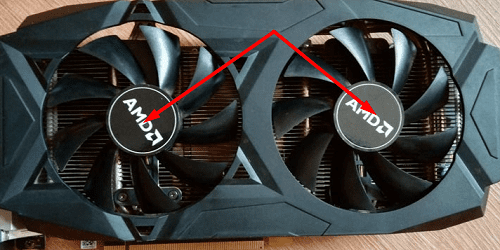
Locate the Logo
The side with the brand logo on the center of the blades is the intake side. That’s where cool air is taken in and directed to your computer’s internal hardware components.
Take a look at the pieces of plastic holding the middle hub or the center of the fan where the motor is mounted. They usually look like X-shaped brackets. Most fans will be blowing air out away from that side. Try to associate “X-shaped” with the exhaust side.
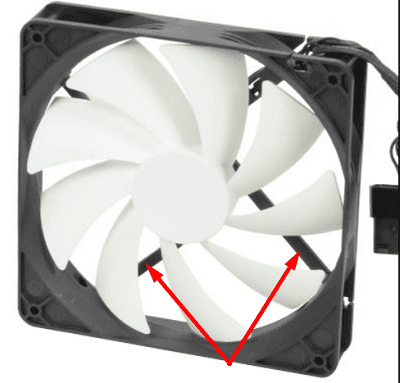
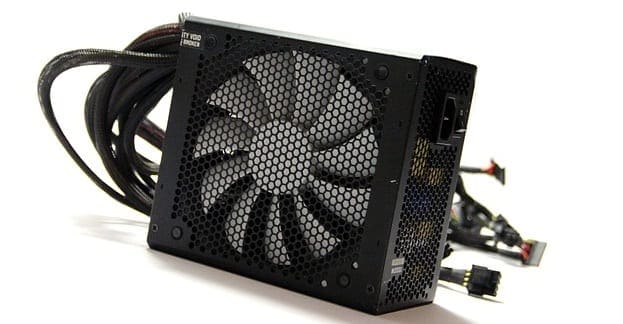
The exhaust side or the rear side houses the fan’s motor and expels the hot air keeping your machine cool. You should also see some power wires entering the motor.
Locate the Directional Arrows
Additionally, most fans also have two directional arrows on the fan housing. The horizontal arrow points the direction of airflow, while the vertical arrow points to the direction the fan spins. Inspect the outside rim of the fan and you should find the two arrows there.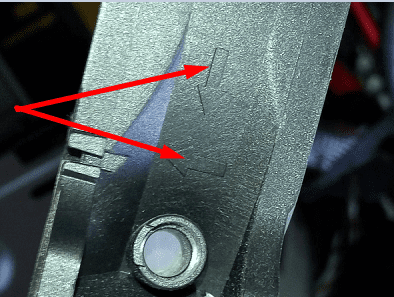
For example, you can have a left arrow that shows the airflow direction from the front of the fan to the back. There should also be a down arrow that shows the direction the blades rotate when powered on. Or you can plug in the fan (don’t mount it), turn on your computer, and simply feel which direction the air is coming out. Nothing can beat that test.
Check the Propeller
You can also take a look at the shape of the propeller, as well as the rotation direction. If the blades rotate to the right, that’s the intake part. The side with the exposed blades is the intake side.
But if you want to be 100 percent sure, check the manufacturer’s support webpage for more information. Or check the user manual that came with your fan.
Should I Go For Positive or Negative Fan Pressure?
When setting up your computer fans, it’s better to have a positive pressure setup than a negative pressure configuration. If you’re unfamiliar with these terms, a positive pressure means that more fans are blowing air in (intake) than pushing hot air out (exhaust). Providing your computer with enough cool air to keep the components cool is more important than pushing out more hot air.
Conclusion
Most computer fans flow front-to-back (←), and spin counter-clockwise. The crossbars and the wires are usually located on the back of the fan (the exhaust side). Another quick test you can use is this: if you can see the whole blade, that’s the intake side. But if you can see the fan frame holding the motor in place, you’re looking at the exhaust side (rear side). We hope things are clearer now.