
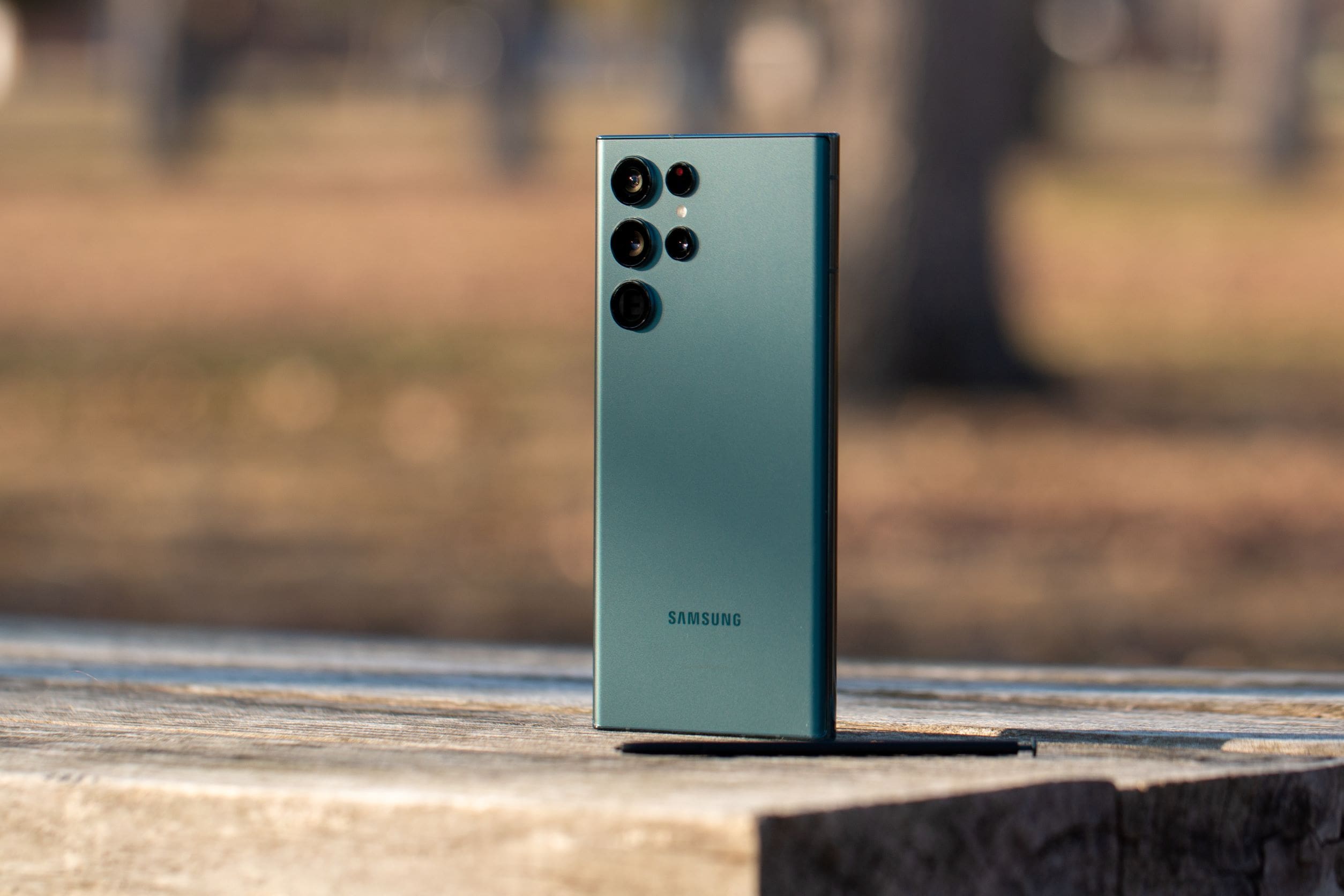
In the early part of last year, Samsung announced that it would be shutting down its cloud services, in an effort to consolidate its efforts within the company. With this decision, Samsung users have been forced to look at other solutions for syncing things like contacts, files, and notes.
With apps like Google Contacts and Drive at your disposal, users don’t have to completely scramble in an effort to keep all of their important data backed up. One potential problem arose when it came to Samsung Notes, as there really was not any sure-fire way to back up your notes to anything other than Samsung’s cloud platform. Luckily, Microsoft and Samsung have been working closely together over the past few months.
Sync Samsung Notes with Microsoft OneNote
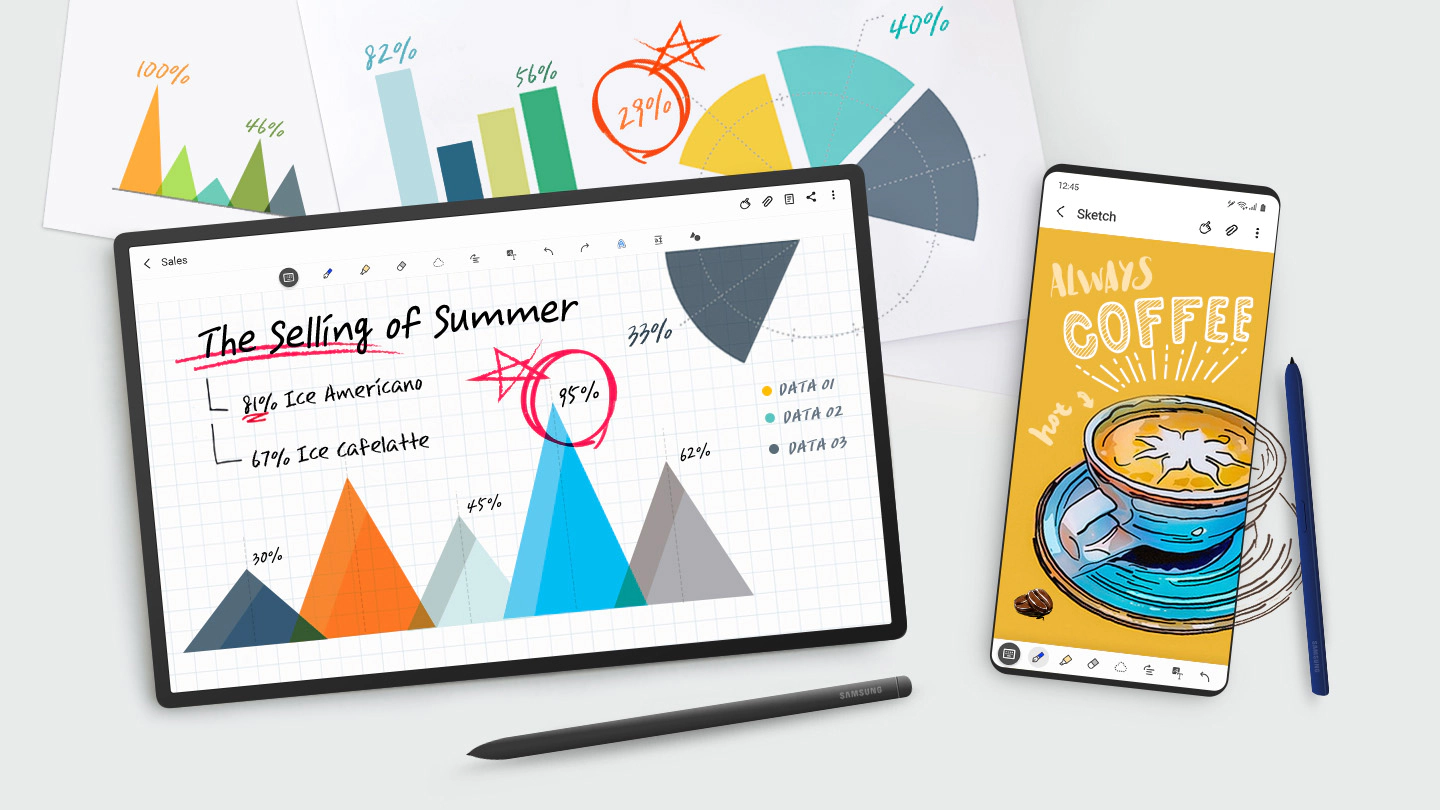
Microsoft OneNote is the company’s built-in solution to offering a note-taking app with cloud storage functionality. And thanks to Microsoft and Samsung’s partnership, you can now sync Samsung Notes to Microsoft OneNote, allowing you to continue using the stock note-taking app on your Samsung phone or tablet.
As you would expect, in order to take advantage of Microsoft’s syncing services, you will need to opt into the syncing, while signing into your Microsoft account. Here’s how you can sync Samsung Notes with Microsoft OneNote.
- From your Samsung phone or tablet, open the Samsung Notes app.
- Tap the three-line icon in the top left corner.
- Tap the Gear icon in the top right corner of the sidebar.
- Tap Sync to Microsoft OneNote.
- From the next screen, tap the Get Started button.
- Sign in to your Microsoft account.
- Select the folders that you want to sync with OneNote.
- Once all of the folders have been selected, tap the Done button at the bottom.
Depending on how many notes you have in your notebook, the process for syncing may take a little bit of time. Once it’s completed, you will then be able to load up Microsoft OneNote anywhere, using the same Microsoft account, and view your notes.
Because OneNote is available on pretty much every platform, this is a great way to sync notes back and forth between your Samsung smartphone, Windows, Mac, and even iOS. OneNote has come a long way in recent years and has turned into a powerhouse note-taking app, along with becoming one of the best notes applications available today.
Conclusion
Samsung and Microsoft’s partnership continues to bloom in ways that we didn’t expect. Following the shut down of Samsung Cloud, the two companies are trying to create an ecosystem akin to what Apple has with its computers, phones, and tablets.
More recently, Samsung and Microsoft have even made it possible to sync Samsung’s Reminders app with the Microsoft To-Do app. Microsoft’s application has been available for a few years and is one of the best to-do apps for mobile or the desktop. The syncing process is pretty much the same, but you’ll also be able to view your to-do list in Outlook after you’ve synced everything between your devices.



Samsung Notes was able to sync with my OneNote on my Samsung Mobile device but not on my MacBook where I usually do my work.
Yes, I follow the steps as mentioned but Samsung Notes still cant be found in OneNote.
Where in OneNote do I find my Samsung notes after I do this?
The sync process is obscure and pretty weak, even once it’s working. All you can do is drag an image of your Samsung Notes note into your OneNote. Plus is may be difficult to set up if you are using a corporate account for OneNote on the PC and a private one for your tablet.
Even viewing the Samsung notes in the feed is impossible as they’re squashed into a narrow column on the right that cannot be expanded.
I wish that MS and Samsung would do more with their collaboration.
– The sync between Samsung Notes and OneNote is very weak
– OneNote for Android is very poor compared to Windows and, strangely iOS. Especially with regards to pen support
– Samsung Notes PC app cannot be installed on PCs, despite being in the MS app store.
Still don’t know which app to use for note taking on me new Samsung S8+!
I follow the instructions but my one note do not sync with samsung notes