One of the rather surprising additions to the Pixel Watch is the option for you to purchase an LTE-connected version of Google’s first smartwatch. Considering that this is Google’s first attempt at entering the smartwatch market, many didn’t really believe that this would be something that would be available.
However, there are a lot of benefits to having an LTE-enabled Pixel Watch, as it allows you to leave your smartphone behind if you happen to go on a run. This is also helped by the fact that you can pair many of the best Bluetooth earbuds and headphones to the Pixel Watch, so you can still listen to your favorite playlists.
Contents
Set Up LTE on Pixel Watch
When it comes to those who want to set up LTE on Pixel Watch, you’ll likely be prompted with the option to activate this functionality during the initial setup process. However, in the event that you have to reset your Pixel Watch, or pick one up on the second-hand (or used) market, this option might not appear. Here’s how you can set up LTE on Pixel Watch, even if you skipped past it originally:
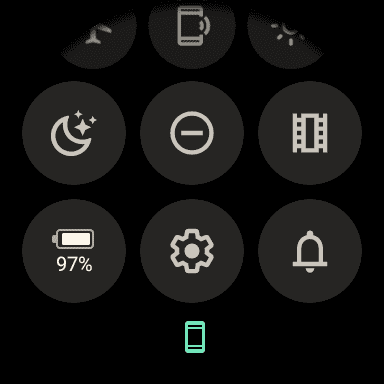
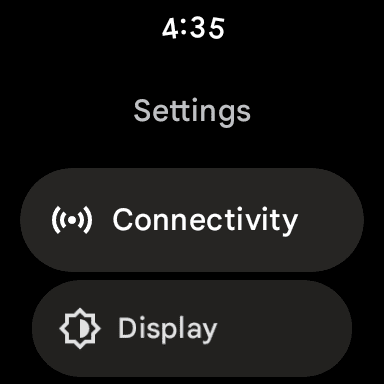
- From your Pixel Watch, swipe down on the watch face to reveal the Quick Settings panel.
- Tap the Settings (cog) icon.
- Tap Connectivity.
- Select Mobile.
- Confirm that the “status” is set to On.
- Open the Google Pixel Watch app on the phone paired with your Pixel Watch.
- Tap Mobile Network.
- Select Set up a new profile.
- Tap Set up a new profile via your cellular carrier.
- Follow the on-screen instructions to set up LTE on Pixel Watch.
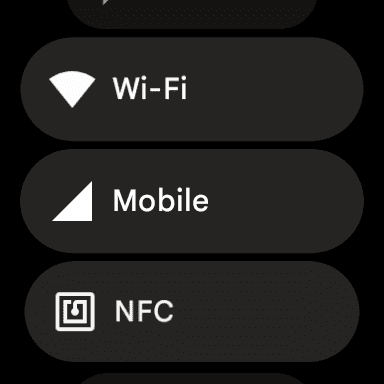
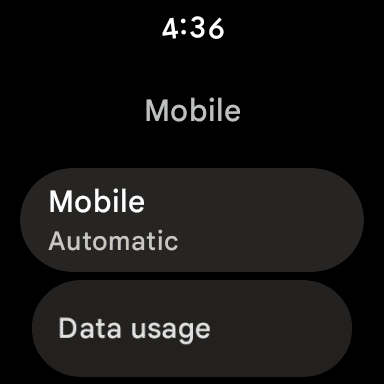
After a few moments, you’ll notice that your Pixel Watch is now connected to LTE, removing the need to be connected to Wi-Fi in order to receive notifications. Depending on your carrier, the process should only take a few minutes.
What Carriers Support Pixel Watch LTE?
If you’re interested in picking up Google’s new Pixel Watch LTE for yourself, you might be wondering about carrier compatibility. This is a valid question, as there are some smartwatches that won’t work with all carriers. However, this isn’t the case or a problem with the Pixel Watch, at least here in the United States. Here’s the list of carriers that support the LTE model of the Pixel Watch:
- AT&T
- Google Fi
- T-Mobile
- Verizon
- Cellcom
- CSpire
- UScellular
Setting up and using the Pixel Watch LTE should be an easy process, but you will likely find yourself needing to add a line to your account. According to Google, “your watch and your phone must use the same carrier”, meaning that you can’t use the Pixel Watch on Google Fi if your phone is connected to Verizon.
What to Do if Pixel Watch Won’t Activate
It should come as little surprise that there are definitely a few bugs to be concerned with when it comes to a first-generation product, such as the Pixel Watch. Ever since its initial release, new Pixel Watch owners are finding themselves unable to activate the LTE on their Pixel Watch. Doing so might result in some error messages such as “eSIM download error” or “something went wrong” when going through the steps.
Thankfully, there is some guidance, at least for Verizon customers, in the event that you can’t activate LTE on Pixel Watch. As a note, these are steps that you can recommend to a customer service representative, and might not work if you try activating the Pixel Watch from the Verizon website or mobile app.
- Add a new line of service.
- Select customer-provided equipment.
- Enter the IMEI number of the Pixel Watch.
- When prompted, enable Number Share.
- Complete the order by adding a line to the plan.
- Open the Pixel Watch app on your paired Android phone.
- Scroll down and tap Mobile network.
If the process has been completed properly, then your Pixel Watch should vibrate, showing a “Downloading eSIM” prompt. This should take between one to two minutes, so patience is key here. Provided that the eSIM is downloaded properly, the Pixel Watch should be activated with LTE support.