By default, Windows 11’s taskbar sits at the bottom of the screen. That’s where you’ll find your device’s search bar and quick pinned shortcuts to your favorite apps. However, some users would prefer to have a vertical taskbar in Windows 11 along the side of the screen instead.
Let’s see if and how this can be done.
Contents
Can You Set Up a Vertical Taskbar in Windows 11 Using Windows Settings?
No, unfortunately for those who’d like to have a vertical taskbar in Windows 11, this option is not available in the operating system by default.
This may come as a surprise to some users, as in previous versions of Windows, like Windows 10, you could move your taskbar around to any part of the screen, like the top or either side. However, Microsoft decided to remove this function for Windows 11.
Instead, all you can do to change your taskbar’s appearance through Windows settings is alternate the position of the icons and shortcuts. If you’d like to do this, here’s how:
Step 1. Right-click on your taskbar and select “Taskbar Settings.”
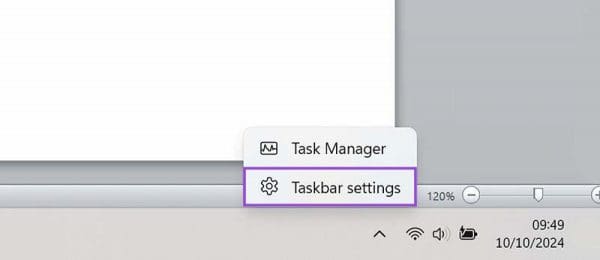
Step 2. Adjust the taskbar settings as you like. You can change the alignment of your icons, hide or show different elements in the bar, and change the way the bar behaves.
How to Set Up a Vertical Taskbar in Windows 11
So, it’s not possible to move your taskbar to a vertical position using Windows’ built-in settings and options. However, that doesn’t mean it’s not possible to do so, at all. There are third-party apps and extensions you can install to your device to customize the taskbar to your liking.
However, do note that it can be risky to install third-party apps. You should always thoroughly read any posted reviews and make sure that the apps you’re installing are safe and trusted. You should also familiarize yourself with how the apps work to avoid making mistakes.
Some of the apps you can use to set up a vertical taskbar in Windows 11 include:
Vertical Taskbar for Windows 11 Windhawk Mod
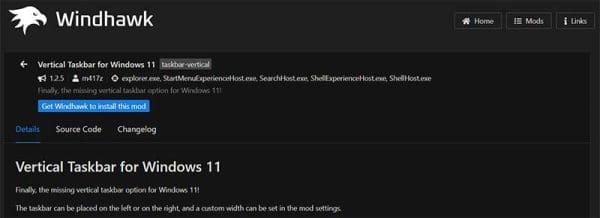
The “Vertical Taskbar for Windows 11” Windhawk mod does exactly what it says – it allows you to reposition your taskbar on either the right or left side of the screen, in a vertical position.
To install this mod, you’ll first need to install Windhawk, which is a customization marketplace for windows, filled with mods and apps designed to customize the Windows experience.
Open Shell
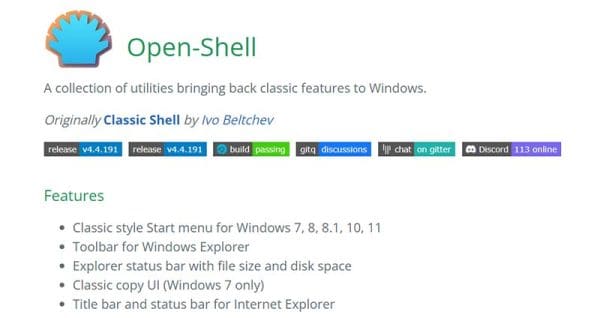
Open Shell is a collection of tools and utilities that effectively help to bring back some of the features and functions from previous Windows versions that are no longer in Windows 11 by default. That includes taskbar settings that allow you to customize and reposition your taskbar.
You can download Open Shell from the link provided, and there’s a helpful community of users and developers who can answer questions and help you in terms of setting it up.
StartAllBack

StartAllBack is a third-party app that, like Open Shell, restores many customization features from prior Windows releases. It lets you improve and adjust your taskbar in various ways. It also gives you the option to move it to the top or the sides of the screen, so that it’s vertical.
Additionally, this app offers customization enhancements for your Windows 11 start menu, File Explorer, Control Panel, and other elements. However, you may have to pay a one-time license fee to get complete access to all its features.