As new devices are released on a regular basis, this means that we’re able to enjoy new features and a lower risk of security flaws with new updates. However, there are times when you might install a new app or update, and run into problems with your devices. This mentality can be applied to pretty much anything, as all of our devices are essentially computer varying in different sizes. Naturally, this includes Google’s new smartwatch, and you might find yourself needing to know how to reset Pixel Watch.
How to Reset Pixel Watch
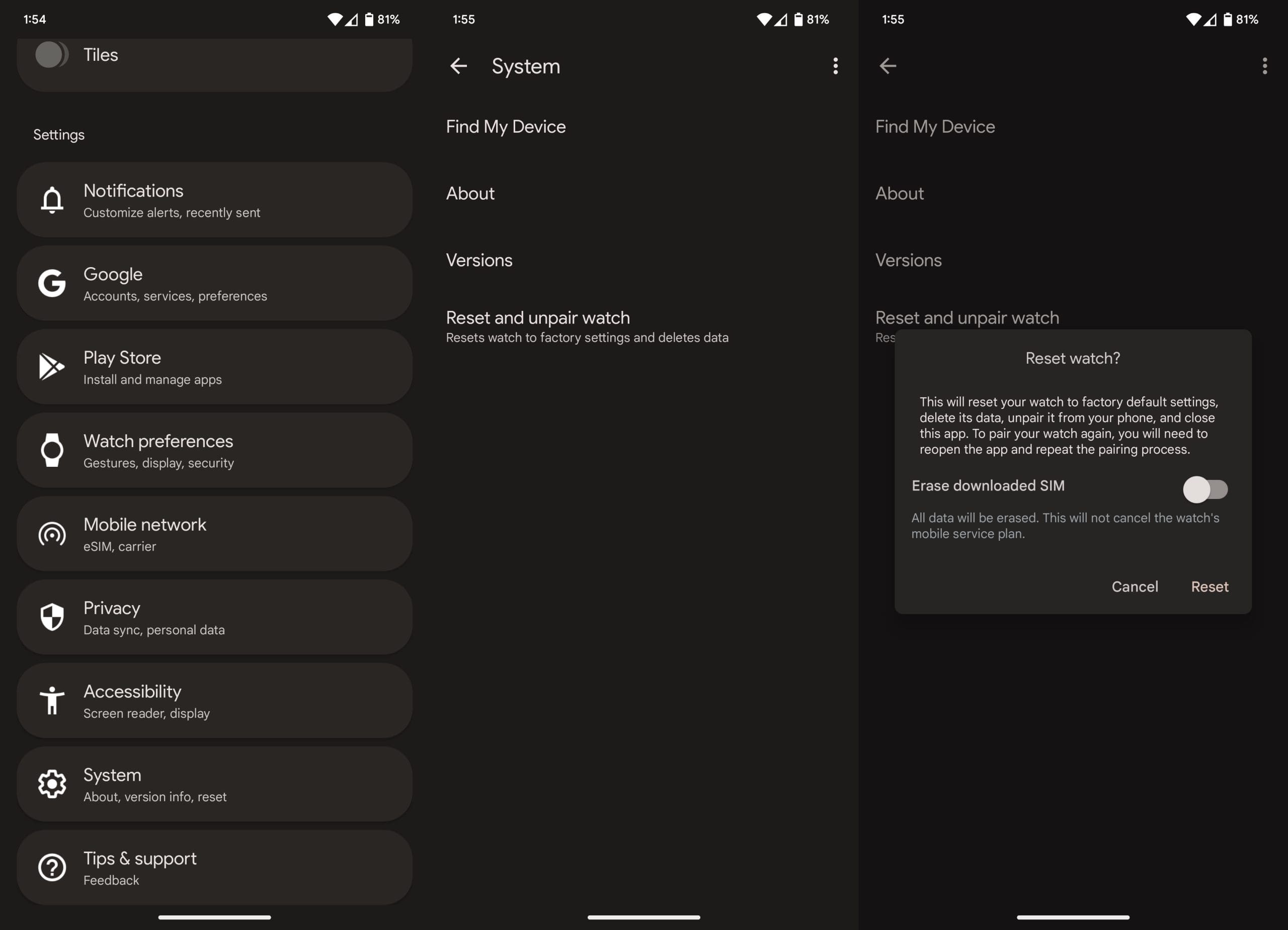
If you need to reset Pixel Watch there are actually three different methods for doing so. The first of which, relies on the Google Pixel Watch app installed on whatever Android phone is paired with the Pixel Watch.
- Open the Google Pixel Watch app on your phone.
- Scroll down and tap System.
- Tap Reset and unpair watch.
- If necessary, tap the toggle next to Erase downloaded SIM.
- Tap the Reset button.
- Follow the on-screen steps to continue the reset process.
The next method for resetting your Pixel Watch is pretty straightforward, and as long as you have the device handy, you can reset Pixel Watch directly on the watch. And here’s how you can do so:
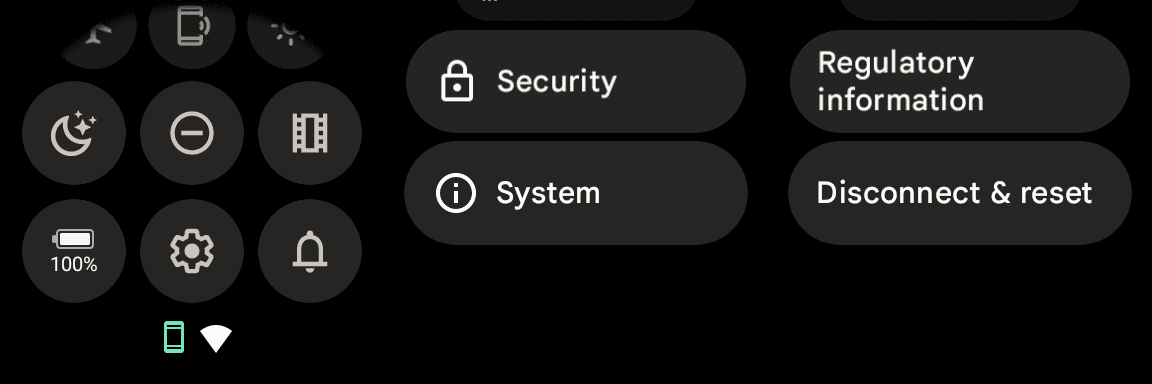
- From your Pixel Watch, swipe down on the watch face to reveal the Quick Settings panel.
- Tap the Settings (cog) icon.
- Scroll down and tap System.
- Scroll down again and tap Disconnect & reset.
- Tap the Ok button to confirm.
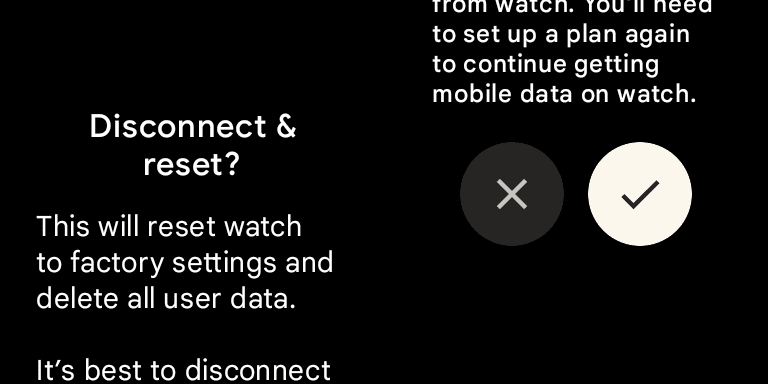
After you hit the checkmark button on your Pixel Watch, everything will be erased and removed. This includes any apps that you have installed, along with the eSIM profile if you are trying to reset the LTE Pixel Watch. Once complete, you’ll see the original setup screen on your Pixel Watch, and you might be prompted by Android’s Fast Pair feature on your phone. You can just dismiss this prompt if you don’t plan on setting up the Pixel Watch with your phone again.
How to Reset Pixel Watch Using ‘Find My Device’
The final method for those who want to reset Pixel Watch is by using Google’s “Find My Device” feature. This is similar to Apple’s Find My network, allowing you to locate any devices that are (or have been) signed into your Google account. And while the screenshots below are from the Android app, you can perform these same steps from a web browser on your computer. Simply search for “Google Find My Device”, log in with your Google account, and then you can remotely reset Pixel Watch.


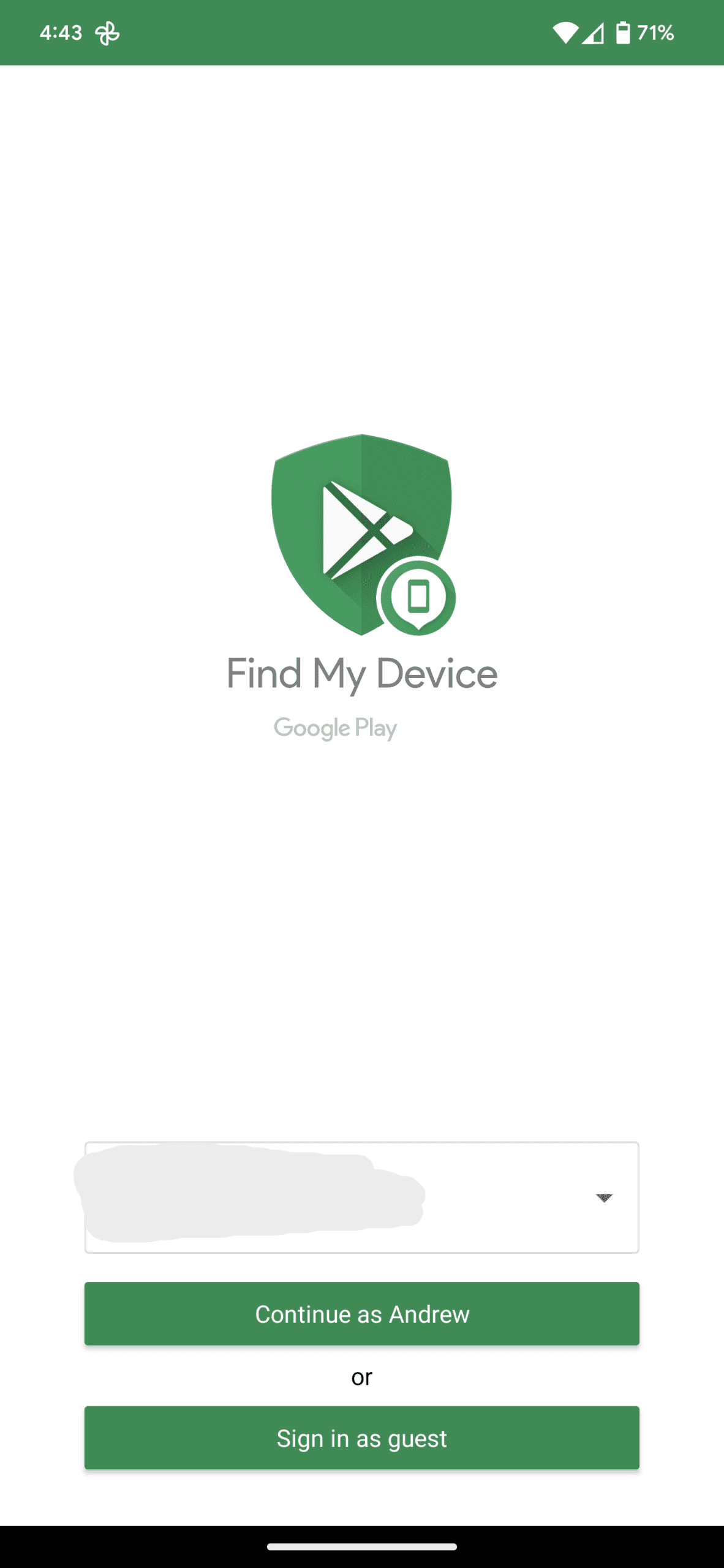
- Download the Find My Device app on the Google Play Store.
- When opening the app for the first time, tap Precise and While using the app to provide the app with access to your device’s location services.
- Sign into the same Google account that you are using with the Pixel Watch.
- Select your Pixel Watch from the list of devices at the top of the page.
- Tap Google Pixel Watch at the bottom of the page.
- From the list of options, tap Erase Device.
- Tap the Erase Device button to confirm.
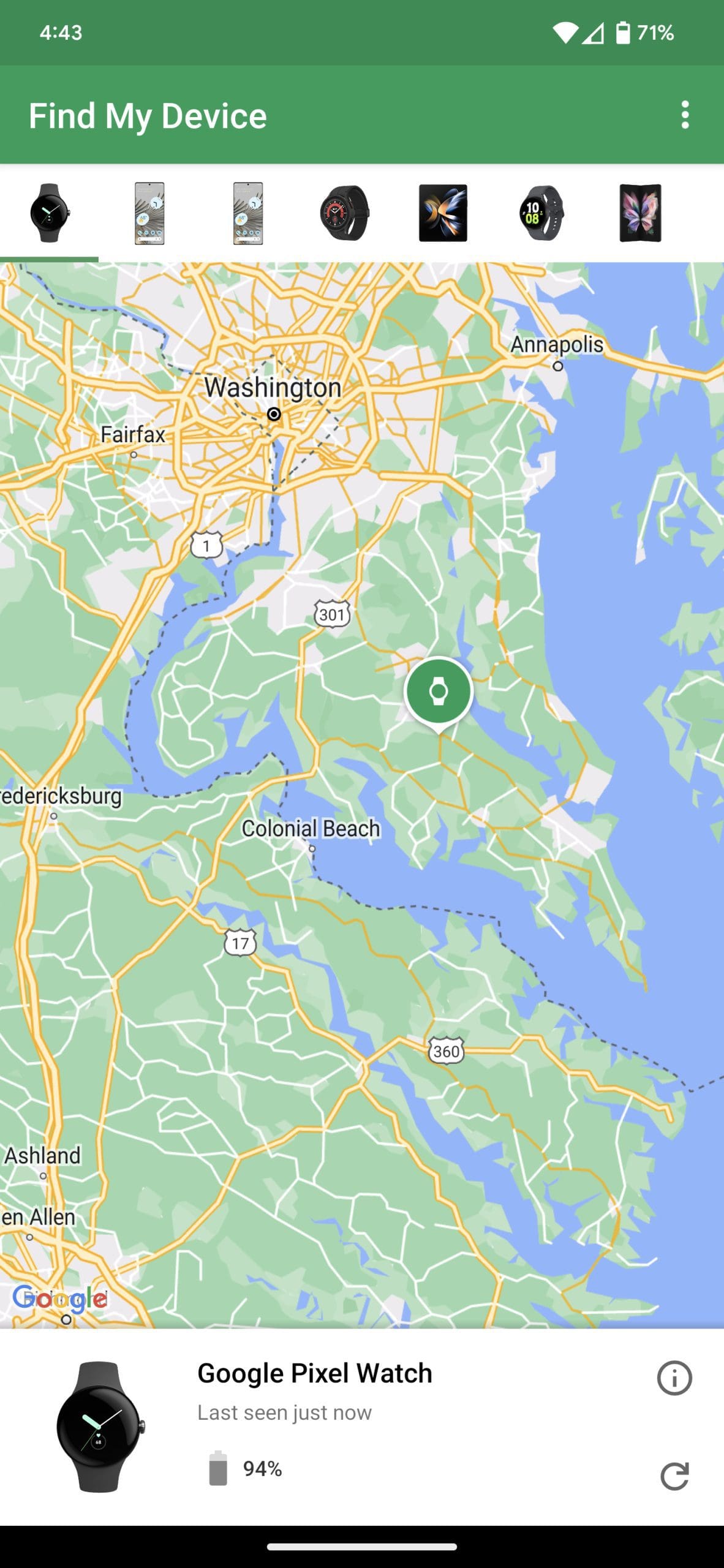

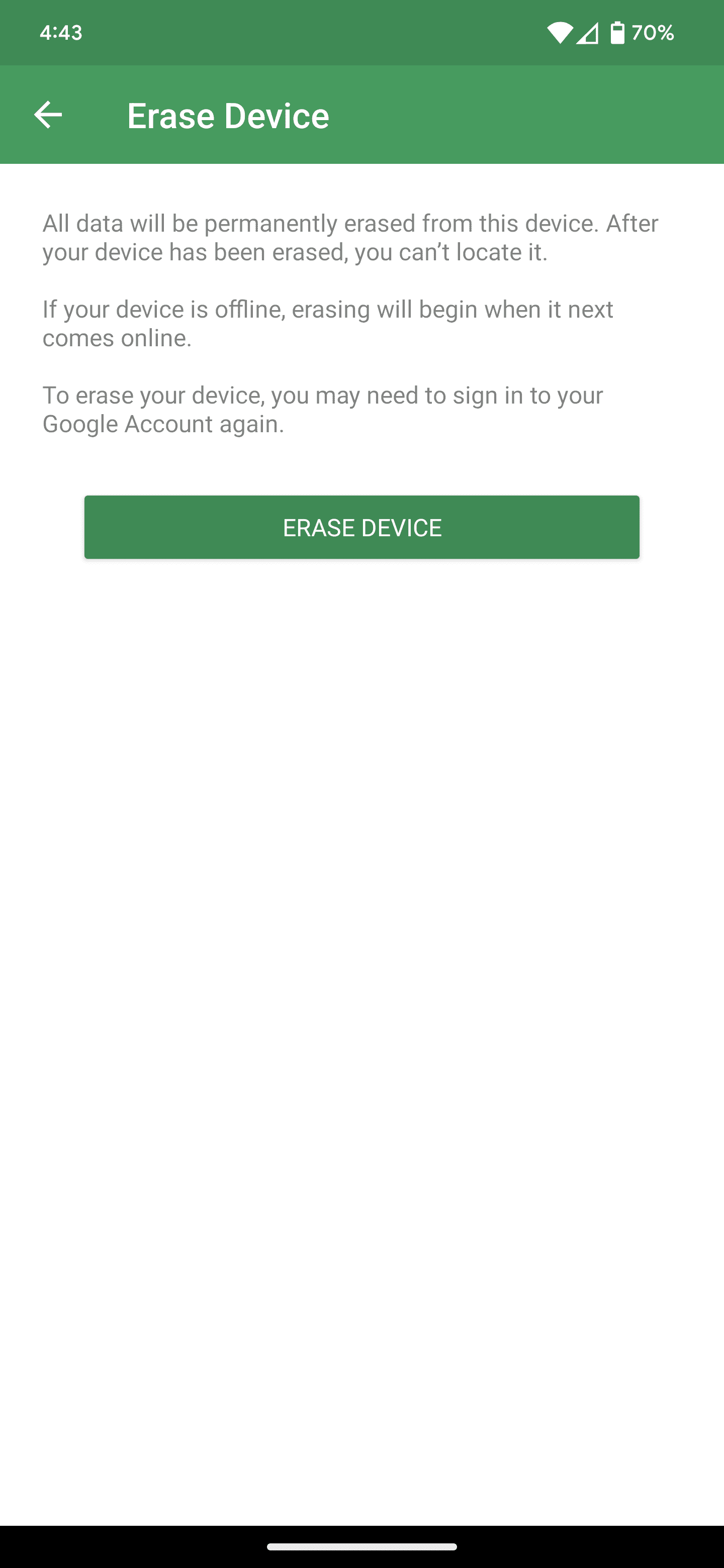
After confirming that you want to erase the Pixel Watch completely, there’s nothing left for you to do. The main purpose of Google’s Find My Device app and website is to assist those who have lost or misplaced their devices. Provided that your device is still online, you are even able to see it on a map, pinpointing its exact location. But if the device was either powered off or ran out of battery, the app and website will only show its last known location before it ran out of battery or was turned off.