Skip to content
LogoTechnipages
LogoTechnipages
  • Topics
        • Android
        • Browsers
        • Gaming
        • Hardware
        • Internet
        • iPhone
        • Linux
        • macOS
        • Office
        • Reviews
        • Software
        • Windows
        • Definitions
        • All Recent Posts
  • Product Reviews
  • About

How to Measure Distances on Google Maps

Madalina DinitaMay 12, 2021 Comments (0)
Measure-Distance-Walked-Google-Maps

Google Maps is a reliable navigation tool used by millions of people worldwide. All you need to do is enter your current location or starting point, add the destination, and Google Maps will take care of everything. Measuring the exact distance between the two points is crucial if you’re in a hurry. Let’s see how you can quickly do that.

Contents

  • 1 How Do I Measure Distances on Google Maps?
    • 1.1 How Do I Measure Distances on Google Maps Desktop?
    • 1.2 How Do I Measure Distances on Google Maps Mobile?
    • 1.3 Conclusion

How Do I Measure Distances on Google Maps?

When you enter the starting point and your destination, Google Maps automatically calculates the distance between the two points. The information is visible in a black square.
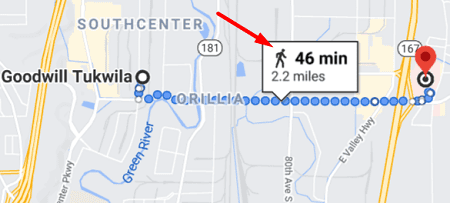
google-maps-distance-information

But if you want to calculate the distance between two or more points, you can also add a straight line on the map.

How Do I Measure Distances on Google Maps Desktop?

  1. Launch Maps, and click on the Walking icon if you want to measure the walking distance.
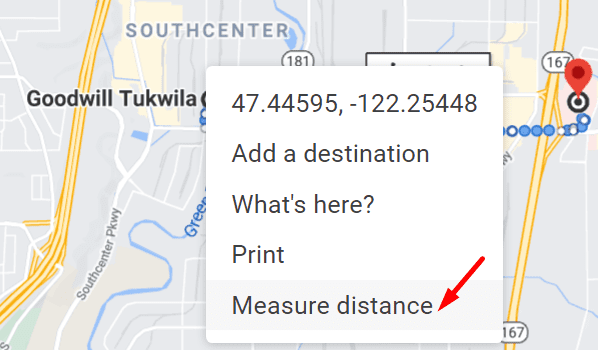
  2. Right-click on your starting point.
  3. Then select Measure distance from the context menu.google-maps-measure-distance
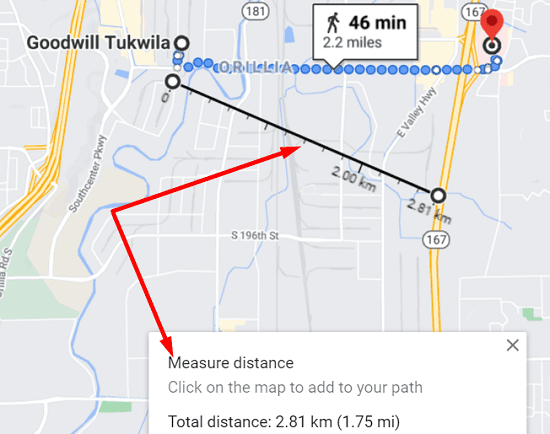
  4. Click again on the map to mark the destination. The distance is visible at the bottom of the page.
measure-distance-google-maps

If you need to add another point, simply click on the map. Alternatively, you can also drag the line on the map using your mouse cursor. If you no longer need that information, you can hit the X button.

How Do I Measure Distances on Google Maps Mobile?

On mobile, the steps to follow are pretty similar.

  1. Launch the Google Maps app, and touch and hold any point on the map until a red pin appears on the screen.
  2. Tap the Direction box and swipe up.
  3. Select Measure distance.google-maps-app-measure-distance
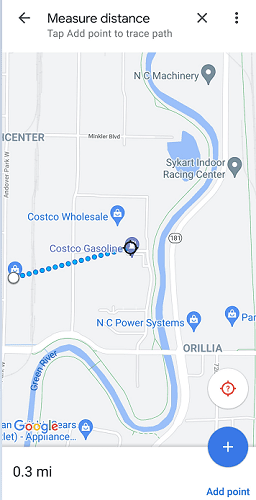
  4. Move the map until you reach your destination. The distance is marked at the bottom of the screen.

measure-distance-google-maps-mobile

Measuring the distance between two points on your mobile app is a bit more difficult, especially if your touchscreen is slow to respond or you’re using a really thick tempered glass screen protector.

Conclusion

The shortest distance between two points is a straight line. Google Maps has a dedicated “Measure distance” option that allows you to quickly measure the distance between two points on the map. If you’re interested in learning more about Google Maps, check out the handy guides below:

  • Google Maps: How to Save a Route
  • Google Maps: How to Create a Personalized Route
Categories: Internet

Author Madalina Dinita

Madalina has been a Windows fan ever since she got her hands on her first Windows XP computer. She is interested in all things technology, especially emerging technologies -- AI and DNA computing in particular.

You Might Also Like

  • Fix Google Chrome Status_Invalid_Image_Hash Error

    Madalina DinitaInternet
  • How to Add a Friend in Discord

    Mel HawthorneInternet
  • How to Remove a Hacker From My Phone The Ultimate Guide

    What Is Hacktivism?

    Mel HawthorneInternet
  • How to Cancel Your Google One Membership

    Judy SanhzInternet

Leave a Reply

Your email address will not be published. Required fields are marked *

  • unable to create notebook error in onenote

    We Were Unable to Create Your Notebook Error in OneNote – Common Fixes 

  • error code 0x800704f8 fix

    Error Code 0x800704f8 – How to Fix 

  • back button in browsers doesnt work

    What to Do if the Back Button in Browser Doesn’t Work 

  • could not find this item

    “Could Not Find This Item” When Trying to Remove Files

  • no graphics signal on first boot

    No Graphics Signal on First Boot – How to Fix

profile pic

The Experts Behind Technipages

My name is Mitch Bartlett. I've been working in technology for over 20 years in a wide range of tech jobs from Tech Support to Software Testing. I started this site as a technical guide for myself and it has grown into what I hope is a useful reference for all.

Learn More

technipages logo white
linkedin icon

Technipages is part of Guiding Tech Media, a leading digital media publisher focused on helping people figure out technology. Learn more about our mission and team here.

© 2026 Guiding Tech Media All Rights Reserved

  • About Us
  • Contact
  • Terms of Use
  • Privacy Policy

© 2026 Guiding Tech Media All Rights Reserved

Information from your device can be used to personalize your ad experience.
Do not sell my personal information.

Last Updated on May 12, 2021 by Mitch Bartlett