Skip to content
LogoTechnipages
LogoTechnipages
  • Topics
        • Android
        • Browsers
        • Gaming
        • Hardware
        • Internet
        • iPhone
        • Linux
        • macOS
        • Office
        • Reviews
        • Software
        • Windows
        • Definitions
        • All Recent Posts
  • Product Reviews
  • About

How to Insert and Remove SIM Card from Samsung Galaxy S20 FE

Andrew MyrickOctober 22, 2020 Comments (5)

While eSIM’s are becoming more and more popular, they have not taken over the world as of yet. This includes the recently-released Samsung Galaxy S20 FE as there is still a physical SIM card tray in the device. For some, you may need to take out the SIM card, especially if you are experiencing some network connectivity issues.
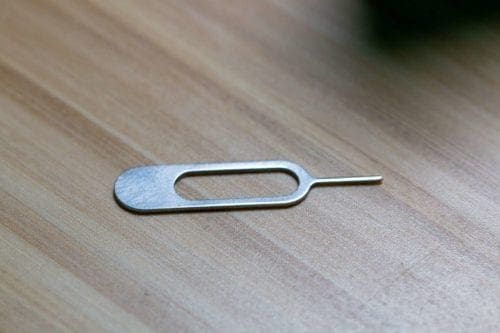
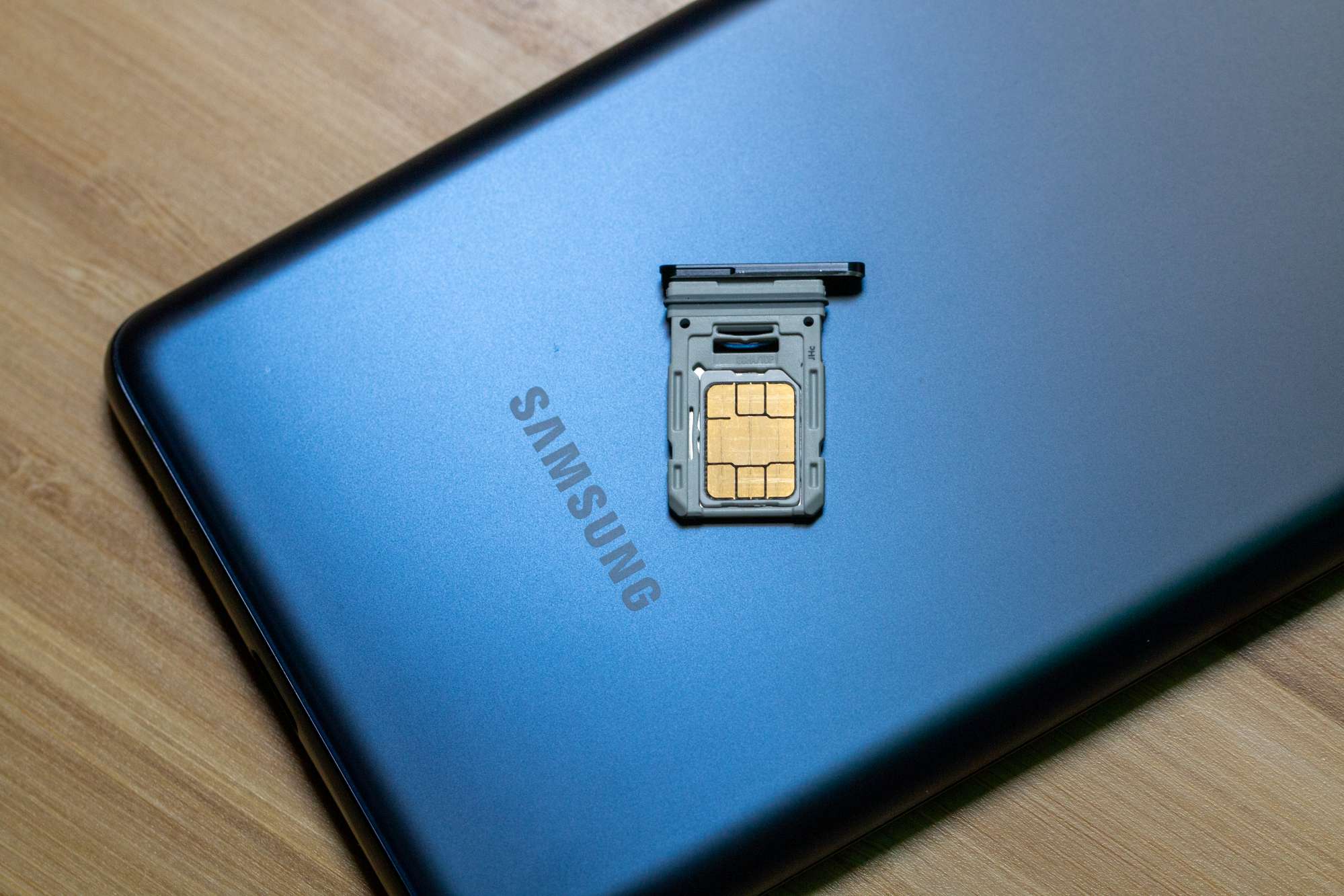
In order to remove the SIM card, you will need to know the location of the SIM tray, along with a SIM ejection tool. In the event that you can’t find the tool that is included in the Galaxy S20 FE’s box, then you can also use a bent paper clip. Although if you are using a paper clip, you need to be a bit more careful.

Insert and Remove the Samsung Galaxy S20 FE SIM Card

The SIM card tray is located on the outer frame of the front display. Look at the right side of the frame, and both the tray and ejection hole are near the bottom. Here’s how you can remove the SIM Card from the Samsung Galaxy S20 FE.
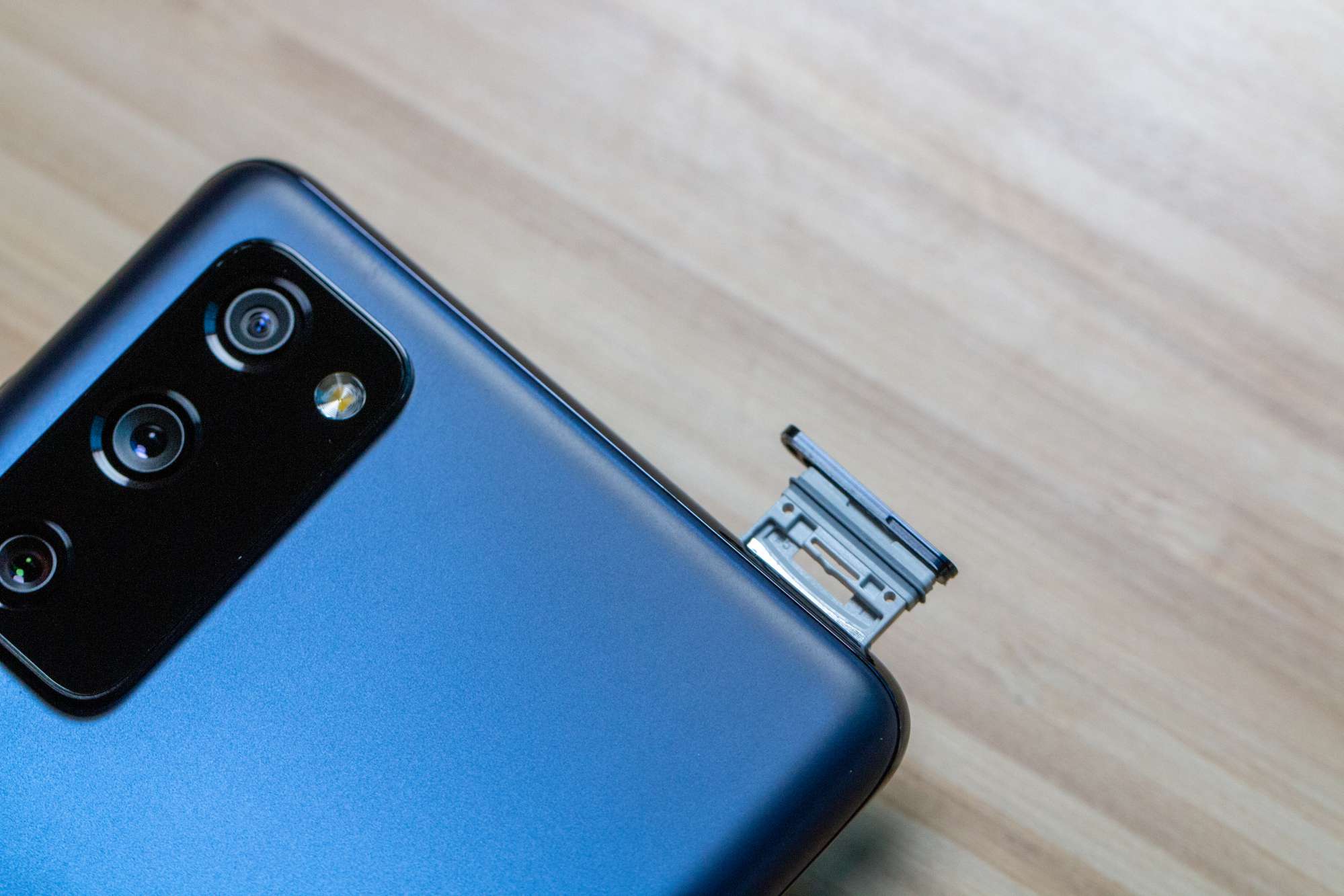
  1. Power the Galaxy S20 FE off completely.
  2. Locate the eject hole on the outer frame of the device.
  3. Using the SIM eject tool (or paper clip), insert it, and gently push the button inside.
  4. The tray will eject.
  5. Carefully remove the tray from the frame.
  6. Remove the SIM card from the tray.

It’s important to note that when you remove the SIM card, a message notification pops up on your Samsung Galaxy S20 FE if it’s still powered on. This just lets you know that the SIM has been removed, and then goes away when the card has been re-installed.

When it’s time to put a new SIM card back into the Galaxy S20 FE, it’s important to have the card lined up properly. If the phone is facing upwards, the gold contacts will be facing down. You can also line up the SIM Card with the outline in the tray.
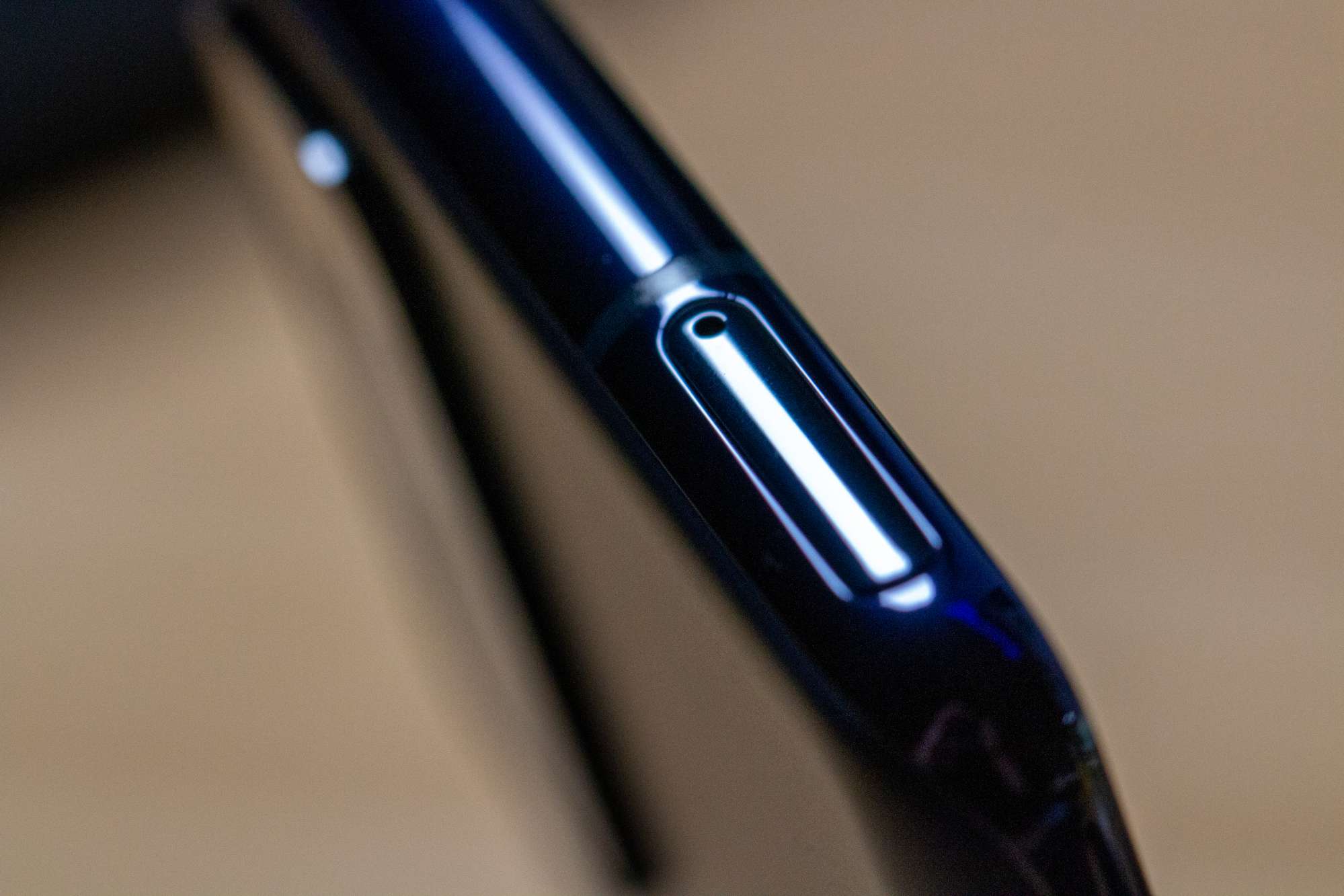
Once the card is housed in the tray, line up the tray with the open hole on the outer frame. Gently push the tray back into place until it is flush with the remainder of the frame. Once the card is back, just turn it back on and you are ready to get back to business.


Categories: Android

Author Andrew Myrick

Andrew Myrick is a freelance writer based on the East Coast of the US. He enjoys everything to do with technology, including tablets, smartphones, and everything in between. Perhaps his favorite past-time is having a never-ending supply of different keyboards and gaming handhelds that end up collecting more dust than the consoles that are being emulated.

You Might Also Like

  • Dolphin for Android: How to Change Homepage

    Mel HawthorneAndroid
  • How to Use Android Phone as Google TV Remote

    Andrew MyrickAndroid
  • Android Logo Header

    How to Set up a New Android Phone

    Andrew MyrickAndroid
  • How to Use Multi-Window With Galaxy Tab S8

    Andrew MyrickAndroid

Comments

  1. Concetta Vanpatten says:
    August 24, 2023 at 5:27 pm

    a sim card was not sent with my replacement for defective s20 5g phone. I received the same phone. Can I use the sim card from the defective phone for the new one?

  2. M. Wickham says:
    February 22, 2022 at 4:59 pm

    My sim card isn’t recognised by my new Galsxy S20FE. I can’t make phone calls and the sim appears to be non-existent, according to my Settings. The sim tray is difficult to open with the card in it.

  3. Rachel says:
    October 30, 2021 at 8:56 am

    I wasn’t told that anything about BUYIING a new SIM card for my new phone! So I’m guessing the SIM card has to be replaced in order to function? Please explain

  4. tom says:
    April 8, 2021 at 6:09 pm

    I have a new s20fe.the phone doesn’t detect the sd card so I removed the simcard/sd card tray.the sd card did not come out although the sim did.I have reinserted the tray twice but no luck.any advice?

  5. John mcquilkin says:
    November 11, 2020 at 4:35 pm

    Still not clear absolutely clear the orientation of SIM card, phone face up?
    Gold contact side of sim down?
    Really

Leave a Reply

Your email address will not be published. Required fields are marked *

  • error 400 when signing in

    Encountered Error 400 When Signing In to Microsoft? Here’s What You Can Do 

  • unable to create notebook error in onenote

    We Were Unable to Create Your Notebook Error in OneNote – Common Fixes 

  • error code 0x800704f8 fix

    Error Code 0x800704f8 – How to Fix 

  • back button in browsers doesnt work

    What to Do if the Back Button in Browser Doesn’t Work 

  • could not find this item

    “Could Not Find This Item” When Trying to Remove Files

profile pic

The Experts Behind Technipages

My name is Mitch Bartlett. I've been working in technology for over 20 years in a wide range of tech jobs from Tech Support to Software Testing. I started this site as a technical guide for myself and it has grown into what I hope is a useful reference for all.

Learn More

technipages logo white
linkedin icon

Technipages is part of Guiding Tech Media, a leading digital media publisher focused on helping people figure out technology. Learn more about our mission and team here.

© 2026 Guiding Tech Media All Rights Reserved

  • About Us
  • Contact
  • Terms of Use
  • Privacy Policy

© 2026 Guiding Tech Media All Rights Reserved

Information from your device can be used to personalize your ad experience.
Do not sell my personal information.

Last Updated on October 22, 2020 by Mitch Bartlett