

Have you started installing a major update on Windows only to be informed that you don’t have enough disk space to do so? These messages pop up at the worst times, but there are steps to take to free up space and get the process moving once again.
In this article, we’ll show you a few ways to clear some room on your operating system’s hard drive and ensure this message won’t bother you again, or until the next time you run out of space.
Contents
Windows Update Not Enough Disk Space – Many Solutions to the Same Problem
There are a ton of ways to free up disk room, and, believe it or not, not all of them are related to simply deleting files. We’ve narrowed it down to five solid methods:
Delete Unnecessary Files

Let’s start with the obvious. Freeing up space is easy to do in Windows. The operating systems have consistently made this easier to do with every release. Consider large files, apps, or programs that you don’t use all that much. For files and folders, move them to external storage devices or other internal drives rather than deleting them (unless you want to, of course). You can also make use of the “Add or remove programs” feature to quickly see how much space apps take up and remove them quickly.
Simply arrange your installed apps by size, and remove the ones you don’t need by selecting “Uninstall.” Easy!
Use Disk Cleanup
Not all space on your PC is taken up by apps and your files. There are plenty of bits and pieces downloaded by Windows and left by programs that add up over time and take up space. If you’re looking to clear your disk, this is an excellent, and low stakes, way to do so. Here’s how:
Step 1. Open the search bar and type in “Disk Clean-up.”
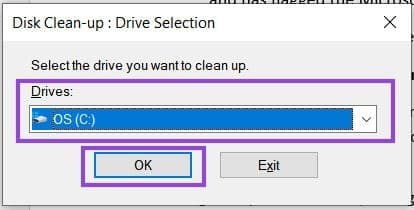
Step 2. A new window will ask which disk to clean. Choose your main hard drive.
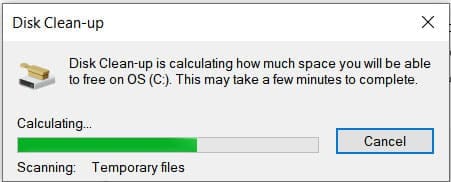
Step 3. Your drive will be scanned, which might take a while. Be patient.
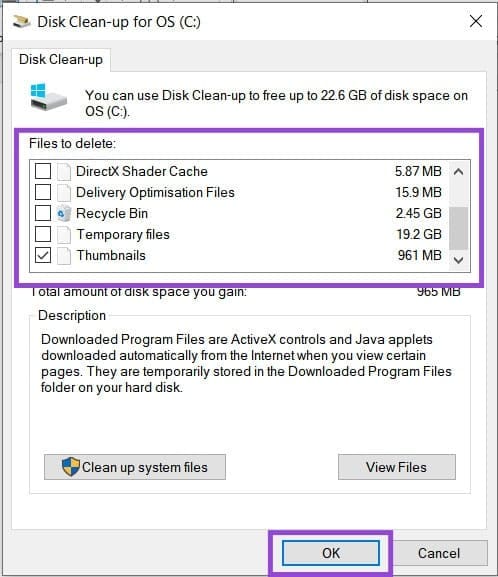
Step 4. You can then choose what types of files you’d like to delete. The two big offenders should be Recycle Bin and temporary files. Once done, click “OK.”
Enable Storage Sense
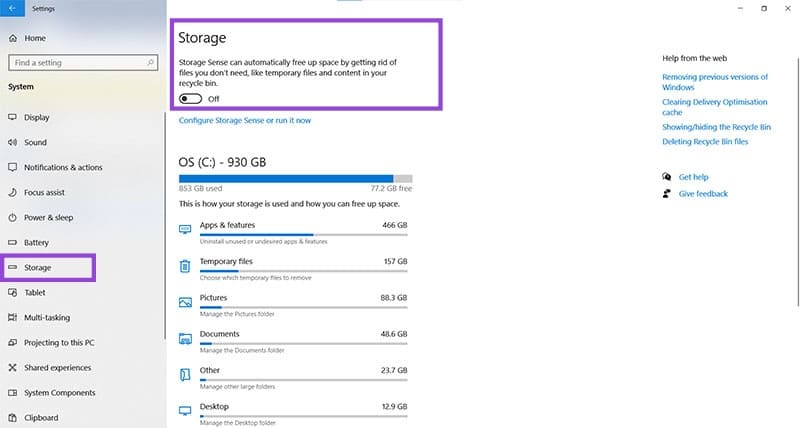
Cleaning up your hard drive can be a pain, but Storage Sense is happy to help. In your Settings, you can enable this feature, which will automatically detect files you don’t need and remove them from your machine. Much like Disk Cleanup, the major focus areas are on temporary files and older files in your Recycle Bin.
If you don’t want to enable the entire feature, you can also click on individual aspects of storage to remove. This is quite handy if you don’t know if you’ll need files in your Recycle Bin again.
Clear the Update Cache
Sometimes Windows updates fail, but their files remain and take up space. If this has happened to you, you can clear the cache. Here’s how:
Step 1. Open the Run dialog (Win + R) and enter “C:\Windows\SoftwareDistribution\”
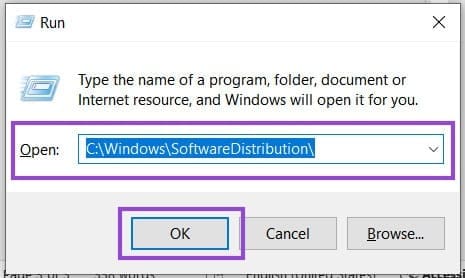
Step 2. In the new window, select all the files and folders and delete them. Press (Shift + Del) to skip sending them to the Recycle Bin.

Step 3. Your files should be deleted and the cache cleared.
Add More Space via External Devices

Windows Update needs to download files and have them ready to install. They don’t necessarily have to be on your operating system’s hard drive, though. Yes, if you’ve got an external hard drive, USB, or other storage device, why not get Windows Update to keep its files there?
This offer will pop up automatically if you’re running low on space. Simply head over to “Update” in Settings. Select the storage device you want to use, and Windows will do the rest. It’s that convenient.




