

Usually, when your PC is left on idle, it should automatically go to sleep or turn off its screen, but your programs and files should still be left open so you can continue later. If your PC turns off completely, however, you might be in a pickle.
Here are the most common troubleshooting steps for when Windows 11 shuts down when idle.
Contents
Fix 1. Change the Power Options if Windows 11 Shuts Down When Idle
While unlikely, a Windows Update or registry change might’ve edited your PC’s power options. This isn’t limited to laptops only, as it can apply to desktop PCs, too.
Step 1. Open Settings, go to “System,” and choose “Power & battery.”
Step 2. Click on the “Screen, sleep & hibernate timeouts” section.”

Step 3. For settings named “Make my device sleep after,” choose “Never” in both sections.
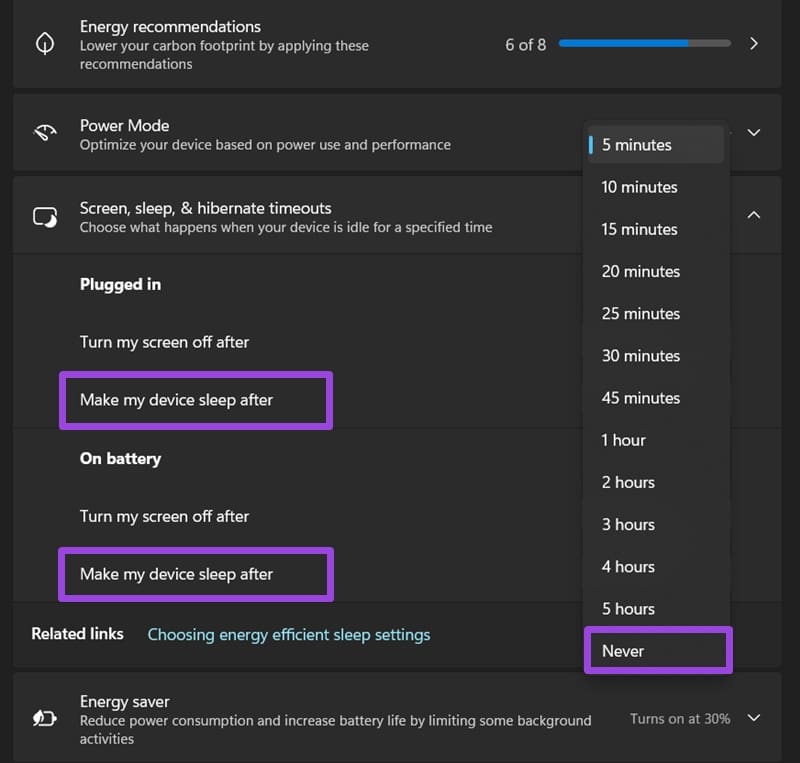
Step 4. In the same Settings menu, go to “Power Mode” and select “Best Performance” (if you have a laptop, you’ll have two different options, so set them both).

Fix 2. Use the Command Prompt to Reset Power Options
You can also use a simple console command to override power settings changes, which would then allow you to apply Fix 1 again.
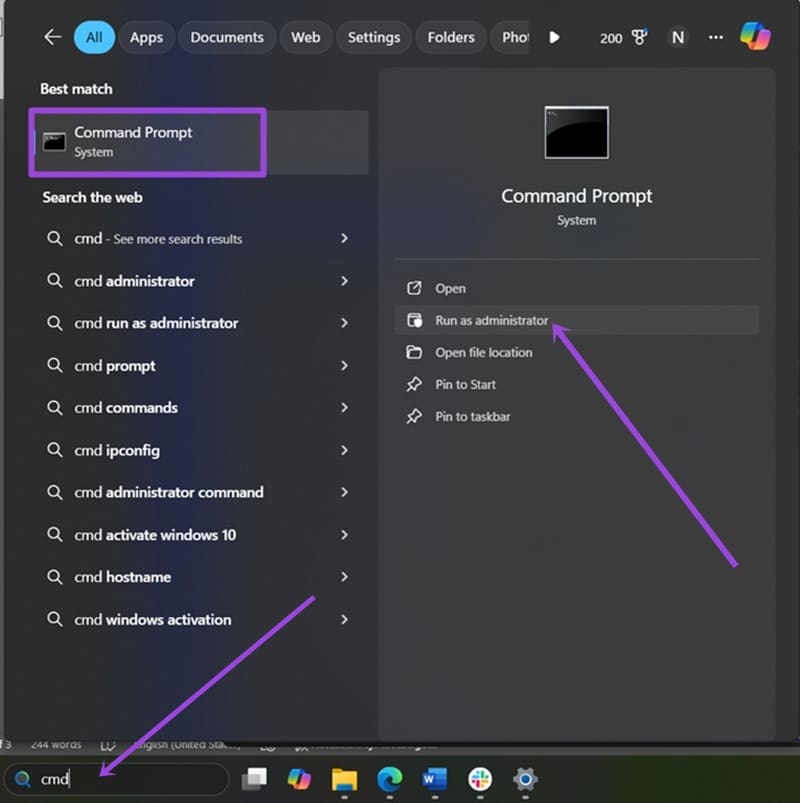
Step 1. Open the Command Prompt in administrator mode. You can do this by searching for “cmd” and selecting “Run as administrator” from the available options. Confirm the choice when prompted by “User Account Control.”
Step 2. Run the following command (you can paste it into the command prompt and hit “Enter”):
powercfg –restoredefaultschemes
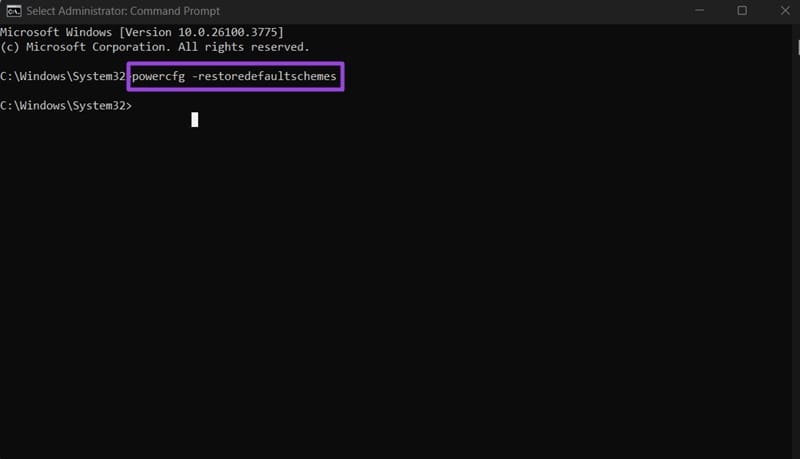
Note that you won’t get any response from the command prompt itself.
Step 3. Reboot your PC and recheck your power settings (see Fix 1) to reapply them if needed.
Fix 3. Check Your PC for Overheating
In rare cases, if your PC starts to overheat when idle, it can shut down on its own.
Step 1. Open the Task Manager (you can right-click on the taskbar to select it).
Step 2. Check if any program is taking up too much CPU or GPU. When idle, your PC shouldn’t have any of these categories in red.
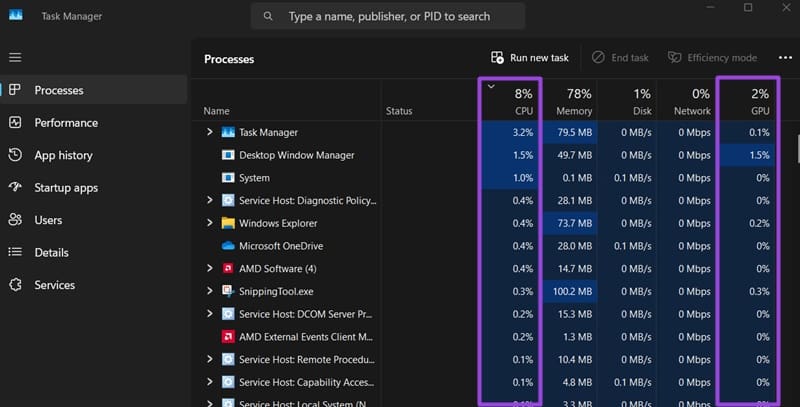
Step 3. Additionally, you can download a third-party CPU core temp checker such as CoreTemp, install it, and check your CPU’s running temperature.
Step 4. If your CPU constantly runs at above 80°C or 176°F, it might be shutting down to prevent damage.
If your PC is overheating when idle, you have few options:
- First, you may have background programs that are causing too much CPU usage. Try Fix 4 before proceeding.
- Alternatively, your case or laptop may be filled with dust or debris and preventing the cooling fans from dispersing air. You can use compressed air to dust out the PC.
- Finally, your PC hardware might no longer be capable of supporting your Windows or background processes. In this case, you should upgrade the PC or CPU cooler and look into further upgrades if needed.
Fix 4. Run a Clean Boot to Check for Third-Party Programs or Viruses
You can boot your Windows with limited drivers and programs to check if a background program is interfering with your settings or CPU usage.
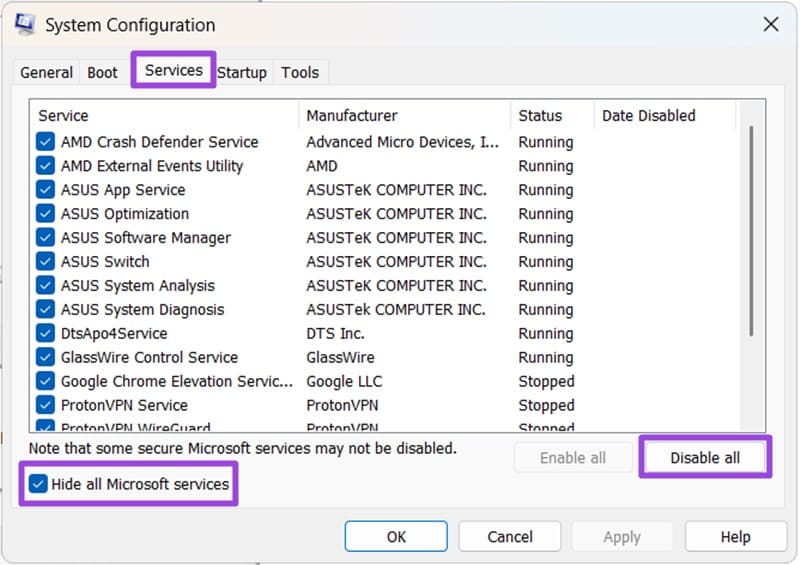
Step 1. In the search bar, type “msconfig” and choose “System Configuration” from the results.

Step 2. In the “Services” tab, check “Hide all Microsoft services” then select “Disable all.”
Step 3. Open the Task Manager and disable all startup apps. Note which items you disabled so you can re-enable them.
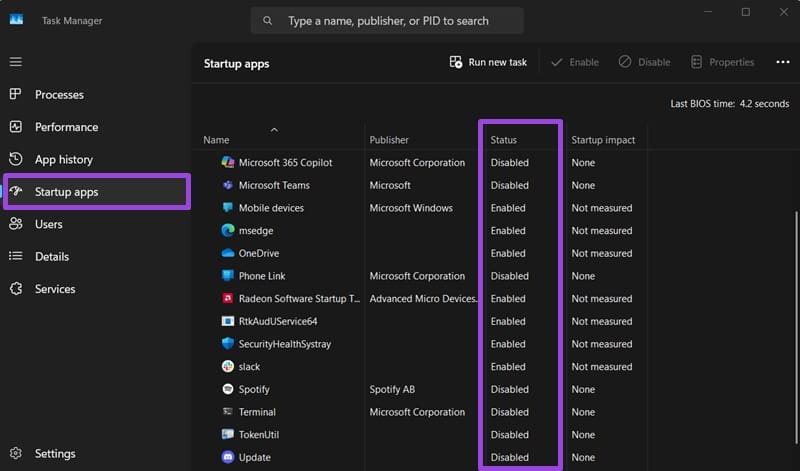
Step 4. Close Task Manager and go back to the System Configuration.
Step 5. Press “OK” and restart your PC.
Step 6. Check if the PC continues shutting down. If it does, you’ll need another fix. Otherwise, you’ll need to isolate which background program (likely one of the startup apps disabled in Step 3) is causing it to shut down. In that case, repeat this process, each time re-enabling one of the apps until your PC shuts down again.
Fix 5. Check for Viruses
Use any reputable antivirus software to check your PC for malware. Start with the stock Windows 11 option, then move to MalwareBytes and other premium antiviruses.
Fix 6. Reinstall Windows
If you can’t isolate the program that is causing the issue when Windows 11 shuts down when idle, a surefire option is to perform a clean reinstall and wipe all your data. It can be a time-consuming process, especially if you need to backup your files, but it can be worth it if you don’t want to risk losing progress in the middle of the day.




