
Error code 0x80244018 indicates your computer failed to install the latest Windows updates. Keeping your computer up-to-date is crucial if you want to access the latest features and keep threats at bay. If you get error code 0x80244018, wait for a few minutes, restart your computer, and try again. Maybe the update servers are too busy and can’t process your request. If the error persists, pursue the troubleshooting steps below.
Contents
- 1 How Do I Fix Update Error 0x80244018 on My Windows PC?
- 1.1 Run the Update Troubleshooter
- 1.2 Repair Your System Files
- 1.3 Restart the Windows Update Service
- 1.4 Restart the Update Service and Rename the SoftwareDistribution Folder
- 1.5 Delete the ThresholdOptedIn Registry Entry
- 1.6 Run the Windows Update Assistant
- 1.7 Disable Your Download Manager and Antivirus
- 1.8 Conclusion
How Do I Fix Update Error 0x80244018 on My Windows PC?

Run the Update Troubleshooter
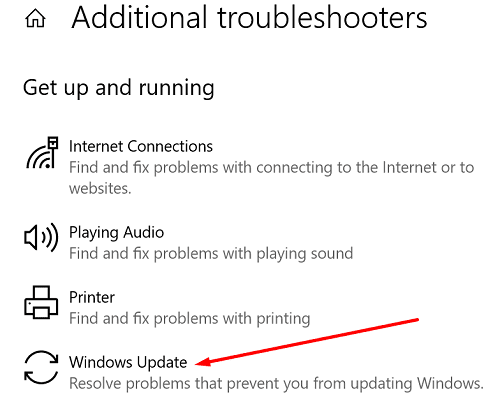
Windows 10 comes with a built-in update troubleshooter that you can run every time your machine fails to install the latest updates. The troubleshooter automatically detects and fixes the issues preventing you from updating your computer. Hopefully, it can fix error 0x80244018 as well.
Go to Update and Security, click on Troubleshoot in the left-hand pane, and select Additional troubleshooters. Then run the Update troubleshooter and check the results.
Repair Your System Files
Error code 0x80244018 indicates your system files could be damaged or corrupted. Repair them and check if you can install the latest updates.
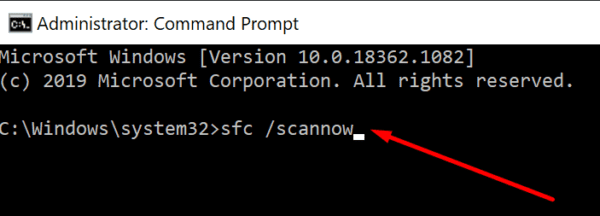
- Press the Windows and X keys on your keyboard and select Command Prompt (Admin).
- Run the following commands one by one:
DISM /Online /Cleanup-Image /ScanHealthDISM /Online /Cleanup-Image /RestoreHealthsfc /scannow
- Restart your computer, and check if the update error persists.
Restart the Windows Update Service
Make sure the Windows Update service is running in the background. Try restarting it and check the results.
- Type services in the Windows search bar and double-click on the Services app.
- Scroll down to the Windows Update service.

- Right-click on it and restart it.
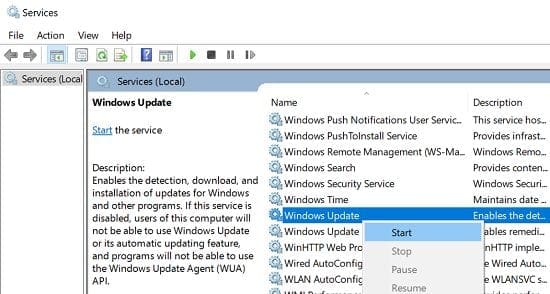
Repeat the same steps for the Background Intelligent Transfer Service, and the Cryptographic Service.
Restart the Update Service and Rename the SoftwareDistribution Folder
Launch Command Prompt with admin privileges again and run the following commands hitting Enter after each one:
net stop wuauservnet stop cryptSvcnet stop bitsnet stop msiserverren C:\Windows\SoftwareDistribution SoftwareDistribution.oldren C:\Windows\System32\catroot2 catroot2.oldnet start wuauservnet start cryptSvcnet start bitsnet start msiserver
Wait for the processes to complete, and then check for updates again.
Delete the ThresholdOptedIn Registry Entry
Launch the Registry Editor and navigate to Computer\HKEY_LOCAL_MACHINE\SOFTWARE\Microsoft\WindowsSelfHost\Applicability. Then remove the ThresholdOptedIn entry if it’s available on your computer.
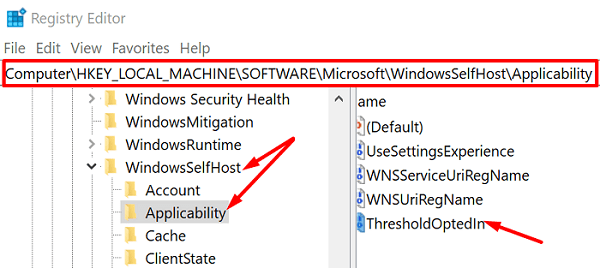
Restart your machine and check for updates again.
Run the Windows Update Assistant
If 0x80244018 is preventing you from installing a major feature update, use the Windows Update Assistant instead of running the built-in Windows Update service. Go to Microsoft’s official website and download the Update Assistant. Then run the executable and follow the onscreen steps to complete the update process.
Disable Your Download Manager and Antivirus
Are there any download managers installed on your computer? If there are, disable or uninstall them. As a quick reminder, download managers can sometimes interfere with the Microsoft Baseline Security Analyzer (MBSA). They can even prevent the analyzer from downloading the security update of Mssecure.cab.
Additionally, if you’re using a third-party antivirus, disable it while you’re updating your computer. Third-party security solutions may sometimes mistakenly flag your update files as “suspicious” and block them. Don’t forget to re-enable your antivirus when you’re done installing the updates.
Conclusion
If error code 0x80244018 is preventing you from updating your Windows computer, first run the Update Troubleshooter. Then run SFC and DISM to repair corrupted system files. If the issue persists, restart the Windows Update Service, and rename the SoftwareDistribution folder. Additionally, disable third-party download managers and antivirus tools.
Which of these solutions worked for you? Share your feedback in the comments below.



When I got to ren C:\Windows\SoftwareDistribution SoftwareDistribution.old, I got Access is denied.