

Ah, Microsoft errors: an unfortunate reality all PC users have to face at some point. Error code 0x80070005 is one such unwelcome popup that you might have to face while updating Windows and various apps, or while using the Microsoft Store.
This article will explore the root causes behind the issue of 0x80070005 access is denied and look at several ways to fix it.
Contents
All About Permission
When you receive the 0x80070005 error popup, the message that follows the code: “Access is denied” is your explanation. Your error is a permission problem. The code goes all the way to the registry, an important database where all the settings and configurations for your machine are kept.
This code is triggered by Microsoft’s own applications, most commonly Windows Update and Microsoft Store. When your machine can’t access the necessary permissions, you’ll see this message appear. There are several possible problems that cause this:
- Your current account lacks administrator privileges.
- The registry is corrupted or damaged.
- A Windows update is incomplete or corrupted during download.
- The Microsoft Store is experiencing problems.
- You have an unstable internet connection (which can cause faulty downloads).
- Your computer has been infected by malware.
With all this in mind, let’s look at several ways to get your access permissions back on track.
Fixing the “0x80070005 Access is Denied” Error
Depending on the cause of the issue, your working solution may vary. It’s a good idea to try them all until you’re no longer haunted by the message. That said, let’s get problem-solving:
Start With the Obvious Fixes
Before attempting any other fixes on this list, start by restarting your Microsoft Store app, or PC, and checking that your internet connection is secure. This may sound obvious, but it’s amazing how often we forget to do these things.
Enable Administrator Permissions
If the error message pops up when installing an app from the Microsoft Store, you might not have Administrator Privileges enabled on your current account. You’ll need to restart and log in with the account that does, which you can prioritize via Command Prompt. Here’s what to do:
Step 1. Open the Run Dialog (Win + R) and type in “cmd” before hitting OK.
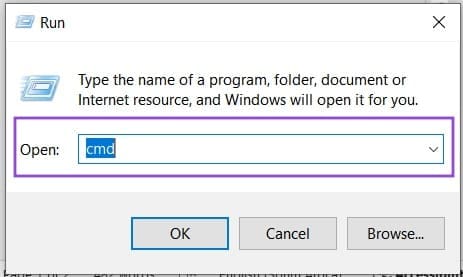
Step 2. In the Command Prompt window, type: “net user administrator /active:yes” and hit Enter.

Step 3. Restart your machine and the account with Administrator privileges should be selected as a priority login.
Note that enabling the Administrator account carries some security risks. Be sure to deactivate it after restarting.
Clear the Windows Update Files
If you suspect that a faulty Windows update might be to blame, you can always delete the downloaded files and begin the download and installation process again. Here’s how:
Step 1. Open the Run dialog (Win + R) and enter “C:\Windows\SoftwareDistribution\”
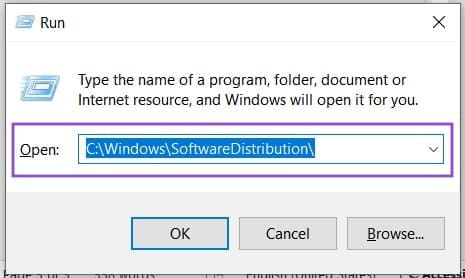
Step 2. In the new window that pops up, select all the files and folders and delete them. You can press (Shift + Del) to skip sending them to the Recycle Bin.

Step 3. Your files should be deleted and the cache cleared.
Disable the Antivirus
Sometimes a very vigilant antivirus program might flag an app being installed or updated as a security threat. Try disabling your protection while you install the app (providing it can be trusted) and see if the message persists while doing so. If not, congratulations! You found the issue. Be sure to re-activate the antivirus program after solving the issue.
Repair Microsoft Store
If you think a corrupt Microsoft Store is to blame, you can repair it via the Run dialog box. It’s easy:
Step 1. Open the Run dialog (Win + R), type in “wsreset” and click OK.
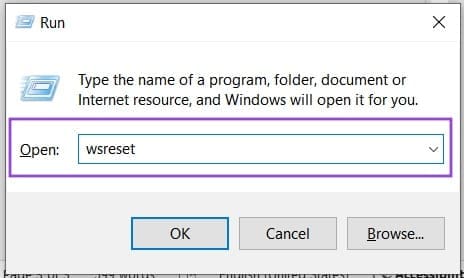
Step 2. The process will then run in Command Prompt and close once finished.
Step 3. Try opening the Store again to see if the problem is resolved.




