In addition to your keyboard, your mouse is a major way you interact with your PC. But if your mouse icon suddenly starts to flicker on the screen and then disappears, it can be extremely frustrating. There are a few possible causes behind this error, and just as many fixes. In this article, we’ll be taking you through how to fix a flickering mouse on Windows 10 and 11.
Contents
Mouse Cursor Keeps Flickering and How to Stop It
There’s a lot that can cause a blinking mouse cursor. Some major reasons include:
- A damaged or incompatible mouse
- Outdated or corrupted drivers
- Display problems on your machine
- Touchscreen conflicts (if using one)
- Malware
- Signal interference, in the case of a wireless mouse
More important than the causes are how to fix them. Let’s get started.
Obvious Fixes
It’s always good to try some obvious troubleshooters, even if they seem silly. They’re often what can solve a problem and save you time in the process. For a flickering mouse, here’s what to do first:
- Disconnect and reconnect your mouse.
- Try plugging the mouse (or its receiver) into a different USB port.
- Restart your machine.
- Ensure your PC is fully updated.
- Try your mouse on a different machine and see if the issue persists.
If your mouse has passed all of those tests, it’s time for other fixes.
Update Drivers
Your mouse drivers can be updated manually through Device Manager. Here’s what to do:
Step 1. Type “Device Manager” into the search bar and choose the option.
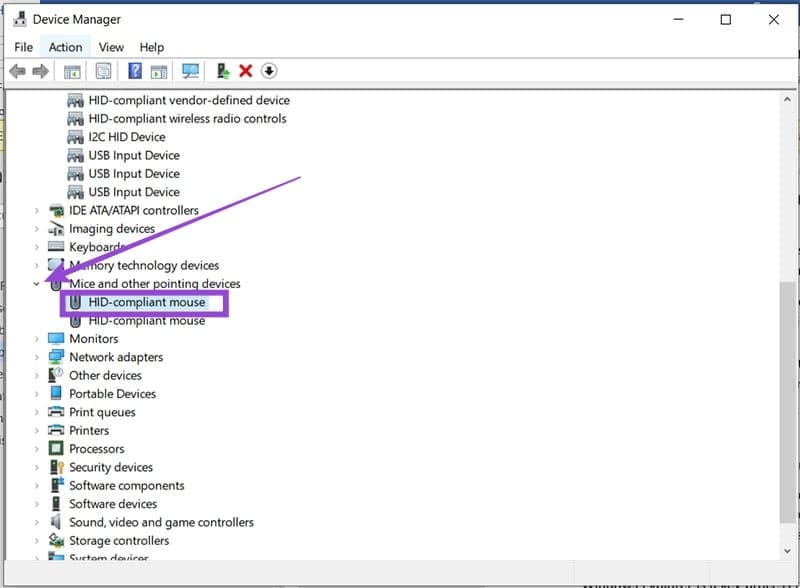
Step 2. Open the “Mice and other pointing devices” section and choose your mouse.
Step 3. Right-click your mouse and select “Update driver.”
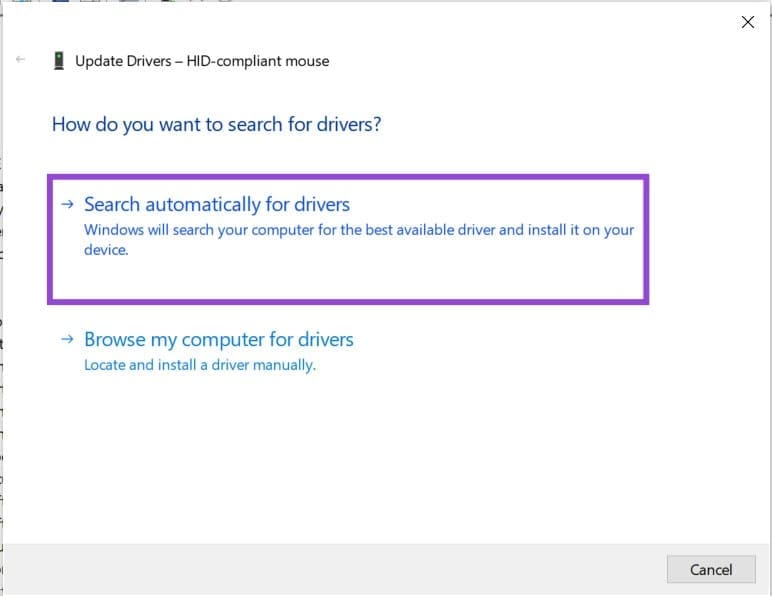
Step 4. Choose “Search automatically for drivers,” and your machine will look for and install any that appear.
Restart Windows Explorer
Windows Explorer is a key process that keeps most of the graphical interface working. If your mouse stops flickering when you open Task Manager and hover over the window, the problem might be with Windows Explorer itself. Here’s how:
Step 1. Open Task Manager (Ctrl + Shift + Esc) and hover your mouse over the window to check.
Step 2. Look for the “Windows Explorer” process and click to select it.

Step 3. Click the “Restart” button to reboot the File Explorer. Your screen might go black for a moment, and all windows will be closed.
Step 4. See if the issue is resolved.
Safe Boot Your Machine
Safe Mode is a way for Windows users to troubleshoot exactly what’s causing a problem on their PC. Safe Mode starts with basic functionality. If a problem (like a flickering mouse) persists in this mode, then the problem isn’t related to drivers or system settings. To check that these aren’t the case, reboot your machine in Safe Mode:
Step 1. Open Settings (Win + I) and choose “Update & Security.”

Step 2. Choose “Recovery” from the sidebar.
Step 3. Click “Restart now” under the “Advanced startup” subsection.

Step 4. Your machine will reboot. Choose “Startup Settings.”
Step 5. Press 4, 5, or 6 to enable Safe Mode.
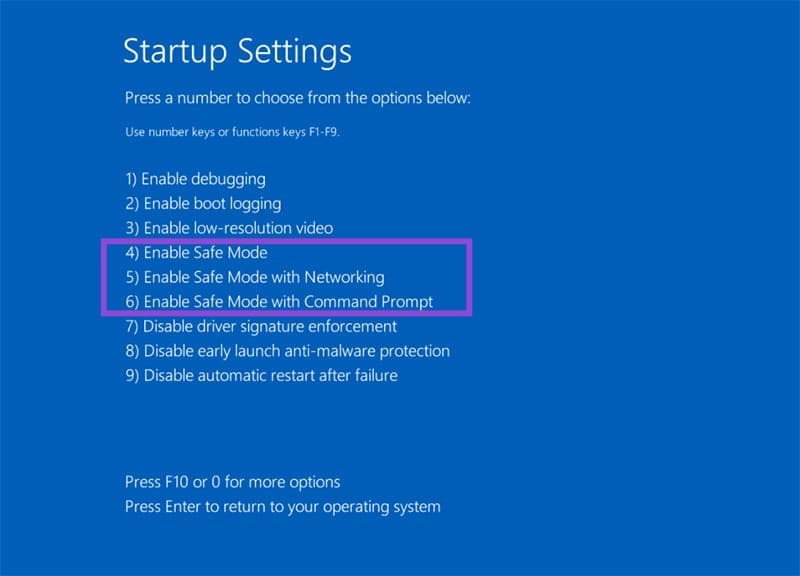
Step 6. Once Windows has booted, see if the flickering mouse persists.
Check for System Corruption

If you still have problems in Safe Mode, you can always try running a System File Checker (SFC) scan. Here’s how:
Step 1. Open the Run dialog (Win+R) and type “cmd” in the box.
Step 2. Press (Ctrl + Shift + Enter) to run as Administrator.
Step 3. In the Command Prompt window, type “sfc /scannow” to begin the check.
Step 4. Windows will fix any problems it encounters.
Disable the Touch Screen
If you have a PC or laptop with a touch screen, a conflict with the mouse can cause the icon to flicker. You can easily disable the touch screen this way:
Step 1. Type “Device Manager” into the search bar and open it.
Step 2. You’ll find the touch screen controls under the “Human Interface Devices” section.
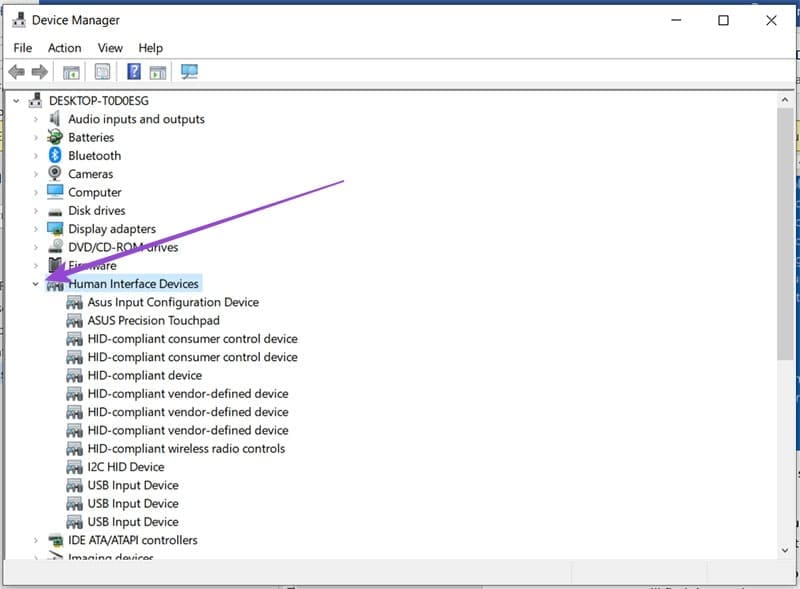
Step 3. Right-click the touch screen device listed and select “Disable device” from the menu.
Step 4. See if this resolves the flickering issue.