
The Redmond giant launched Microsoft Teams in 2017. Four years later, the app is still affected by a long list of bugs and errors. Things are not perfect and there’s still plenty of room for improvement. Login errors remain one of the most frequent issues affecting Teams users. In this guide, we’re going to focus on the annoying error code CAA301F7 and how you can fix it on Windows 10.
Contents
How Do I Fix Teams Error Code CAA301F7?
Use the Web App
The web app is rarely affected by the same issues that are plaguing the desktop app. So, go to teams.microsoft.com, and check if you can log in to your account. In this manner, you can quickly access your Teams account and take care of any urgent tasks. After that, you can resume the troubleshooting process with the help of the solutions listed below.
Check Your Network Connection
Make sure your Internet connection is stable. Restart your router and switch to a cable connection. Don’t forget to disconnect the other devices using the connection to free up more bandwidth for Teams. If you’re using a wireless connection, move your laptop closer to your router and check if the issue is gone.
Disable Your Antivirus and Firewall
First of all, check if your antivirus and firewall are indeed to blame for error code CAA301F7. Temporarily disable your antivirus and firewall and check the results.
If the error is gone, whitelist Teams in your antivirus settings. Additionally, add a new firewall rule for Teams instructing your security tool to let Teams run on your machine. For detailed instructions on how to do that, go to the support page dedicated to your antivirus and firewall.
Clear Teams Login Information
You can quickly fix Microsoft Teams login issues by clearing the login data from the Credential Manager.
- Type “credential manager” in the Windows Search field, and double-click on the first result.
- Then, select Windows Credentials and locate your Teams login data.

- Select all the entries and hit the Remove option.
- Restart your computer, launch Teams again, and check the results.

Clear the App Cache
Your app cache might be interfering with your current Teams session preventing you from logging in.
- Right-click on the Teams taskbar icon and select Quit to exit the app.
- Then type %appdata%\Microsoft\Teams in the Windows search field and hit Enter.
- Delete all the files and folders from the Teams folder.

- Launch Teams again and check if you can log in to your account now.
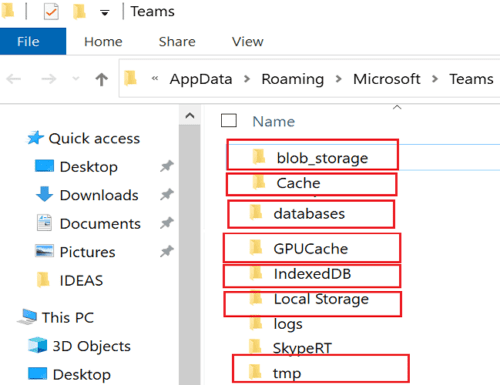
If the issue persists, navigate to C:\ProgramData\Intel\ShaderCache\Teams_1 and delete the Teams_1 cache file as well.

Launch Teams With Admin Rights
Run Teams with admin privileges and enable Windows 8 or Windows 7 compatibility mode. Many users confirmed this combo fixed their Teams login issues.
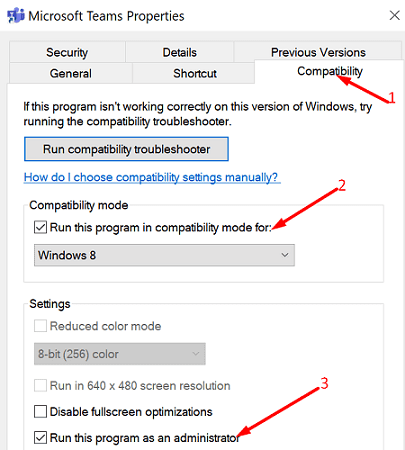
- So, right-click on your Teams desktop icon and select Properties.
- Then, click on the Compatibility tab.
- Under Compatibility Mode, check the option that says Run this program in compatibility mode for and select Windows 8 or Windows 7.
- Then, under Settings, tick the checkbox that says the Run this program as an administrator.

- Save the new settings and Launch Teams again.
Enable WS-Trust 1.3
If you’re an IT admin and users contacted you about this error code, you need to enable WS-Trust 1.3 for Desktop Client SSO on the on-prem ADFS server. Use this solution if you’re using a federated setup with Azure AD tenant.
All you need to do is run the following command: Enable-AdfsEndpoint -TargetAddressPath “/adfs/services/trust/13/windowstransport”.
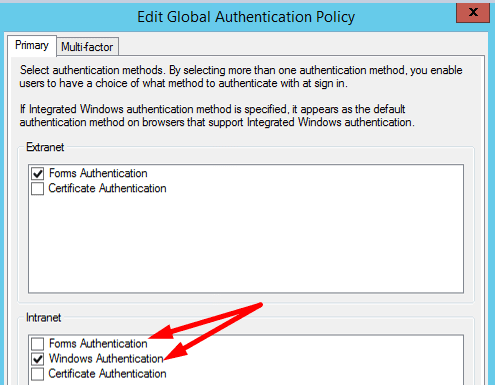
Additionally, enable both Forms and Windows Authentication (WIA) in the global authentication policies under Intranet settings.
Ask users to restart their computers and check if they can now access their Teams accounts.
Reinstall Teams
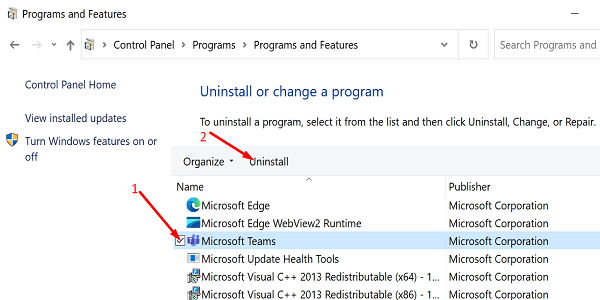
If error CAA301F7 persists, go to Control Panel, and under Programs select Uninstall a program. Select Teams, hit the Uninstall button, and restart your computer.
Then, download a fresh copy of the app and install it on your device.
Conclusion
Teams error code CAA301F7 indicates the login process failed. To fix the issue, disable your antivirus and firewall, and clear your Teams login data from the Credential Manager. Additionally, makes sure to run the app in compatibility mode with admin privileges. Did you manage to get rid of error CAA301F7? Let us know in the comments below.