Skip to content
LogoTechnipages
LogoTechnipages
  • Topics
        • Android
        • Browsers
        • Gaming
        • Hardware
        • Internet
        • iPhone
        • Linux
        • macOS
        • Office
        • Reviews
        • Software
        • Windows
        • Definitions
        • All Recent Posts
  • Product Reviews
  • About

How to Fix Microsoft Solitaire Error 124 on Android

Madalina DinitaMay 7, 2021 Comments (1)
microsoft-solitaire-error-124

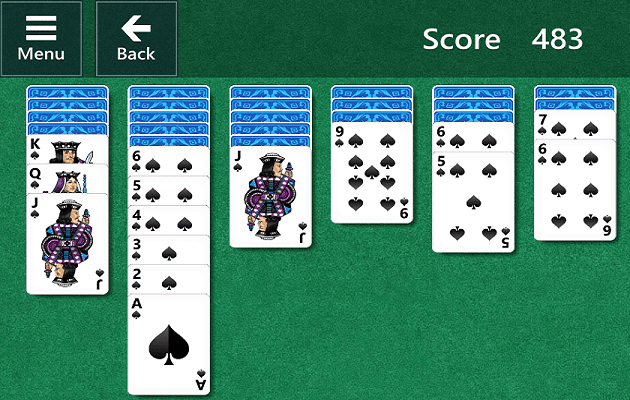
Microsoft launched the popular Solitaire game in 1990. When I got my first Windows XP computer, that was the first PC game I ever played. The game still has a solid player base of 35 million monthly players and is now available on both Windows and Android.

Many users complained they often get error code 124 when launching Microsoft Solitaire on their devices. If you’re looking for a solution to fix this error, pursue the troubleshooting solutions below.

Contents

  • 1 How Do I Fix Microsoft Solitaire Error 124 on Android?
    • 1.1 Use a Different Connection
    • 1.2 Clear the Cache
    • 1.3 Update or Reinstall the Game
    • 1.4 Conclusion

How Do I Fix Microsoft Solitaire Error 124 on Android?

Use a Different Connection

Disable your current connection and enable Airplane Mode. Then disable Airplane Mode and re-enable cellular data. Check if the error persists. If it does, switch to a wireless connection and check if this workaround solved the problem.

Clear the Cache

Go to Settings, select Apps, and tap Microsoft Solitaire. Then select Storage and tap the Clear cache button. Launch the game again. If it’s still throwing error 124, go back to Storage and hit the Clear data button as well.

ms-solitaire-clear-cache-android

Update or Reinstall the Game

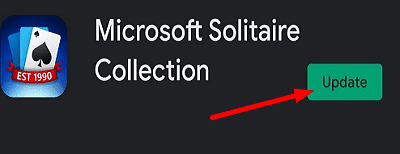
Additionally, make sure you’re running the latest Microsoft Solitaire game version on your Android device. Launch the Google Play Store app, search for Solitaire, and hit the Update button.
update-solitaire-game-android

Speaking of updates, go to Settings, select System update, and check if there’s a newer Android OS version available for your device. Install it and restart your terminal.

Then launch the game again to test if error 124 persists. If this is the case, uninstall Solitaire and restart your Android device. Then reinstall the game and launch it again.

Conclusion

MS Solitaire error 124 indicates your Android device failed to connect to Solitaire’s servers. To fix the problem, switch to a different connection, enable Airplane Mode, clear the cache and update the game. If none of these solutions helped, restart your device and reinstall Solitaire.

Categories: Android

Author Madalina Dinita

Madalina has been a Windows fan ever since she got her hands on her first Windows XP computer. She is interested in all things technology, especially emerging technologies -- AI and DNA computing in particular.

You Might Also Like

  • How to Add a Signature with Image in Gmail

    Judy SanhzAndroid
  • Differences Between Galaxy S10, S10+ and S10e

    Mel HawthorneAndroid
  • How to Insert and Remove SIM Card from Samsung Galaxy S22

    Andrew MyrickAndroid
  • The Latest Foldable Phones – A Look At The Samsung Galaxy Z Fold 5

    Mel HawthorneAndroid

Comments

  1. Lin wright says:
    October 3, 2021 at 4:02 am

    I have tried all suggestions but still has error 124

Leave a Reply

Your email address will not be published. Required fields are marked *

  • roblox error 280

    Having Trouble With Roblox Error 280? Here’s What to Do

  • hard disk smart command error

    Hard Disk SMART Command Failed – How to Fix 

  • files automatically deleted on click

    Files Getting Deleted Automatically? Here Are Some Reasons Why

  • error 400 when signing in

    Encountered Error 400 When Signing In to Microsoft? Here’s What You Can Do 

  • unable to create notebook error in onenote

    We Were Unable to Create Your Notebook Error in OneNote – Common Fixes 

profile pic

The Experts Behind Technipages

My name is Mitch Bartlett. I've been working in technology for over 20 years in a wide range of tech jobs from Tech Support to Software Testing. I started this site as a technical guide for myself and it has grown into what I hope is a useful reference for all.

Learn More

technipages logo white
linkedin icon

Technipages is part of Guiding Tech Media, a leading digital media publisher focused on helping people figure out technology. Learn more about our mission and team here.

© 2026 Guiding Tech Media All Rights Reserved

  • About Us
  • Contact
  • Terms of Use
  • Privacy Policy

© 2026 Guiding Tech Media All Rights Reserved

Information from your device can be used to personalize your ad experience.
Do not sell my personal information.

Last Updated on May 7, 2021 by Mitch Bartlett