Grok AI is an advanced chatbot powered by xAI, which is integrated into the X platform. It’s designed to provide smart, conversational responses and real-time information. However, Grok AI may sometimes stop working or start to respond unpredictably. If you’re experiencing issues such as Grok not loading, failing to respond, or returning errors, this guide outlines common causes and how to fix them.
Contents
Fixes if Grok AI Is Not Loading or Opening
Sometimes Grok AI doesn’t load at all or appears blank when you try to open it. This is usually due to browser or app-related issues. Here’s how to fix this:
Clear Your Browser or App Cache
On Desktop
Step 1: Open settings in a web browser.
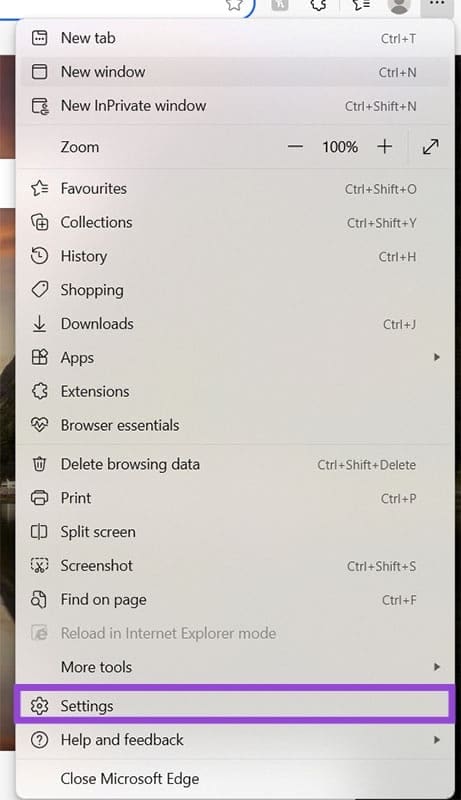
Step 2: Open ‘Privacy, search and services’

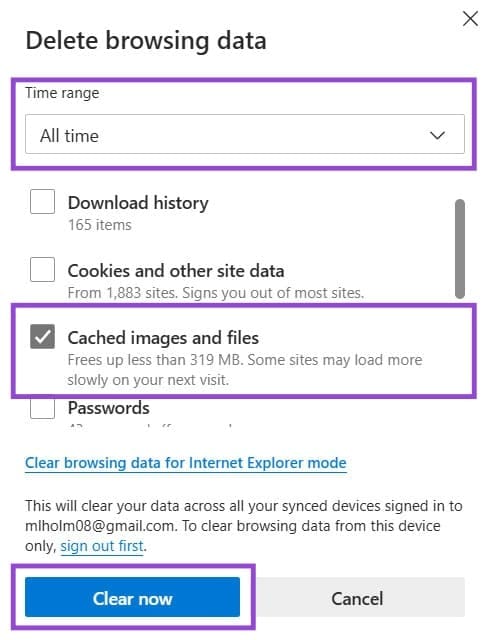
Step 3: Select ‘Clear browsing data’
Step 4: Select ‘All time’ and ‘Cached images and file’, then clear.
On Mobile App
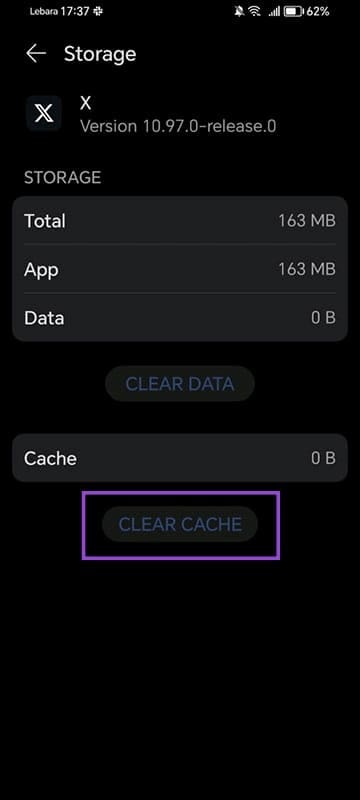
Step 1: Go to Settings, then Apps and find X.

Step 2: Open Storage.
Step 3: Click ‘Clear Cache’
Refresh or Restart the App/Browser
Fully close the app or browser, then reopen it and try Grok AI again. It should work now.
Try a Different Browser or Device
If you’re using the mobile app, try switching to a desktop browser or vice versa. Also, make sure your browser is up to date. It might be that one version is just struggling temporarily to load Grok AI.
Some users report that Grok AI has disappeared or cannot be accessed, even when they are subscribed to a plan.
Make Sure Your Region Is Supported
Grok AI is not available in all countries. Use a VPN to check if the issue is specific to your area. If it works with a VPN, then the service may not be rolled out in your location yet.
Update the X App
Step 1: Go to the app store.
Step 2: Search for X.
Step 3: Click ‘Update’ if available.
Step 4: Restart the app.
Log Out and Back In
Step 1: Click on your profile icon.
Step 2: Click ‘Log out’
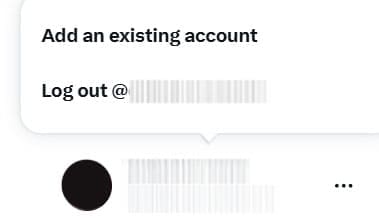
Step 3: Log back in.
Fixes if Grok AI Responds Slowly or Returns Errors
Grok may occasionally respond with errors like ‘Something went wrong’ or show slow performance.
Check X’s Server Status
Visit ‘status.x.ai’ or follow @xai or @Support on X for updates. If there’s a server problem, you may need to wait.

Reduce Network Congestion
Sometimes, it can help to switch to a stronger Wi-Fi connection or use mobile data. You might need to restart your router if you’re on a slow or unstable connection.
Disable Browser Extensions
Step 1: Open your browser extensions and click ‘Manage extensions’

Step 2: Disable ad blockers, privacy tools, or script blockers.
Step 3: Reload the page.
Use Incognito Mode
Open an incognito window then log in to your X account and try accessing Grok again. This bypasses most browser cache and plugin issues.
Report the Issue
If none of the above steps work, report the issue directly:
Step 1: Open X and go to Settings and privacy.
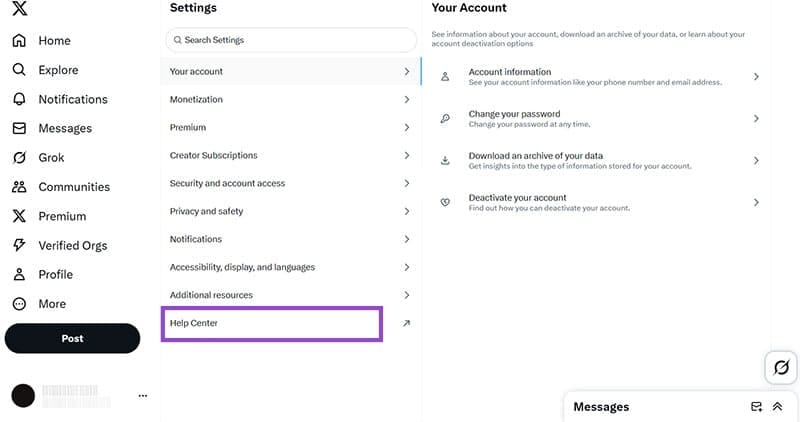
Step 2: Open the Help Center.
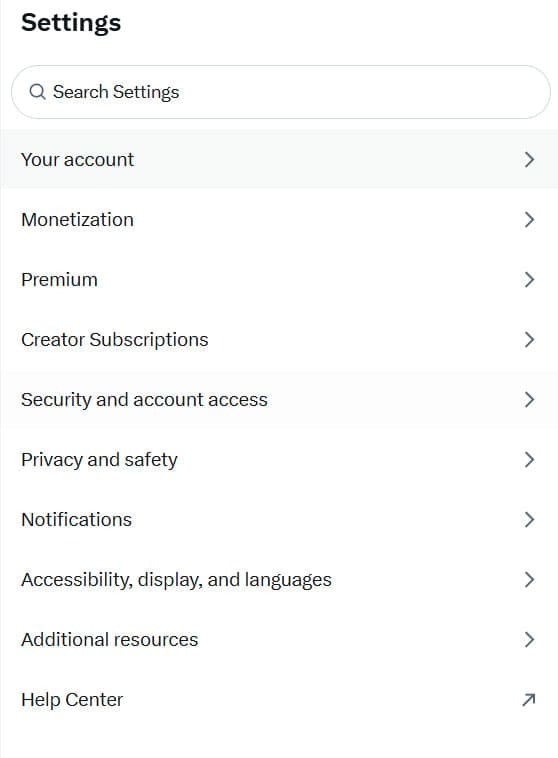
Step 3: Search ‘Grok’ then click About Grok.

Step 4: Scroll to ‘Where can I find Grok?’ and use the contact form.