After a long day of work, you’re ready to boot up your favorite game and are suddenly greeted with this message: “CreateFile failed with 32.” What’s that all about?
This error message is the result of the cheat-busting software EasyAntiCheat and its files on your system. You may have knowingly installed it, or odds are it was bundled together with your favorite online game without your knowledge. Whatever the case, it’s keeping you from playing, and this article is here to help you fix error code 30005.
Contents
Stopping the Cheaters
EasyAntiCheat, in the vein of its predecessor PunkBuster, is software that aims to make cheating next to impossible on multiplayer and online games. It runs in the background while you play your games and looks for any suspicious files or unknown data. It only runs with the games that require it and can be found in the Task Manager.
It’s normally on starting up one of these games (Fortnite, Far Cry 5, and most titles by Epic) that you’ll run into error code 30005. Assuming you’re not using cheats, the error message is the software detecting that something is preventing it from operating normally. That something can be a few things, which require a few solutions.
How to Fix Error Code 30005
Error code 30005 can be quite annoying when all you want to do is start up your game. Thankfully, though, it doesn’t have to be much more than a momentary irritant, as the fixes to deal with it are quite straightforward. We’ve got a few error code 30005 fix for you to try:
Restart
The age-old advice still holds. Before attempting any other fixes, first try turning your machine off and then restarting it. If the problem persists after this, it’s time to try something different.
Disable Your Antivirus
Antivirus software can occasionally get overzealous in detecting potential threats to your machine. In the case of online gaming, it might flag EAC as a problem and cause error code 30005. You can temporarily disable your antivirus to see whether this is the case. For Windows Defender:
Step 1. Open Settings (Win + I) and choose “Update & Security.”

Step 2. Click “Windows Security” in the sidebar.
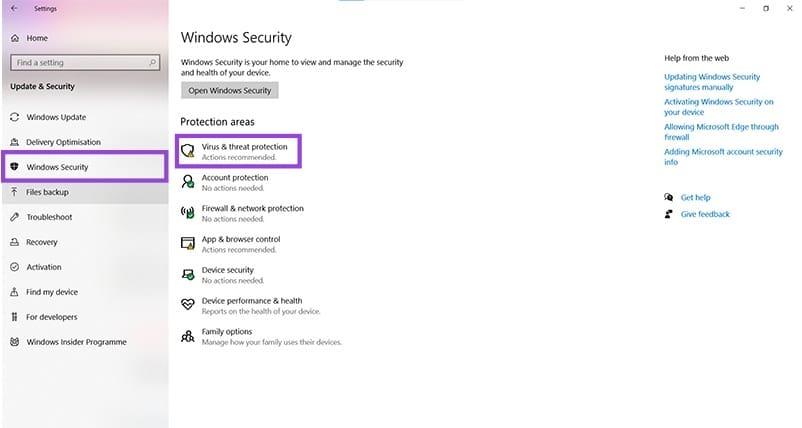
Step 3. Click “Virus & threat protection” to bring up a new window.
Step 4. Choose “Manage Settings” under “Virus & threat protection” to bring up your protection settings.
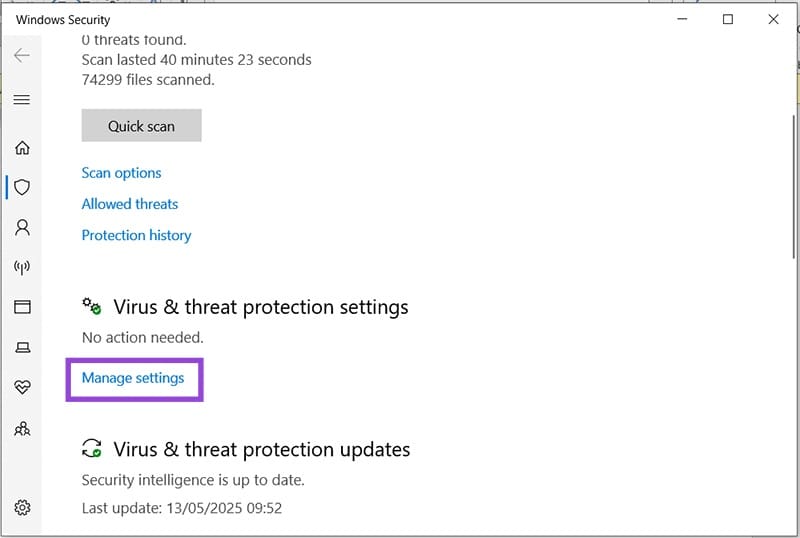
Step 5. Drag the “Real-time protection” slider to “Off” and accept the warning.

Delete the Sys File
Contained within any “.sys” file is the data needed to start up an app or program. It’s essential to running things, so if you ever delete one, the app will recreate the file on launch. If you suspect that this file might’ve been corrupted in some way, you can easily delete it. Here’s how:
Step 1. Close any games and apps that could be running EasyAntiCheat in the background.
Step 2. Open your EasyAntiCheat folder in Explorer (Win + E). You will usually find a folder with this name in “Program Files (x86)” or “Program Files.”
Step 3. In the folder, right-click on the “.sys” file and choose “Delete” from the context menu.
On restarting the app, EasyAntiCheat will then create a new “.sys” file.
Repair the Files
If your EasyAntiCheat software was installed through client software like Steam, then you also have the option to repair its system files through it. Sometimes EAC comes buried within the folders of various game titles. The location of the folders can vary slightly. Here’s how to access them:
Step 1. Open Steam and choose the game that has been giving you the error message.
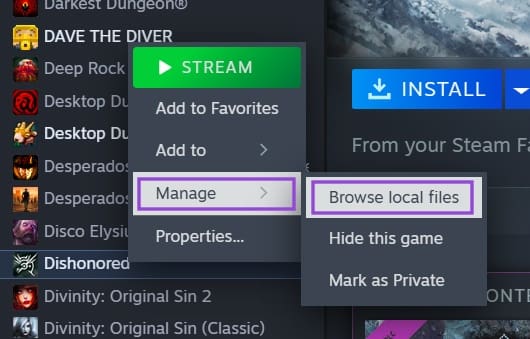
Step 2. Right-click the title and choose “Manage” from the context menu.
Step 3. Choose “Browse local files” from the next menu. Windows Explorer will open up the installation folder.
Step 4. Find the EAC folder (specifics may differ by game) and start the “.exe” file.
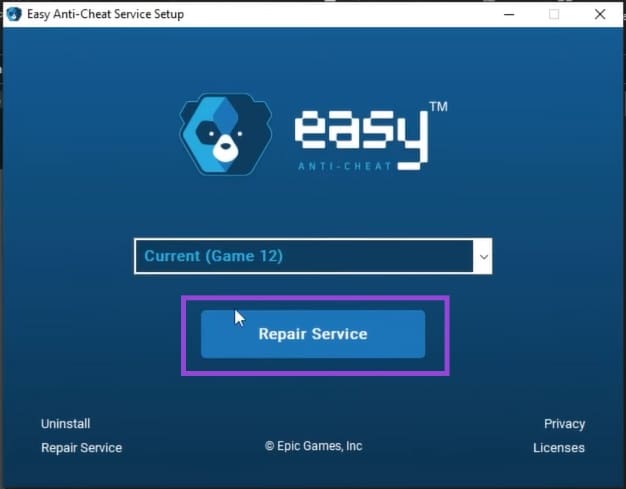
Step 5. The app will start. Click the “Repair” button for EAC to fix itself.