

Error codes are never a welcome sight, but seeing one before Windows even loads can seem like a nightmare. Error 0xc0000098 is one such example and has to do with your Boot Data. Thankfully, there are a few fixes for this problem, and we’re going to show you what to do. Let’s get started.
Contents
What Causes This Error?
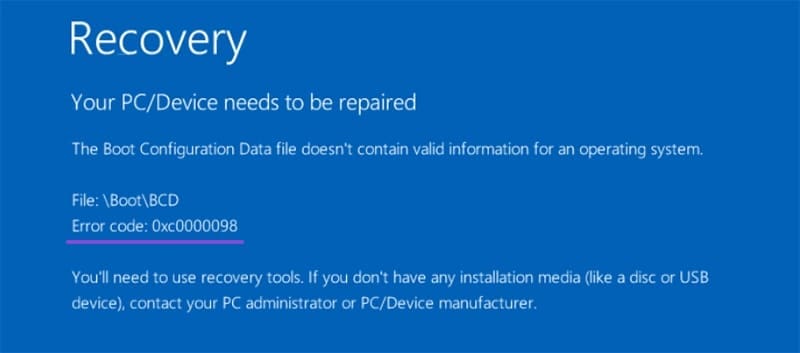
Error 0xc0000098 is caused by a problem with your Boot Configuration Data (BCD). This is crucial for getting your machine started and Windows launched. The startup process begins with the BIOS, then moves to the Bootmgr, and the BCD to find the OS files.
“Problems,” of course, is an umbrella term for an array of issues, any of which could be affecting your machine. These include:
- Missing or corrupted BCD data
- Corruption or failure of your hard drive, where this information is kept
- Driver issues causing software conflicts
- Improper shutdown of your device, due to power cuts or other interruptions
How to Fix Error 0xc0000098
Because you aren’t able to log in to Windows, normal troubleshooting techniques won’t be available to you. You’ll instead have to make a fresh install of your operating system or attempt to repair the damage with a Windows Recovery Image:
Repair Your Machine
Let’s start by assuming the best-case scenario. Your computer might just need to be repaired rather than wiped. To do this, you’ll need to have a recovery disk (either USB or DVD) handy. Here’s what to do:
Step 1. Restart your machine. Have the recovery drive inserted into your machine. If your machine doesn’t boot from the drive automatically, press the Boot Menu Access key (which differs for every make) and select your USB to boot from instead of the hard drive.
Step 2. Select the “Troubleshoot” option from the recovery menu.

Step 3. Select “Advanced Options,” then select “Startup Repair.”
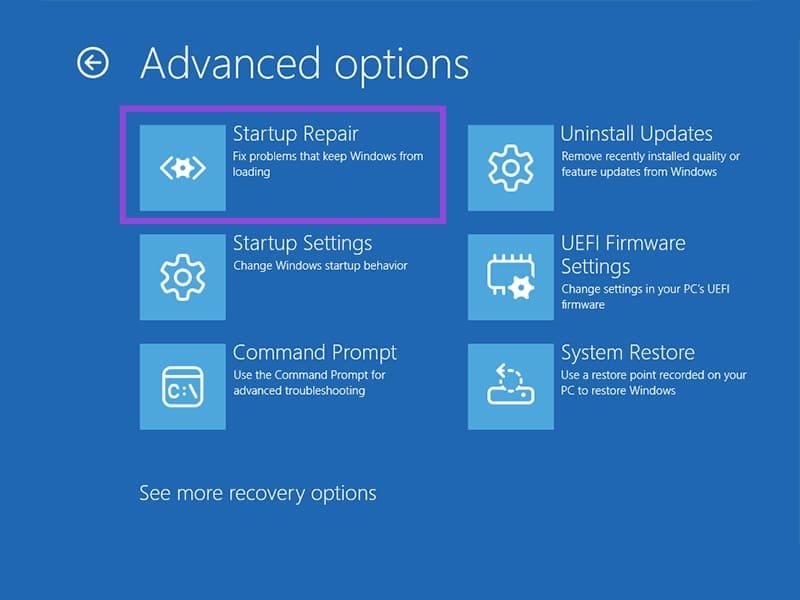
Step 4. The recovery drive will then attempt to address startup issues.
Use Command Prompt
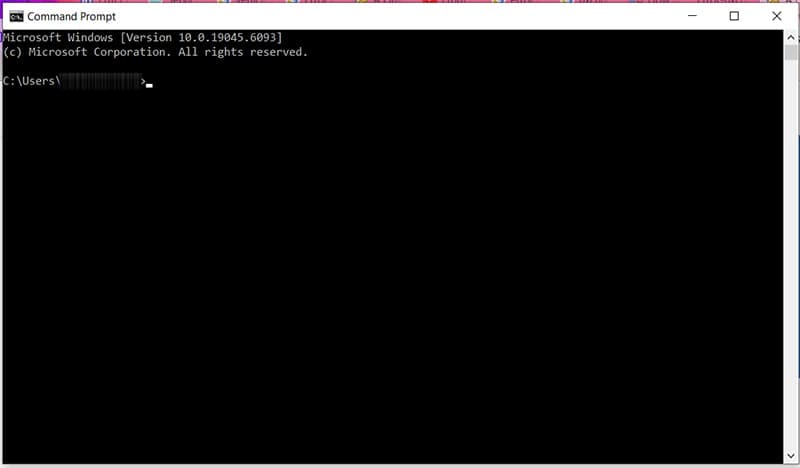
Thankfully, you don’t need Windows to be able to use Command Prompt. The Advanced options menu also comes with support for this utility. Here’s what you need to do:
- Use the recovery drive to boot up Recovery mode and select “Troubleshoot.”
- Select “Command Prompt” in the Advanced options menu.
- In Command Prompt, enter “chkdsk c: /f” to begin the disk checking process.
- The process will run and repair any errors it encounters.
Missing system files on your hard drive could also be to blame. Command Prompt can also help repair them:
- Access Command Prompt in the same way as above.
- Enter “sfc/scannow” to begin the System File Checker process.
If BCD files are missing or have been corrupted, you can attempt to rebuild them in Command Prompt too:
- Open Command Prompt in the same way as above.
- Enter the following commands, followed by hitting the “Enter” key: “Bootrec /fixmbr”, “Bootrec /fixboot”, and “Bootrec /rebuildbcd”.
- The process will run and attempt to rebuild missing parts of your BCD.
Reset Your PC
If those options don’t work, you can also reset your PC. You can delete just the apps and keep your files, or start with a clean slate.
Step 1. Simply click “Reset this PC” in the Troubleshoot menu.

Step 2. Choose either “Keep my files” or “Remove everything” for your choice of reset.

System Restore

If you’ve managed to create a recovery point in your PC and have it on your recovery drive, you can restore to that point. All you need to do is click “Recover from a drive” and select your recovery drive. Keep in mind that all data created after the recovery point was created will be wiped.




