
Keeping your Windows computer up-to-date is extremely important. The latest updates often pack security improvements, as well as new features. Unfortunately, upgrading your machine to the latest Windows OS version is not always possible due to all kinds of unexpected update errors. In this quick guide, we’ll focus on error code 0x80004005 and how you can get rid of it.
Contents
Fix: Windows Update Fails with Error 0x80004005
Run the Update Troubleshooter
First things first, check if the built-in Windows Update troubleshooter can fix the problem that’s triggering error code 0x80004005.
Navigate to Settings, select System, and click on Troubleshoot. Then, select Other troubleshooters and run the Windows Update troubleshooter.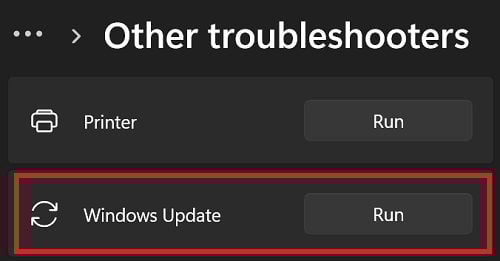
After running the tool, check for updates again.
Restart the Windows Update Services
If error code 0x80004005 persists, try restarting the Windows Update services. The quickest way to do that is by running a series of commands via Command Prompt.
- Launch Command Prompt with admin rights.
- Then, run the following commands one by one:
net stop bitsnet stop cryptsvcnet stop wuauservnet stop msiserverRen C:\Windows\SoftwareDistribution SoftwareDistribution.oldRen C:\Windows\System32\catroot2 Catroot2.oldnet start bitsnet start cryptsvcnet start wuauservnet start msiserver
- Restart your computer and check for updates again.
Disable All Background Programs
If you still can’t install the latest OS updates, maybe one of your background programs is interfering with the update process. This includes third-party antivirus, firewall, and antimalware tools. They may sometimes flag the updated files as suspicious and prevent your machine from installing them.
Launch the Task Manager and click on the Processes tab to force-stop background programs to list all the apps and programs running on your machine. Then, right-click on the program you want to close and select End task.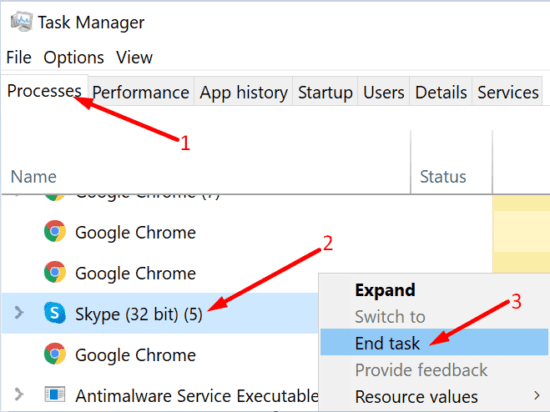
Alternatively, you can perform a clean boot. In other words, you can restart your computer using only a minimum set of drivers and processes.
Repair Faulty System Files
If some of your system files got corrupted, don’t be surprised if your computer fails to install the latest OS updates. The good news is that you can run DISM and SFC to quickly repair these files.
- Launch Command Prompt with admin rights.
- Run the following commands one at a time:
DISM /Online /Cleanup-Image /RestoreHealthscf/ scannow
- Restart your computer and try again.
Clean Install Windows
If nothing works, try clean installing the OS. To do this, you’ll need to download the Windows media creation tool from Microsoft and create an installation flash drive. Then, install the new Windows OS version from the USB flash drive.
Conclusion
To fix error 0x80004005, run the Windows Update troubleshooter and restart the Windows Update services using Command Prompt. Then, force-stop all background programs or clean boot your machine. Additionally, use DISM and SFC to repair corrupted or missing system files. Install the latest Windows OS version from a bootable USB flash drive if the problem persists.
Did you manage to upgrade your computer to the latest Windows version? Which solution worked for you? Comment down below.