Is it all Greek to you? Maybe it’s Spanish. Whatever it is, your Microsoft Edge is currently displaying a foreign language and you want things back to “normal,” or at least a language you’re familiar with Whether the language in the entire app has changed or just the page you’re currently viewing, changing things back is quite simple and quick to do.
In this article, we’ll guide you through the different methods fix Edge foreign language problems.
Contents
How to Change Edge Language Back to English
By default, Microsoft Edge should install to the default language of your operating system. We’re going to assume that’s English in this case. Sometimes, though, wires can get crossed for the entire browser or a page you’re viewing. Compounding this is the fact that even if you try to fix it, all your menus are in a language you don’t fully understand as well. Each problem requires a different solution, so let’s get started.
Changing Edge’s Language Back to English
Let’s start with the app itself. To change your Edge language settings, here’s what to do. We’ll provide some extra guidance on where you can find the Menu options just in case the app language change is affecting that as well:
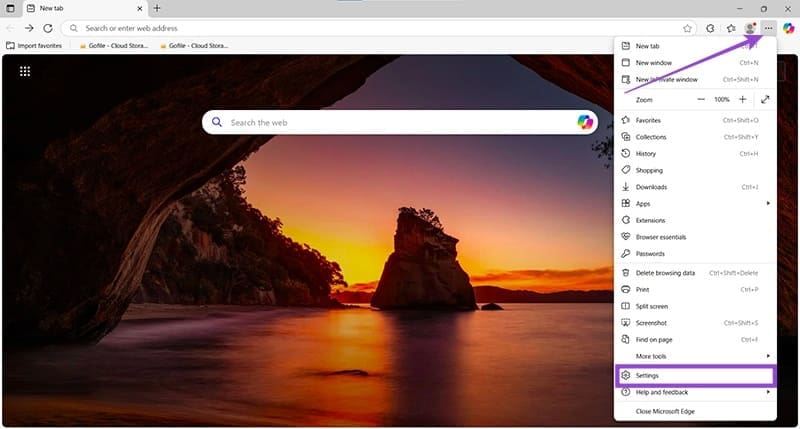
Step 1. In the browser, click the hamburger menu (three dots) in the top right of the screen.
Step 2. Navigate down to “Settings” (indicated by the gear) near the bottom of the menu that pops up.
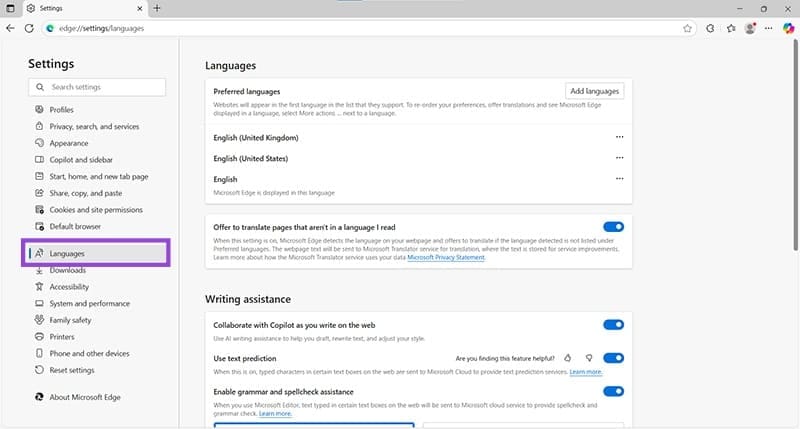
Step 3. A new tab will open. On the sidebar, navigate to the “Languages” tab (indicated by the “A” icon).
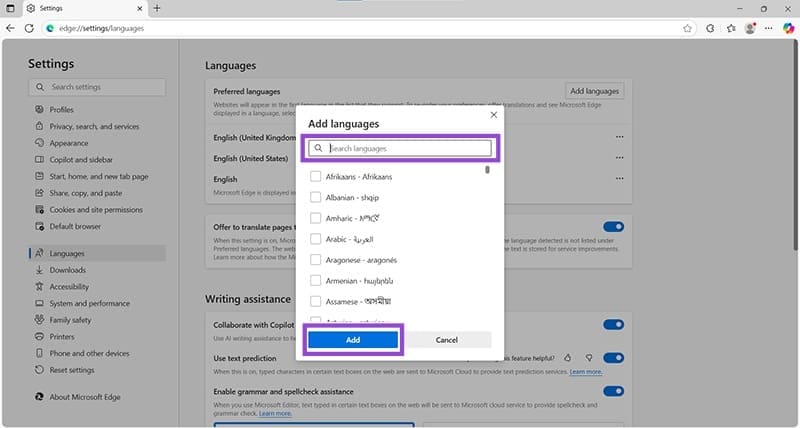
Step 4. The top section contains your app language. If English isn’t listed, click the “Add Language” button at the top right of this box.
Step 5. Find your preferred version of English (US English, UK English, etc.) from the new window and check the box next to it. Click the blue “Add” button when done.
Step 6. To make your preferred version of English Edge’s default language, click the hamburger menu next to it.
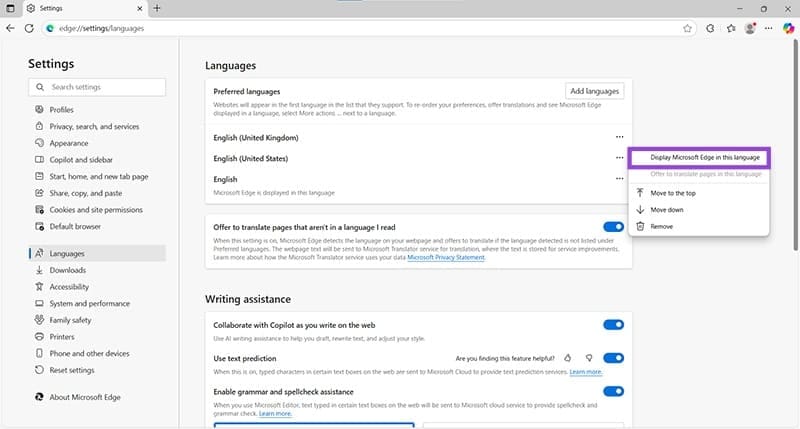
Step 7. Choose “Display Microsoft Edge in this language.”
Step 8. You can click “Move to the top” on this menu to prioritize it in Edge.
Translating Pages to English
If you’ve stumbled across a website that you can’t make heads or tails of, Edge is right there to help you change Edge language to English. You first need to ensure this option is enabled by default. To do this:
Step 1. Click the hamburger menu and select “Settings.”
Step 2. Choose “Languages” in the sidebar of the Settings tab.
Step 3. Go to the “Offer to translate pages that aren’t in a language I read” window and drag the slider to on.
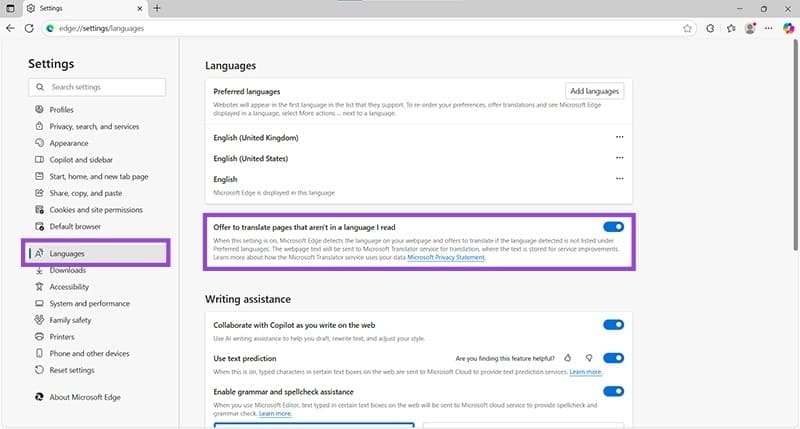
From now on, any webpage that doesn’t display most of its text in English will give you the option to automatically translate. To do this:
Step 1. Navigate to a website in a foreign language.
Step 2. In the very right of the search bar, click the translate icon.
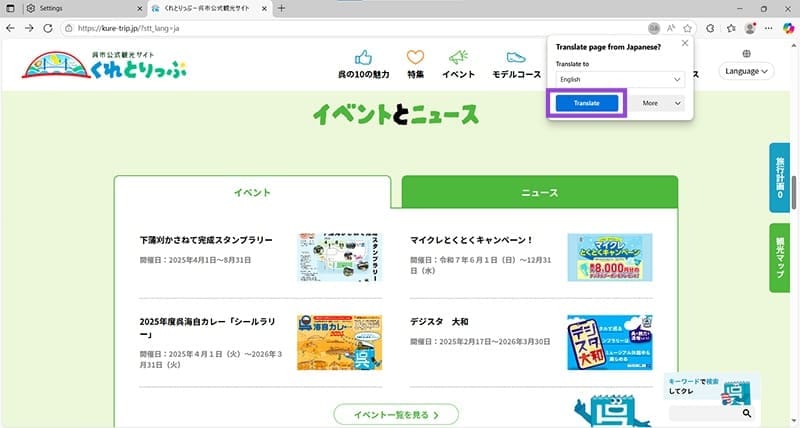
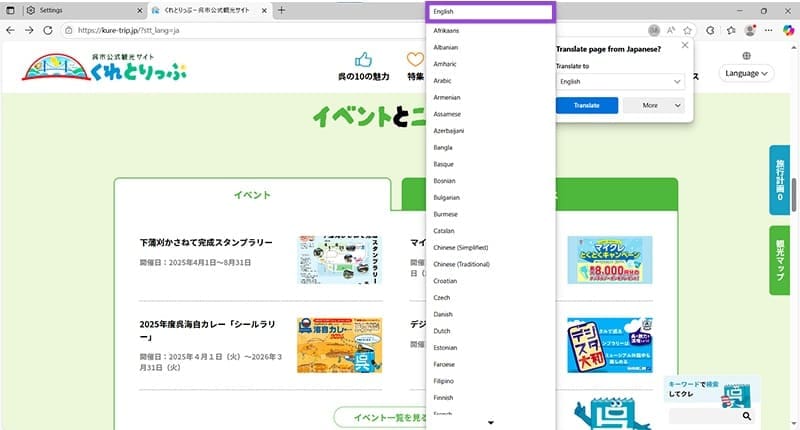
Step 3. English should be listed by default. Click the language and choose from the dropdown menu.
Step 4. Click the blue “Translate” button to begin the translation.
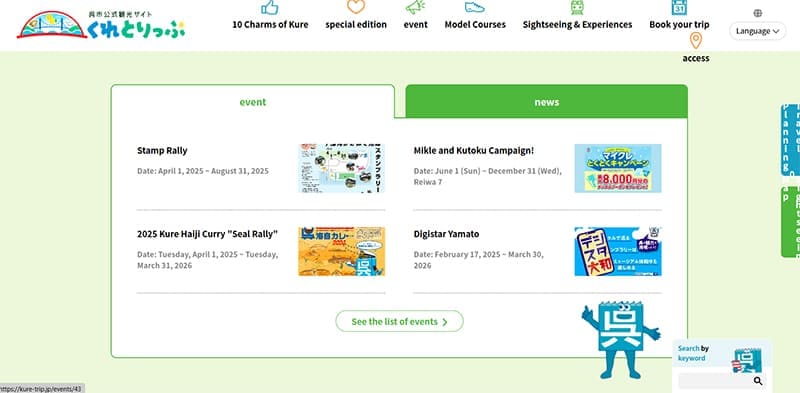
If the entire site is in a foreign language, Edge will translate everything to the language you’ve chosen. But if you’d just like to translate a small section of text to English:
Step 1. Highlight the text and either click the hamburger icon as it appears or right-click the text.
Step 2. In the context menu, select “Translate selection to English.”
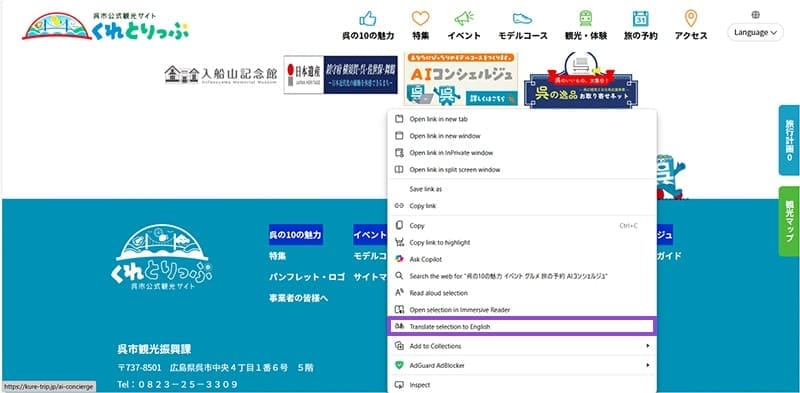
Step 3. Only this text will be translated into English.