
Skip to content
LogoTechnipages
LogoTechnipages
  • Topics
        • Android
        • Browsers
        • Gaming
        • Hardware
        • Internet
        • iPhone
        • Linux
        • macOS
        • Office
        • Reviews
        • Software
        • Windows
        • Definitions
        • All Recent Posts
  • Product Reviews
  • About

How to Fix 0x800f081f Windows Update Error

Evan MercerOctober 1, 2025 Comments (0)
fix 0x800f081f windows update error

Windows updates seem to have gotten a bit messier recently, with each new update that’s supposed to improve user experience only delivering more and more issues (like the entire 24H2 version that’s been pulled multiple times). If you’re trying to go to a more stable version, you might get the 0x800f081f Windows Update error. It indicates that some of the core operating systems files are missing, which shouldn’t happen on most PCs.

This one might be a bit tricky to get rid off at first, but are some of the most consistent troubleshooting methods to get the error 0x800f081f Windows Update throws at you fixed.

Contents

  • 1 Fix 1: Restart the Windows Update Service
  • 2 Fix 2: Scan and Repair Corrupted Files to Fix 0x800f081f Windows Update Error
  • 3 Fix 3: Download the Update Manually

Fix 1: Restart the Windows Update Service

The Windows Update service itself is what’s checking for files. When you restart it, you reset all of its components which can download the required background files. There are two ways to do this, one that involves resetting the internal cache, and the other which restarts the app.

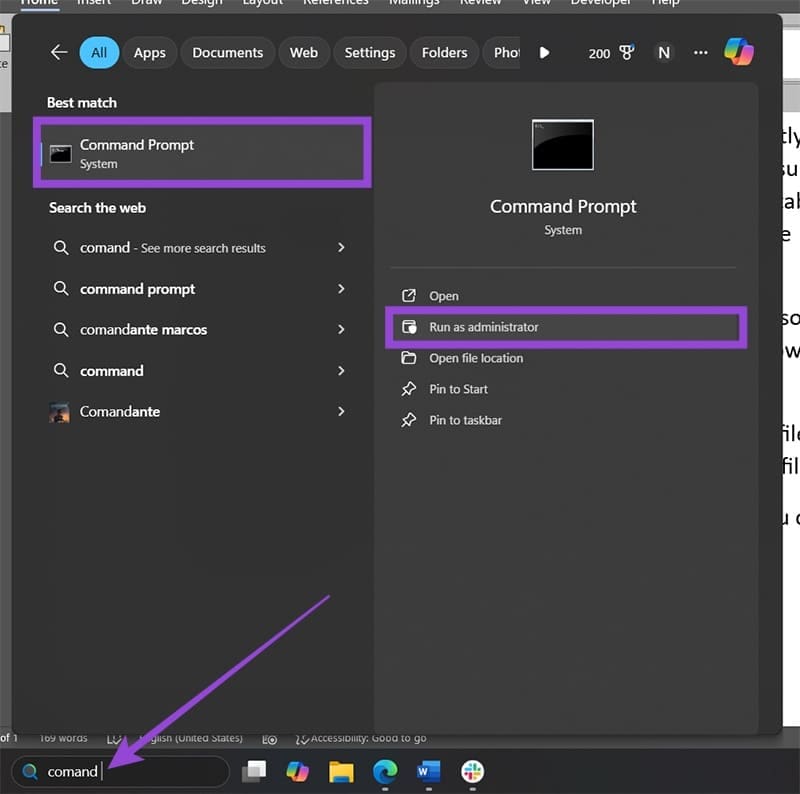
Step 1. Open the Command Prompt as an administrator (you can search for it in the search bar and select the first result). Allow the User Account Control when prompted.
How to Fix 0x800f081f Windows Update Error 1

Step 2. Paste in and execute the following commands, one by one:

net stop wuauserv

net stop cryptSvc

net stop bits

net stop msiserver

ren C:\Windows\SoftwareDistribution SoftwareDistribution.old

ren C:\Windows\System32\catroot2 catroot2.old

net start wuauserv

net start cryptSvc

net start bits

net start msiserver

Step 3. If you get an error message such as “Access denied,” then this likely won’t solve the issue or you need administrator access to the system.

How to Fix 0x800f081f Windows Update Error 2

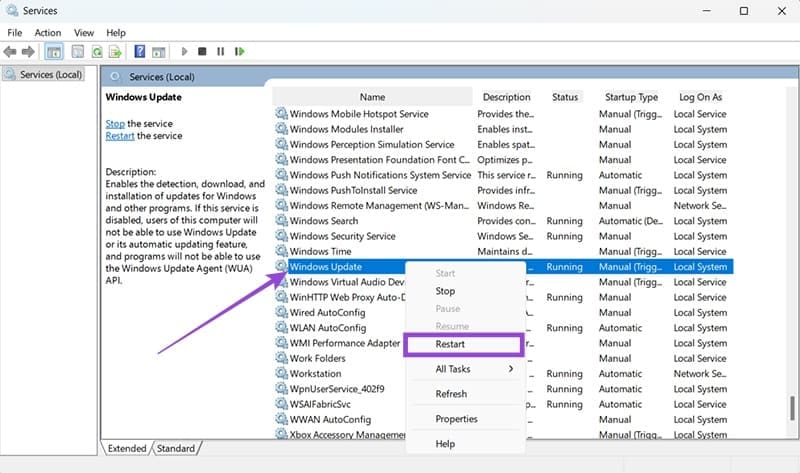
Alternatively, you can use the services menu to restart the entire service.

Step 1. Search for “Services” and open the result.

Step 2. Scroll down, find “Windows Update,” right-click on it and hit “Start” or “Restart” (whichever is available).
How to Fix 0x800f081f Windows Update Error 3

Fix 2: Scan and Repair Corrupted Files to Fix 0x800f081f Windows Update Error

The command prompt can also be used to execute the internal repair utility to automatically fetch missing files that could be causing the issue and fix error 0x800f081f.

Step 1. Open the Command Prompt as an admin.

Step 2. Enter the following command:

sfc /scannow

How to Fix 0x800f081f Windows Update Error 4

Step 3. You will get a notification about the scan. This might take a bit of time to complete.

How to Fix 0x800f081f Windows Update Error 5

After the scan, the system will immediately fetch and update the files. In some cases, this is enough to restart the Update process and complete it.

Fix 3: Download the Update Manually

In some cases, you can “fix” error 0x800f081f by bypassing it entirely.

Step 1. Open Windows Update and note the exact update that the system is trying to download (the code usually starts with a KB).

Step 2. Open the Windows Update catalog website.

Step 3. In the search bar, enter the exact code noted from Step 1.

Step 4. From the results, find the update you need and match it with your system, then click on “Download” on its entry.

How to Fix 0x800f081f Windows Update Error 6

Step 5. Run the file you downloaded. It should automatically prompt the Windows Update utility.

Step 6. Restart your PC.

Categories: Windows

Author Evan Mercer

I’m a computer science grad who loves to tinker with smartphones and tablets in my spare time. When I’m not writing about how to fix techy problems, I like hanging out with my dogs and sipping nice wine after a tough day.

You Might Also Like

  • Encryption Header

    How to Turn Off Windows File Encryption (EFS)

    Mitch BartlettWindows
  • Win11 Install Telnet Header

    How to Install Telnet in Windows 11

    Mitch BartlettWindows
  • authentication-error-function-requested-not-supported-windows-10

    Fix Windows 10 Remote Desktop Authentication Errors

    Madalina DinitaWindows
  • microsoft-word-pasting-not-working

    How to Quickly Erase All Images in a Word Document

    Judy SanhzWindows

Leave a Reply

Your email address will not be published. Required fields are marked *

  • could not find this item

    “Could Not Find This Item” When Trying to Remove Files

  • no graphics signal on first boot

    No Graphics Signal on First Boot – How to Fix

  • system32 folder opens on startup

    System32 Folder Opens on Startup – How to Fix

  • browser keeps opening hp support

    Browser Keeps Opening HP Support Assistant Tabs 

  • camera not working in vmware

    Camera Not Working in VMware – How to Fix

profile pic

The Experts Behind Technipages

My name is Mitch Bartlett. I've been working in technology for over 20 years in a wide range of tech jobs from Tech Support to Software Testing. I started this site as a technical guide for myself and it has grown into what I hope is a useful reference for all.

Learn More

technipages logo white
linkedin icon

Technipages is part of Guiding Tech Media, a leading digital media publisher focused on helping people figure out technology. Learn more about our mission and team here.

© 2026 Guiding Tech Media All Rights Reserved

  • About Us
  • Contact
  • Terms of Use
  • Privacy Policy

© 2026 Guiding Tech Media All Rights Reserved

Information from your device can be used to personalize your ad experience.
Do not sell my personal information.

Last Updated on October 1, 2025 by Evan Mercer



