

A Windows update might not always be a welcome sight, especially with the lengthy download and install times, but it is a vital part of your operating system’s health and security. But if something goes wrong with the whole process, well, that’s frustration piled on frustration.
In this article, we’re looking at dealing with one of these update errors and providing a better understanding of how to fix error code 0x80010002.
Contents
What Causes This Error?
If you receive the pop-up with the error code 0x80010002, then you’re most likely dealing with an error in the updater itself, primarily the Remote Procedure Call (RPC), which is a protocol allowing one computer to execute a procedure on another (in this case, the Windows Update) over a network.
Another major cause is the core function Windows Management Instrumentation (WMI), which monitors and automates tasks like updates.
These two are the main causes, but not the only ones. Other problems might be:
- Corruption within system files
- An incomplete installation of the update or missing and corrupted update files
- Third-party software conflicts, like an antivirus
How to Fix Error Code 0x80010002
Now that you know the causes, let’s get to work on the fixes:
Run the Update Troubleshooter
Your first step is to rely on Windows to help with its robust troubleshooting system. This is easy to find and run:
Step 1. Open Settings (Win + X), click “System” in the sidebar. Scroll down to “Troubleshoot.”
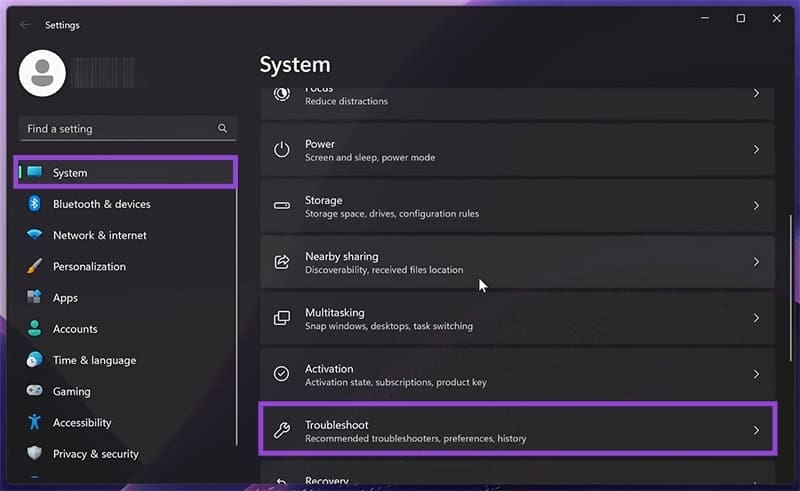
Step 2. Click “Other troubleshooters.”
Step 3. You’ll see “Windows Update” in the list. Click the “Run” button next to it, and let the troubleshooter do its thing.

Step 4. If there are identifiable problems, the Troubleshooter will walk you through fixing them.
Check the RPC Protocol
Moving on to the two other likely culprits, your next stop should be to check whether the RPC is active and running properly. You can do this as follows:
Step 1. Open the Run dialog (Win + R) and type “services.msc” before hitting “Enter.”
Step 2. In the Services window, navigate down to “Remote Procedure Call (RPC)” and check that it shows “Running” under status.
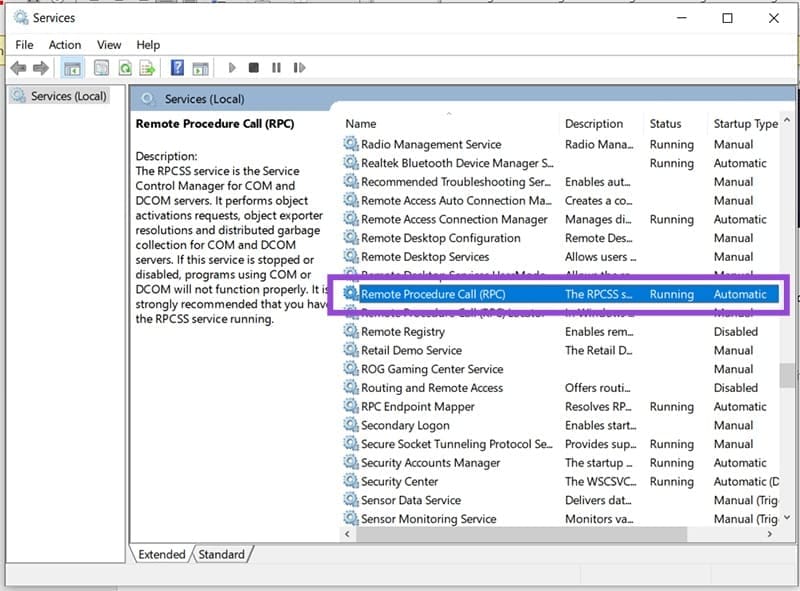
Step 3. If it isn’t, right-click the protocol and select “Start.” If needed, double-click the protocol and ensure the process is set to “Automatic” under “Startup type.”

Restart WMI
Next, we focus on the other major offender. To restart the WMI, you’ll also need to access it through Services:
Step 1. Open Services via the Run dialog (Win + R) and type “services.msc” and hit “Enter.”
Step 2. Once in, navigate down to “Windows Management Instrumentation.”
Step 3. Right-click the function and select “Restart” from the context menu. You can also restart by clicking the blue underlined option in the main window.
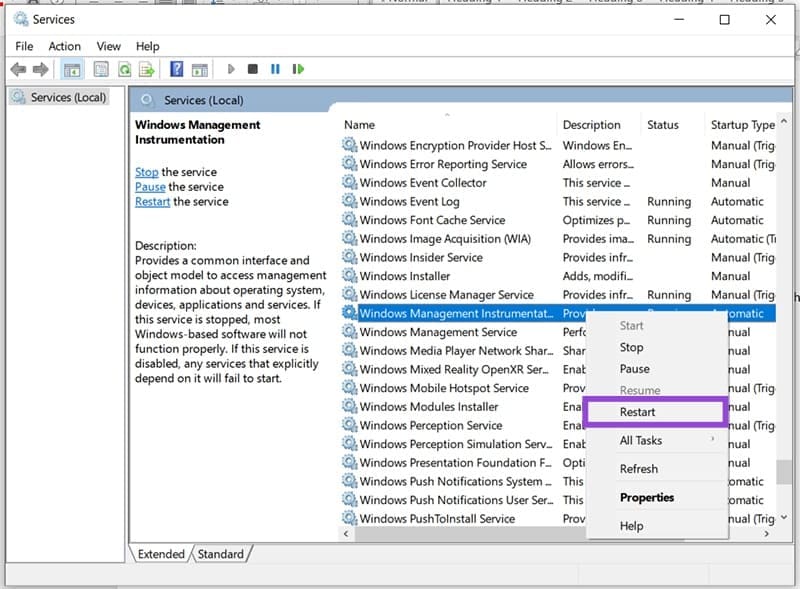
Step 4. Much like the RPC, you can check the startup type of WMI by double-clicking the function and changing it to “Automatic” if need be.
Run a Disk Check
If the above doesn’t solve the issue, the problem might lie with file corruption. You can scan system files for errors and run a disk check to attempt a 0x80010002 error fix via Command Prompt:
Step 1. Open the Run Dialog (Win + R) and type “cmd” before pressing (Ctrl + Shift + Enter) to run as Admin.
Step 2. Scan the system files by typing “sfc/scannow” and hitting “Enter.”
Step 3. The process will take time. If there is any corruption detected, the system will attempt to repair. Close the Command Prompt and reboot if it does.
Step 4. If you need to repair, reopen Command Prompt in the same way and type “DISM /Online /Cleanup-Image /RestoreHealth” before hitting “Enter.”
Step 5. Let the process run and reboot your machine. Try the update again.




