Most PC games offer a wide range of graphics options. These allow high-end computers to run the game at its best, while gamers with a less powerful computer can disable certain graphic features to achieve a smooth gaming experience.
The majority of gamers have to balance which graphics options they have enabled and how smoothly the game runs. The key measure for how smoothly a game runs is called the framerate, measured is “FPS” or Frames Per Second. The standard framerate for PC gaming is 60 FPS as this is the maximum speed that the majority of monitors can display images. Some gaming monitors are able to run faster, with the fastest reaching 360 Hz.
Tip: The refresh rate of a monitor is measured in Hz (pronounced Hertz). This is simply a measure of how many images the monitor can display a second and so is directly comparable to the framerate of a game.
One of the tools that can be particularly useful to a gamer configuring the graphics options of a game, is an FPS counter. An FPS counter is an indicator of the current framerate of the game. The framerate will fluctuate as some scenes are more or less graphically intense than others. Ideally, you want your framerate to stay above the refresh rate of your monitor at all times.
An FPS counter can help you tell if your FPS is too low because you’ve set your graphics options too high. It can also let you know that you’ve got the headroom to enable more graphics options if your framerate is higher than your monitor can display.
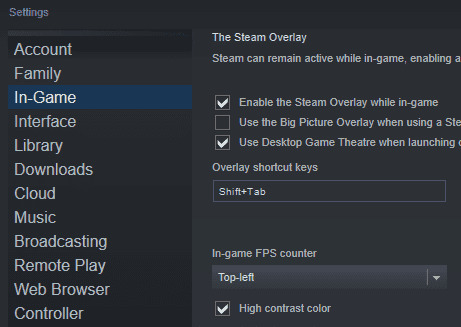
How to enable the in-game FPS counter in Steam
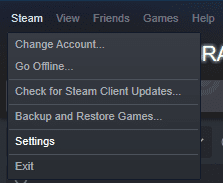
To enable the in-game FPS counter you need to open Steam’s settings. You can do this by clicking “Steam” in the top left corner of the main Steam window, then “Settings”.
Tip: Alternatively, if you’re in-game, you can open the settings via the Steam overlay. Press Shift+Tab to open the overlay, then click “Settings” in the centre at the bottom of the screen.
Once in the Steam settings, switch to the “In-Game” tab. From here you can enable the FPS counter by clicking the dropdown box labelled “In-game FPS counter”. You can configure the FPS counter to be in any corner of the monitor or leave it disabled.
By default, the FPS counter will be a pale grey colour. This can be somewhat hard to read at times, depending on the background. To make it easier to read, tick “High contrast color” just under the drop-down box. Enabling the high contrast colour will make the counter a bright green colour that should be very easy to read. Once you’ve configured the FPS counter, click “OK” to save your changes.
Note: Steam’s FPS counter is small and discrete, even with the high contrast colour enabled, and shouldn’t intrude at all on your normal gameplay.