Skip to content
LogoTechnipages
LogoTechnipages
  • Topics
        • Android
        • Browsers
        • Gaming
        • Hardware
        • Internet
        • iPhone
        • Linux
        • macOS
        • Office
        • Reviews
        • Software
        • Windows
        • Definitions
        • All Recent Posts
  • Product Reviews
  • About

How to Enable File Explorer Preview Pane in Windows 10

Judy SanhzMay 26, 2020 Comments (1)

The preview pane in Windows 10 can be handy since you can preview your files without having to open them. Along with the Preview Pane feature, you have the Details pane that gives you additional information about your file.

The good news is that both features are easy to enable, and you don’t have to follow different steps to access them. Once you enable the feature, it stays on. You won’t have to turn it on every time you use your computer.

How to Enable File Explorer’s Preview and Details Pane – Windows 10

To open File Explorer, right-click on the Windows Start menu and click on File Explorer. When it’s open, click on the View option (it’s the last one to the right).
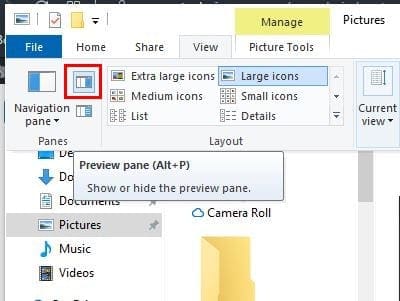
If you hover the cursor over the option, it’s let you know that it’s the Preview Pane, but it’ll also show you the keyboard shortcut to hide or unhide the Preview Pane.

To enable the Details, you just need to click on the option right below the one indicated in the image above. It’ll be enabled as soon as you click on it without the need to restart the File Explorer.

Once you enable it, it stays on. It’ll show you information such as:

  • Tags
  • Rating
  • Dimensions
  • Size
  • Title
  • Authors
  • Comments
  • Camera maker
  • Camera model
  • Subject

The keyboard shortcut for the Details Pane is different since the keyboard shortcut for the Preview Pane is Alt + P, while the shortcut for the Details Pane is Alt + Shift + P.

If you ever want to unable to Preview or Details Pane, just follow the steps to enable them and click on the option. It’ll be disabled as soon as you click on it.
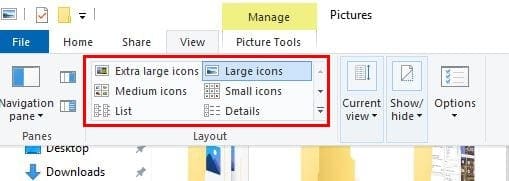
As long as you’re in the View tab if the File Explorer, you can use other preview options. For example, you can choose to preview your files with Extra large icons, Large icons, Medium icons, Small icons, List, and Details.

Conclusion

The Preview Pane is a great way to see your files when the Preview icons are too small. It’s also a comfortable feature since you turn it on once and forget about it. Do you find the Preview Pane Useful? Share your thoughts in the comments below.


Categories: Windows

Author Judy Sanhz

I am a tech geek who loves technology. I have been writing about tech for over a decade, covering various devices and programs. I write about Android, Apple, and Windows devices and programs. I stay updated on the latest gadgets, upgrades, features, and news. I aim to make complicated tech information easy for everyone to read. I've been with TechniPages from the beginning to help others fix their tech issues with the easy-to-follow guides.

You Might Also Like

  • Magnifying Glass

    What is File Extension XPS and How to Open It

    Kat ArmstrongmacOS
  • Word Logo Header

    How to Resize an Image Correctly in Word

    MonaWindows
  • Windows-11-Your-Pin-Is-No-Longer-Available

    Windows 11: Your PIN Is No Longer Available

    Madalina DinitaWindows
  • Microsoft-Protection-Definition-Update-Failed

    Fix: Protection Definition Update Failed

    Madalina DinitaWindows

Comments

  1. Jean Hohl says:
    September 14, 2023 at 7:42 pm

    The instructions didn’t help me. I’m used to seeing the contents of each document in what I thought was called the Preview Pane. Now what appears is mostly useless info, not what’s in the document. This problem of something in the system changing and the “preview” option disappearing has recurred over a period of y ears. Each time, I struggle to fix it.

Leave a Reply

Your email address will not be published. Required fields are marked *

  • system32 folder opens on startup

    System32 Folder Opens on Startup – How to Fix

  • browser keeps opening hp support

    Browser Keeps Opening HP Support Assistant Tabs 

  • camera not working in vmware

    Camera Not Working in VMware – How to Fix

  • browser screen goes black

    Browser Screen Goes Black Intermittently 

  • computer heating up in hyper v

    Computer Heating Up When Using Hyper-V – How to Fix 

profile pic

The Experts Behind Technipages

My name is Mitch Bartlett. I've been working in technology for over 20 years in a wide range of tech jobs from Tech Support to Software Testing. I started this site as a technical guide for myself and it has grown into what I hope is a useful reference for all.

Learn More

technipages logo white
linkedin icon

Technipages is part of Guiding Tech Media, a leading digital media publisher focused on helping people figure out technology. Learn more about our mission and team here.

© 2026 Guiding Tech Media All Rights Reserved

  • About Us
  • Contact
  • Terms of Use
  • Privacy Policy

© 2026 Guiding Tech Media All Rights Reserved

Information from your device can be used to personalize your ad experience.
Do not sell my personal information.

Last Updated on May 26, 2020 by Mitch Bartlett