Skip to content
LogoTechnipages
LogoTechnipages
  • Topics
        • Android
        • Browsers
        • Gaming
        • Hardware
        • Internet
        • iPhone
        • Linux
        • macOS
        • Office
        • Reviews
        • Software
        • Windows
        • Definitions
        • All Recent Posts
  • Product Reviews
  • About

How to Disable the Xbox Game Bar When Playing Games in Windows 10

Mel HawthorneOctober 14, 2020 Comments (0)

One of the benefits of having one company develop and run multiple projects or platforms is integration where features work together well. In the case of Microsoft, combining some of its video game console Xbox platform with its Windows operating system offers a range of potential integration benefits for gamers.

While these benefits might be very helpful to some people, not everyone will want to make use of specific features. For example, in Windows 10, Microsoft includes an “Xbox Game Bar”. The Game Bar offers some potentially useful functionality for gamers, such as taking screenshots, managing screen recordings and broadcasts, and muting the microphone.

These features can be great for gamers that want them, but not everyone will. Furthermore, a vanishingly small number of non-gamers will want to use the feature. Annoyingly though, a keyboard shortcut means that the Xbox Game Bar can still be opened by accident. Even if you don’t use the keyboard shortcut, a notification will pop up to remind you it exists every time you launch a game, unless you disable the feature entirely.

How to disable the Xbox Game Bar when playing games in Windows 10

To disable the Xbox Game Bar in Windows 10, you need to first open the Settings app. You can open it directly to the right page, by pressing the Windows key, then typing “Enable Xbox Game Bar” and hitting enter.

Press the Windows key, then type “Enable Xbox Game Bar” and hit enter.

To completely disable the Xbox Game Bar, simply toggle the top slider to the “off” position, the one labelled “Enable Xbox Game Bar for things like recording game clips, chatting with friends, and receiving game invitations. (Some games require Xbox Game Bar for receiving game invitations)”.

When this slider is off, the Game Bar will not open, even if you open a game, or if you press the keyboard shortcut. As the title says, this can affect your ability to join some multiplayer games, so gamers should be aware of that, however, for most users, there’s no downside to disabling the feature.
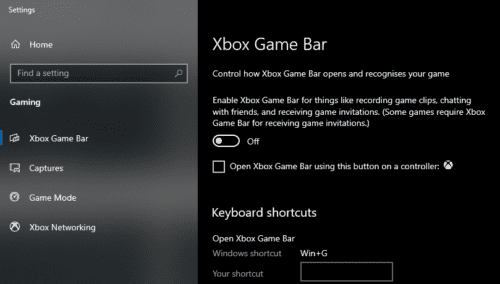
To disable the Xbox Game Bar, simply toggle the top slider to the “off” position.

Categories: Windows

Author Mel Hawthorne

You Might Also Like

  • Windows: Cannot Connect to Certain Web Sites

    Mitch BartlettWindows
  • fix onenote we need the password to sync notebook

    OneNote Needs A Password to Sync This Notebook

    Madalina DinitaWindows
  • windows-system-registry-file-missing-or-contains-errors

    Fix: System Registry File Is Missing or Contains Errors

    Madalina DinitaWindows
  • roll-back-from-windows-11-to-windows-10

    How to Downgrade from Windows 11 to Windows 10

    Madalina DinitaWindows

Leave a Reply

Your email address will not be published. Required fields are marked *

  • system32 folder opens on startup

    System32 Folder Opens on Startup – How to Fix

  • browser keeps opening hp support

    Browser Keeps Opening HP Support Assistant Tabs 

  • camera not working in vmware

    Camera Not Working in VMware – How to Fix

  • browser screen goes black

    Browser Screen Goes Black Intermittently 

  • computer heating up in hyper v

    Computer Heating Up When Using Hyper-V – How to Fix 

profile pic

The Experts Behind Technipages

My name is Mitch Bartlett. I've been working in technology for over 20 years in a wide range of tech jobs from Tech Support to Software Testing. I started this site as a technical guide for myself and it has grown into what I hope is a useful reference for all.

Learn More

technipages logo white
linkedin icon

Technipages is part of Guiding Tech Media, a leading digital media publisher focused on helping people figure out technology. Learn more about our mission and team here.

© 2026 Guiding Tech Media All Rights Reserved

  • About Us
  • Contact
  • Terms of Use
  • Privacy Policy

© 2026 Guiding Tech Media All Rights Reserved

Information from your device can be used to personalize your ad experience.
Do not sell my personal information.

Last Updated on October 14, 2020 by Mitch Bartlett