
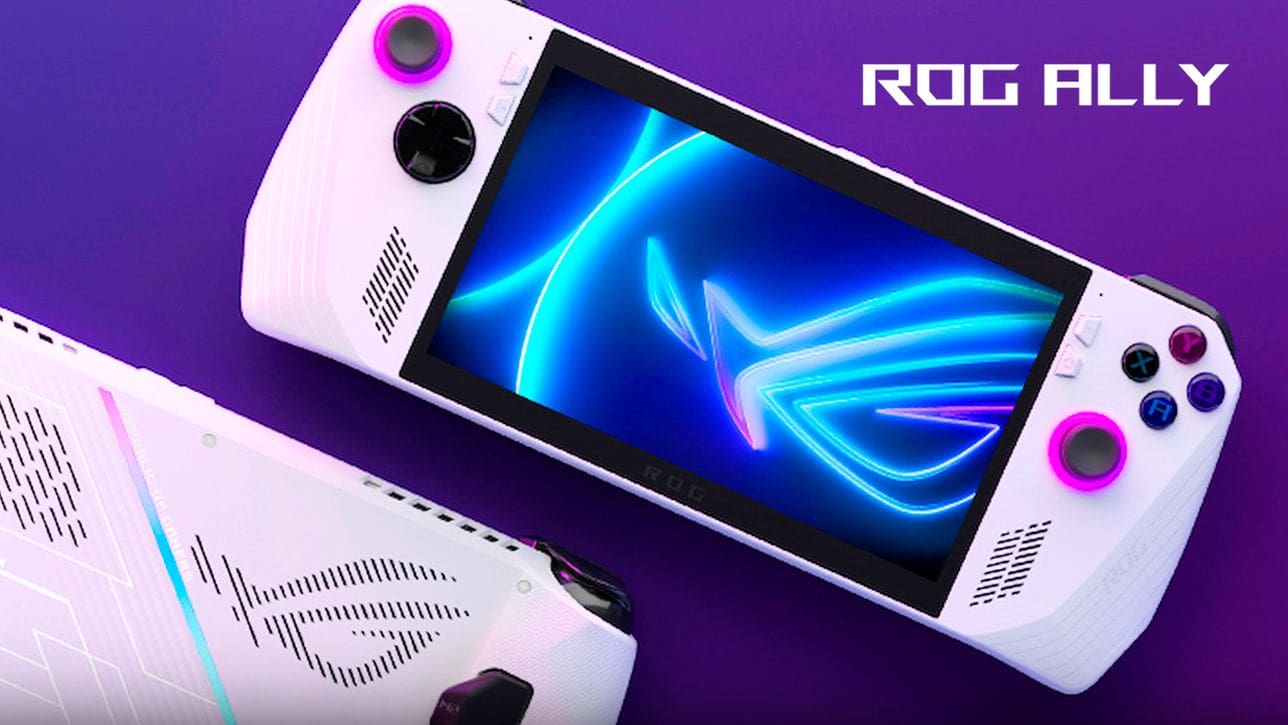
Deleting games and apps from the ASUS ROG Ally can be beneficial for several reasons, all of which contribute to optimizing your device’s performance and user experience. First and foremost, removing unused or infrequently played games and apps helps free up valuable storage space on your ASUS ROG Ally. Given that the device has limited storage capacity, it is essential to manage your installed games and apps efficiently to ensure you have enough room for new titles and updates.
Another reason to delete games and apps is to declutter your library and streamline your device’s organization. By removing games you no longer play or apps you don’t use, you can simplify navigation and make it easier to find and access the content you’re most interested in. This decluttering process can also help improve the overall performance of your ASUS ROG Ally by reducing the number of background processes and system resources consumed by unused apps.
Lastly, deleting games and apps can be a practical approach to managing your gaming habits and maintaining focus on your current interests. By removing distractions and limiting your library to the titles you’re genuinely engaged with, you can enhance your gaming experience and make the most of your time on the ASUS ROG Ally.
How to Delete Apps and Games From Armoury Crate on ASUS ROG Ally
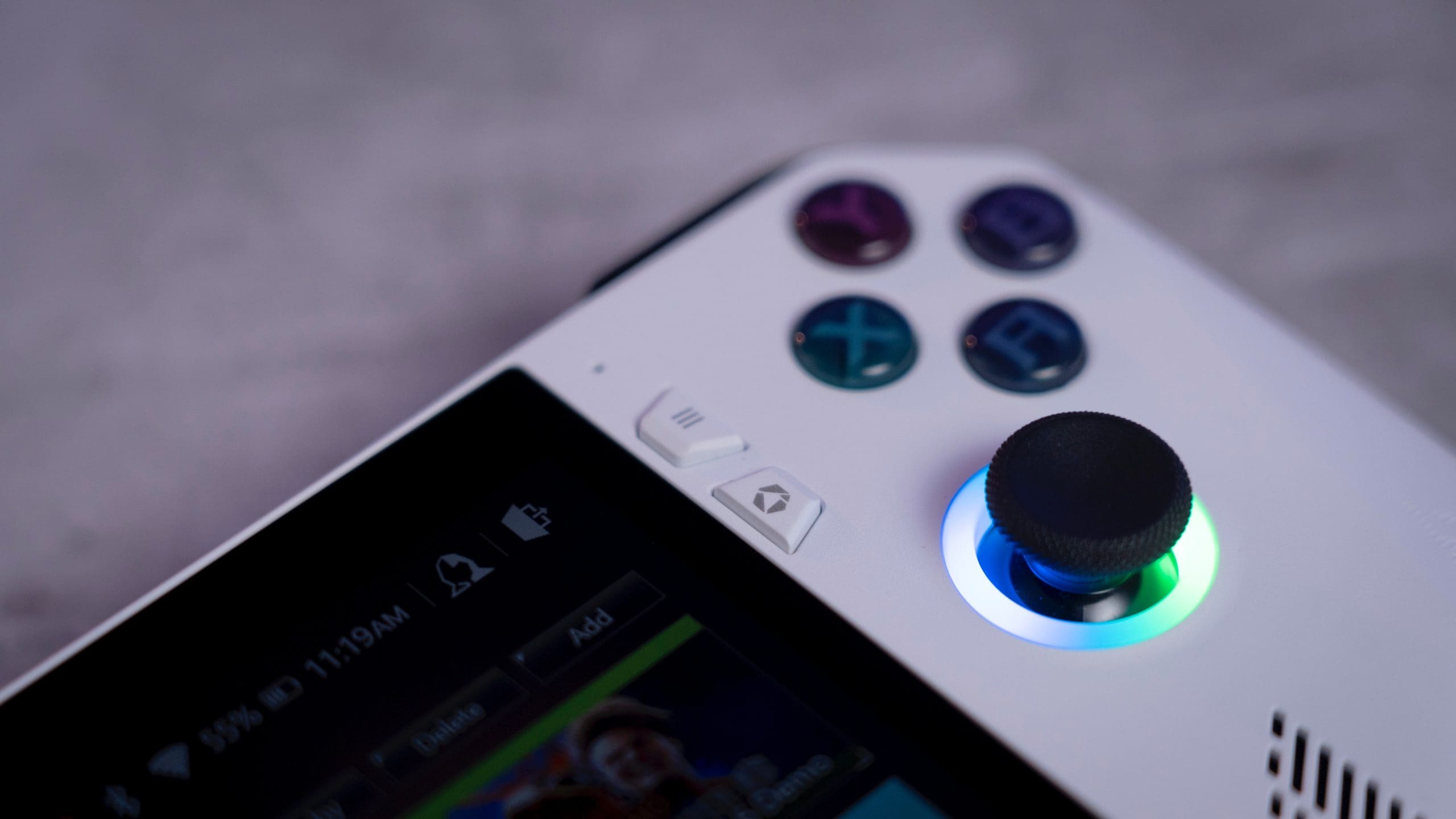
ASUS’ Armoury Crate is a software utility designed to centralize and streamline the management of ASUS gaming devices, including laptops, desktops, and peripherals. This all-in-one software solution offers a user-friendly interface that allows users to control various aspects of their gaming hardware, such as performance settings, lighting effects, and device configurations.
While the app is pre-installed on pretty much every gaming laptop or computer from ASUS, it’s been modified and tweaked to support the unique handheld design of the ROG Ally. Along with making it easy to customize the buttons and change performance modes, Armoury Crate doubles as an app and game launcher.
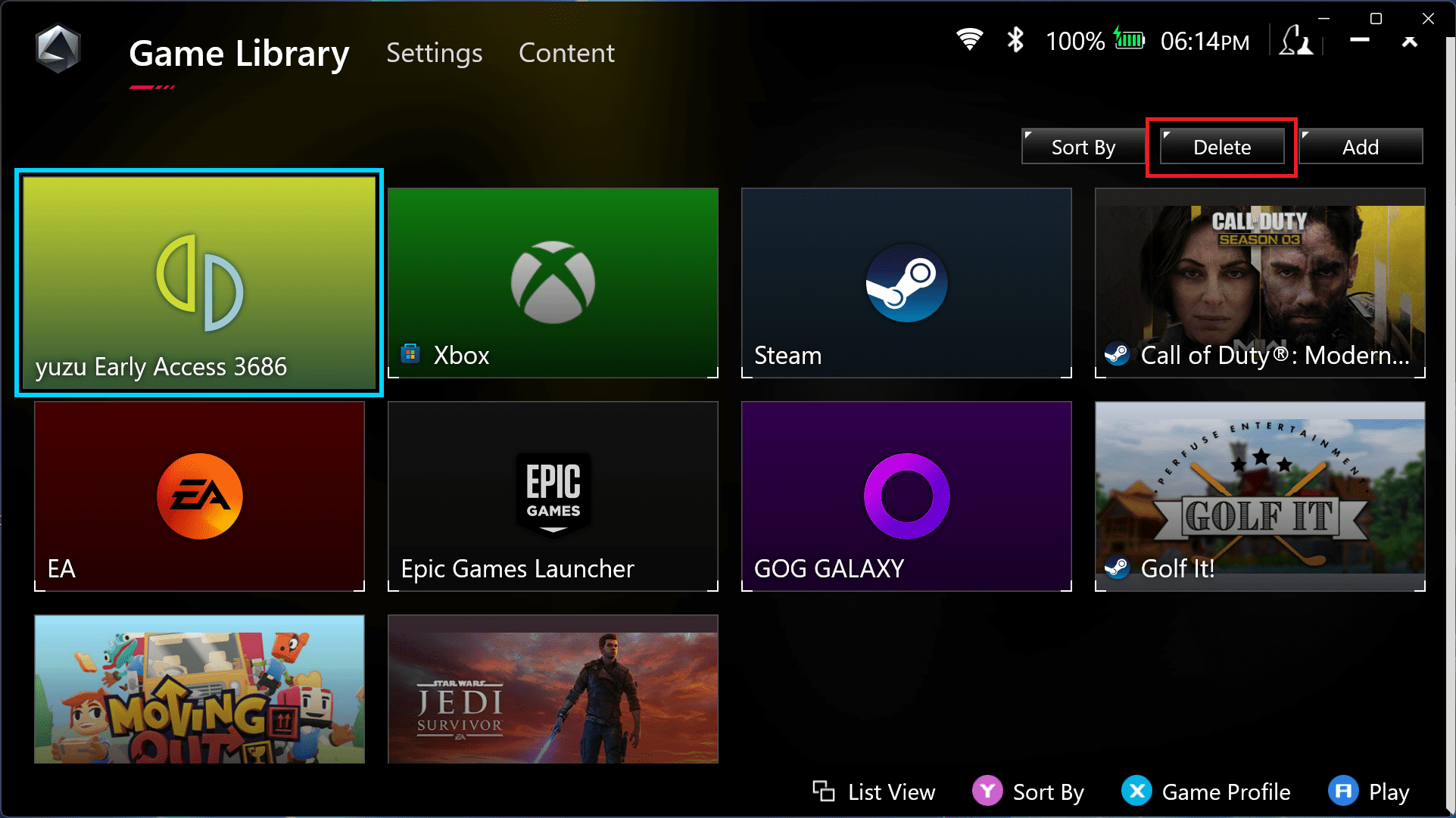
You might not know this, but if you import an app or game to Armoury Crate, decide that you don’t want it clogging up your launcher, and don’t want to delete it from the ROG Ally completely, you can simply remove it from appearing in the launcher. Thankfully, the steps for deleting apps and games from Armoury Crate on the ROG Ally are pretty straightforward.
- Start and unlock your ASUS ROG Ally.
- Press the Command Center button. This is the bottom button in between the display and the D-Pad controls.
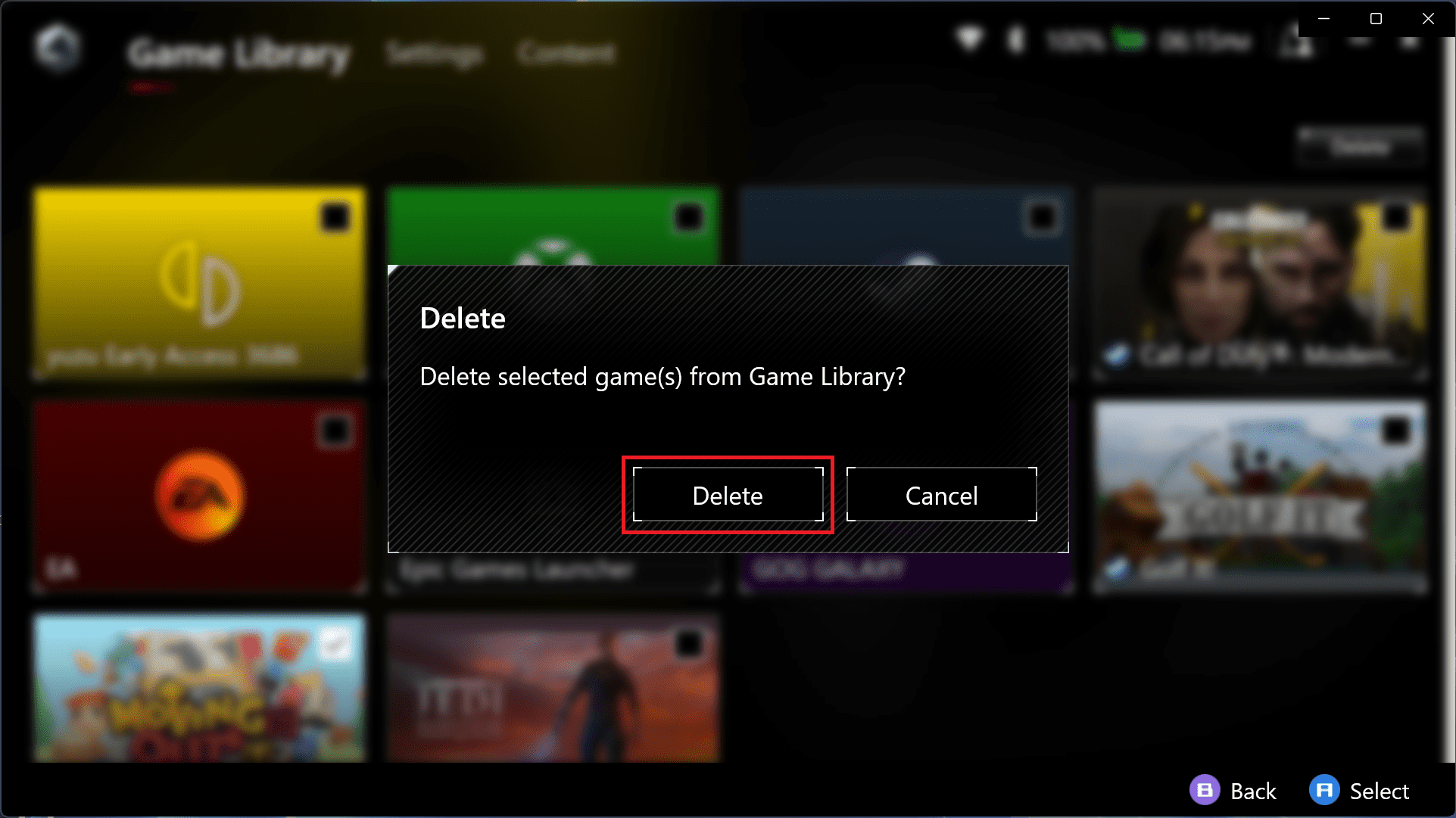
- Using the D-Pad, scroll and highlight the Delete button in the top right corner.

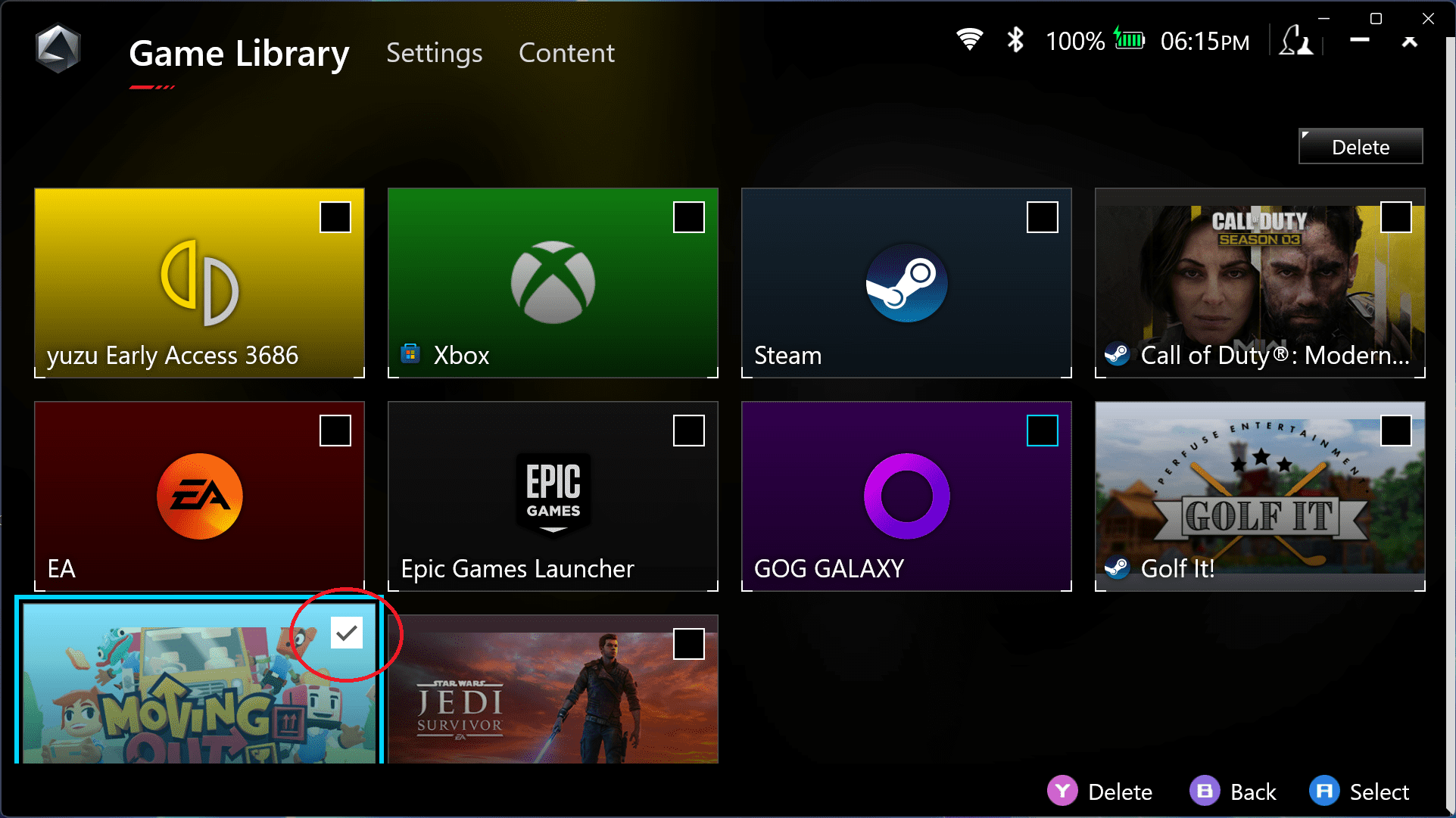
- Select the apps and games that you want to delete.
- Scroll up to highlight and select the Delete button.
- To confirm, highlight and select the Delete button.
How to Delete Apps and Games Completely From ASUS ROG Ally
There is one problem when it comes to having the Armoury Crate app double as a launcher for your favorite games and apps. When you go through the steps above to delete apps and games from ASUS ROG Ally, they aren’t actually uninstalled. However, all you need is a little bit of experience with Windows in order to get rid of the games and apps that you no longer want or need.
- Start and unlock your ASUS ROG Ally.
- If booted into the Armoury Crate, press the Armoury Crate button to exit. This is the bottom button in between the display and the ABXY buttons.
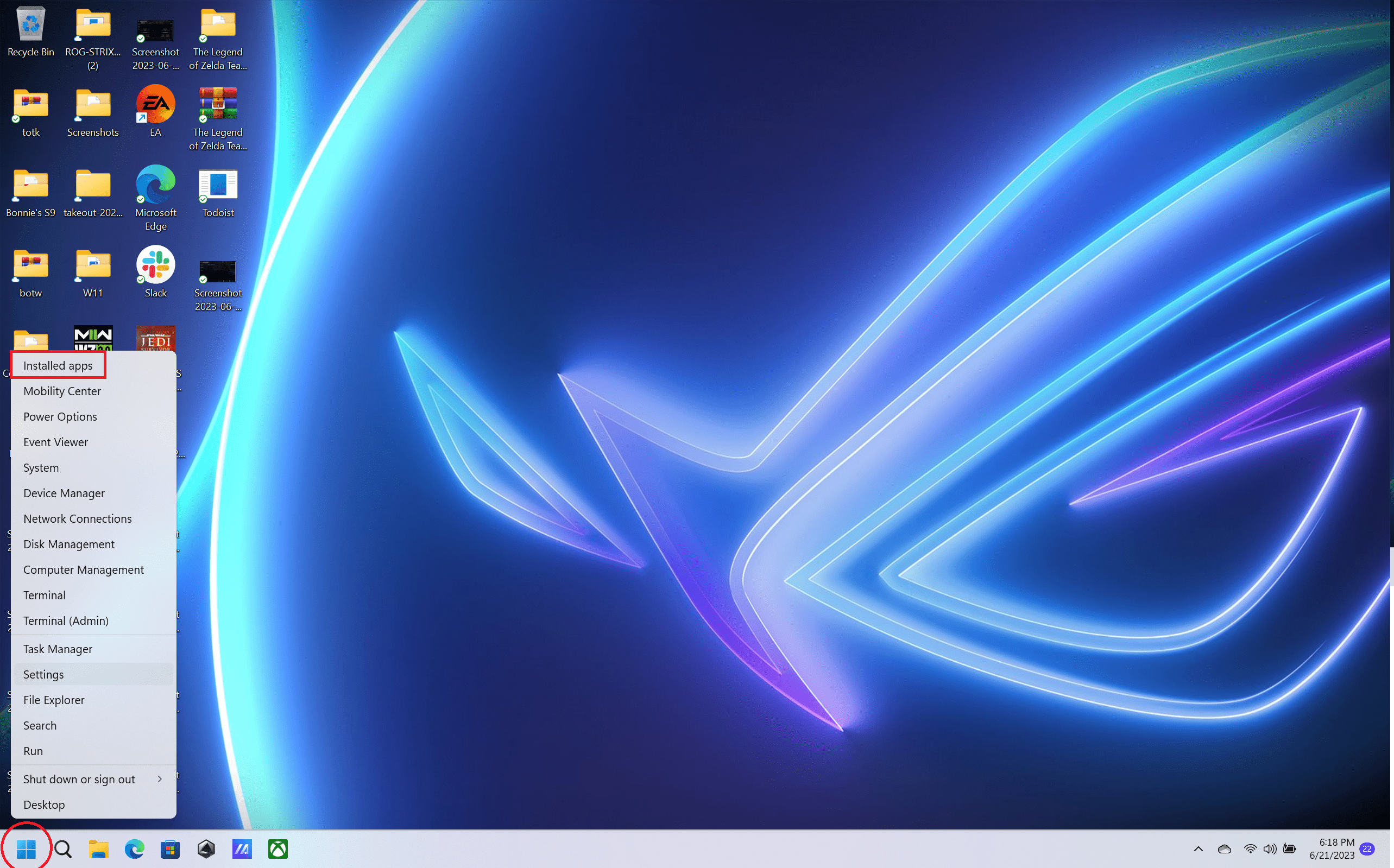
- Long-press on the Windows button in the Taskbar.
- Highlight and select the Installed apps button in the menu that appears.

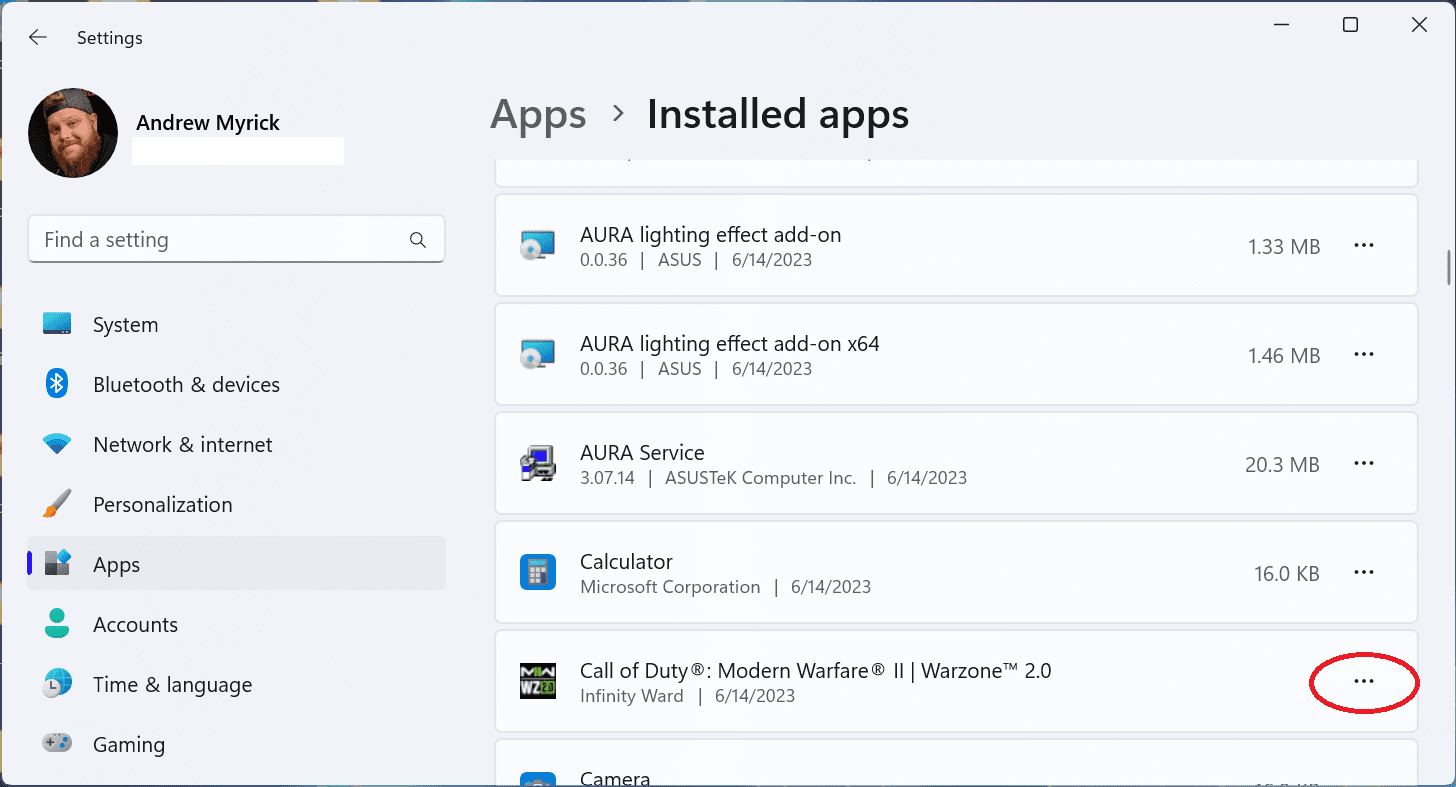
- Locate the app or game that you want to delete from the ASUS ROG Ally.
- Tap the three horizontal dots to the right of the app or game.

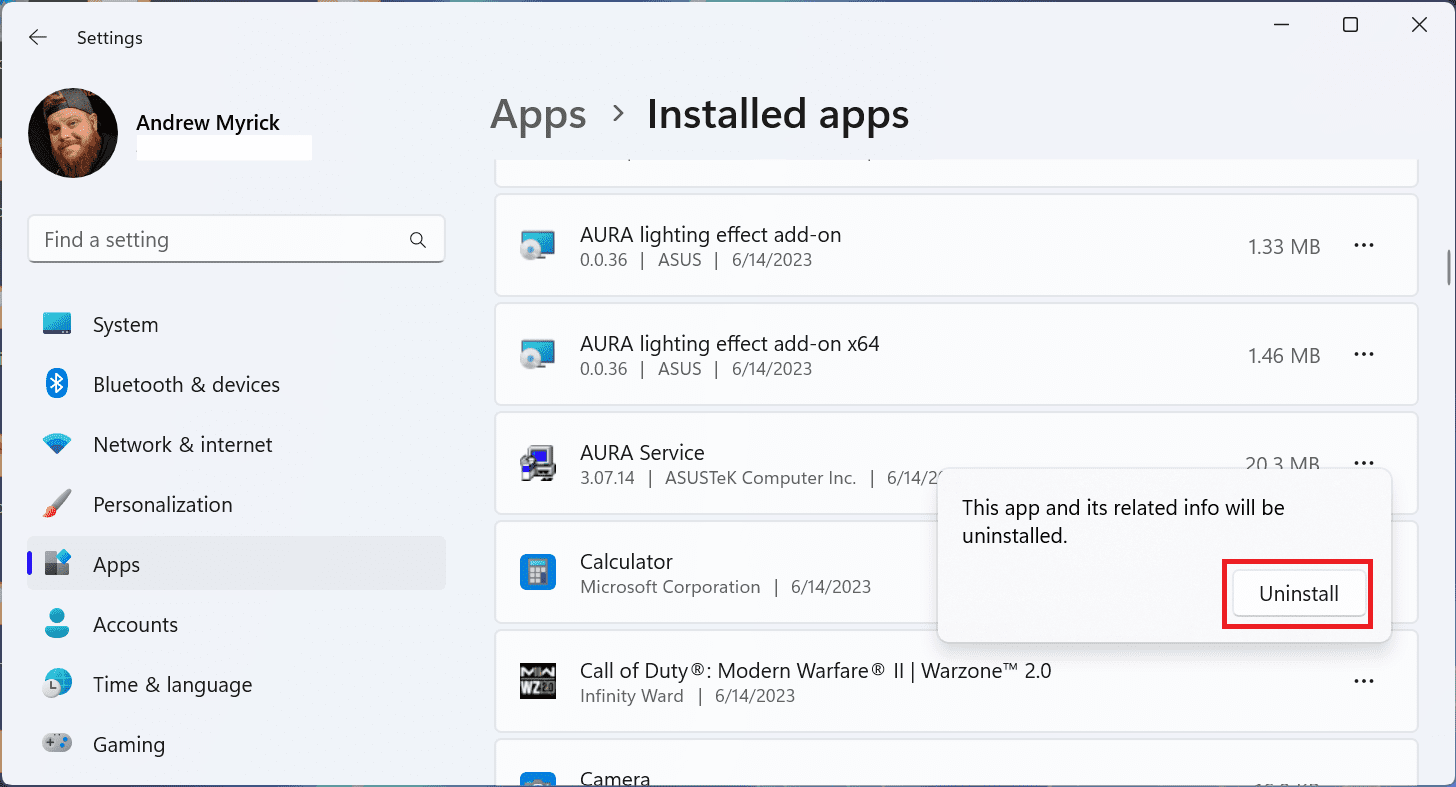
- Tap the Uninstall button that appears in the drop-down menu.
- When prompted, tap the Uninstall button again to confirm that you want to remove the app or game.
- Wait a few moments.
Something else worth pointing out is that if you are using game launchers such as Steam, GOG, or Epic Games, you can also delete games directly from those launchers. You’ll still need to exit or minimize the Armoury Crate app in order to access them, but it is possible to do so.
The ASUS ROG Ally is a brand-new Windows gaming handheld, so the company is still working out various bugs and kinks to improve the experience. We’re hoping that ASUS makes it possible to delete apps and games from ASUS ROG Ally using the Armoury Crate app in the future. But until then, you’ll just have to switch over to your Windows desktop in order to do so.




Excellent article. Helped me to remove unwanted game in just few minutes. Thank You Andrew 😊