

If you’re looking to sell your computer, it’s best to completely wipe your hard drive to let the new owner start with a clean slate. But you’re going to have to do more than delete all files manually. A blank hard drive is essential for starting fresh and ensuring that your data doesn’t fall into the wrong hands.
Thankfully, knowing how to wipe an HDD or SDD disk is quite straightforward. This article will be your guide.
Contents
How to Clear a Hard Drive Completely
Deleting files from your hard drive is no guarantee that they’re gone forever. In fact, data bits remain on your drive until your machine needs the space and overwrites them. A “cleared” or unwiped hard drive can still contain valuable data that could be compromised. Even resetting your PC via Windows doesn’t get rid of everything.
If you’re throwing away your hard drive, many experts recommend simply destroying the physical drive, for example driving a nail through it or taking it to be crushed or shredded. But if you’re looking to get more use out of it (that is, sell it), you’ll need to keep it intact. Thankfully, both HDD and SSDs can be safely cleared within Windows.
Wipe an HDD or SSD
Before you begin the clearing process, ensure you’ve backed up all necessary files. You can clone or make a recovery drive to keep all your files and settings. To wipe your drive, however, there are a few methods to choose from:
Format via Disk Manager
This method works well for external hard drives that don’t have system files. The hard drive will be wiped and reformatted for Windows. Here’s what to do:
1. Right-click your Start Menu (or Ctrl + X) to open the Context menu.
2. Select “Disk Management.”
3. In the window that pops up, you’ll see all your hard drives, including any external ones currently connected.
4. Right-click the disk you want to wipe and select “Format” from the Context menu.

5. In the menu that pops up, choose your options and click “OK” once done to begin the reformat.
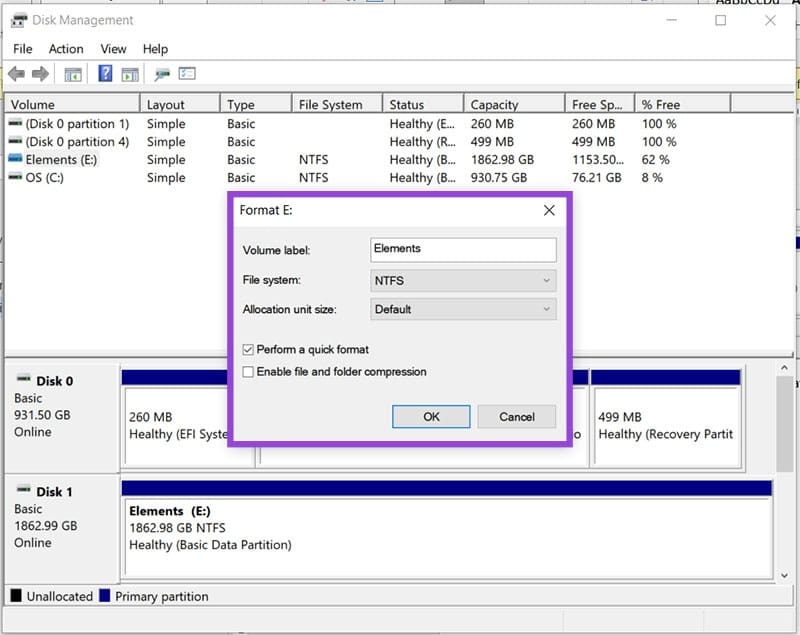
Disk Manager provides several options for reformatting. You can choose your file system (NTFS being the default for Windows), allocate unit size for partitions, and whether the format should be quick or more thorough.
Wipe via Windows Diskpart
Disk Manager is an excellent way to wipe an external hard drive that doesn’t contain any major system files. You won’t be able to touch your main hard drive though. You can do so via Command Prompt and Windows Diskpart. Here’s what to do:
1. To clear your main disk (if you use it to boot your machine), you’ll need to have either the Windows 10 or 11 disks in your CD drive to begin.
2. Open up Command Prompt via the Search Bar and run as Administrator.
3. Type “diskpart” and hit “Enter” to open Diskpart.
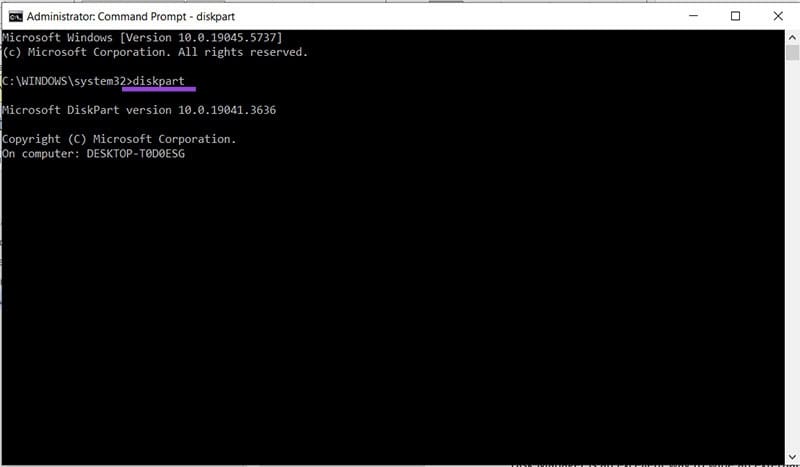
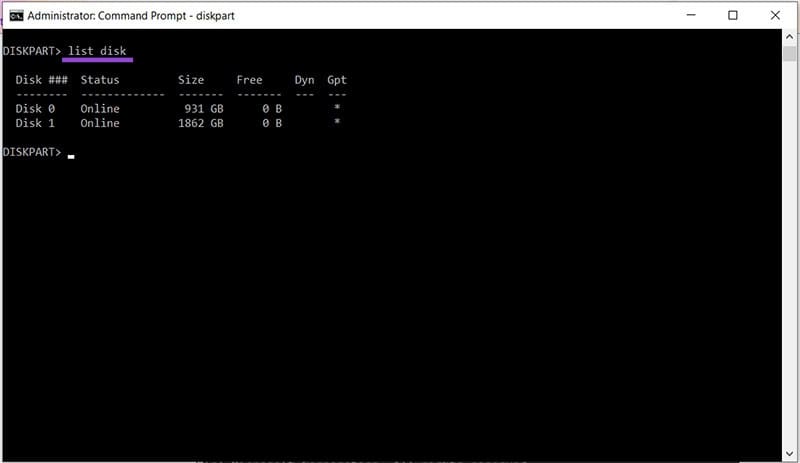
4. To see all available drives, type “listdisk” into the prompt.
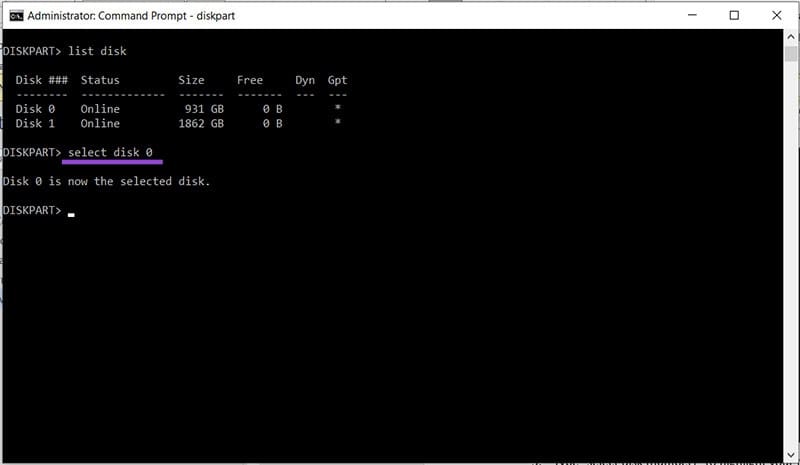
5. Type “select disk [number]” to highlight your target disk.
6. Then type “clean all” to begin the wiping process.
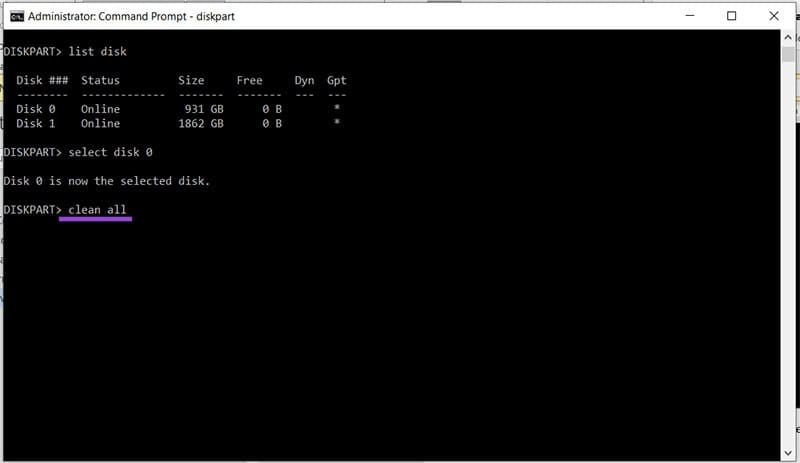
7. Your drive will then be erased. This may take some time, but you’ll receive a message once it’s done.
Diskpart can wipe your main HHD or SSD, but works just as well for external drives too.
Third-Party Software and PC Stores
There are plenty of third-party tools to make the process of wiping your drive that much simpler, but some will charge for their services. Some PC brands even come with their own disk-wiping utilities. On the other hand, if the whole wiping process seems daunting, or you lack the Windows disks to clear your main drive, why not take your machine to a PC repair store? They should have the tools in place to wipe your drive clean.




