Skip to content
LogoTechnipages
LogoTechnipages
  • Topics
        • Android
        • Browsers
        • Gaming
        • Hardware
        • Internet
        • iPhone
        • Linux
        • macOS
        • Office
        • Reviews
        • Software
        • Windows
        • Definitions
        • All Recent Posts
  • Product Reviews
  • About

How to Change the Theme of the Swiftkey Keyboard in Android

Mel HawthorneAugust 6, 2020 Comments (1)

Microsoft SwiftKey is a popular keyboard app on Android. It offers an array of configurable settings, including the size of the keyboard, if a number bar is always present at the top of the keyboard, and how auto-correction works. SwiftKey is also designed to learn predictive text suggestions from what and how you type.

One thing you can do to customize your keyboard further is to use a theme. There are hundreds of themes that you can choose from, or if none of them suit your preferences, you can go further in-depth and create your own theme from within the app.

To configure the appearance of your SwiftKey keyboard, you need to open the SwiftKey app, then tap on “Themes”.

Tap on “Themes” in the SwiftKey app to configure the appearance of your keyboard.

The themes will open into the “Yours” tab by default. This tab displays a list of your downloaded themes. Here you can try them out by pressing the blue keyboard icon in the bottom-right corner of the screen. With the keyboard open you can instantly switch between your keyboard themes by tapping on them.
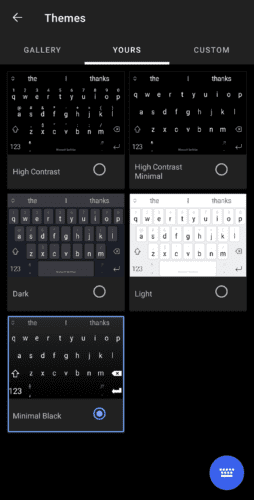
Use the keyboard icon in the bottom-right corner of the screen to test out your downloaded themes.

The “Gallery” tab is where you can scroll through pre-configured keyboard themes. If you tap one, you can see a preview screenshot of what the theme will look like when in use. If you like the appearance of the theme, then you can then press “Download” to download it. Alternatively, you can tap “Close preview” to close it and keep searching.

Tip: When you download a theme, it will be automatically applied.
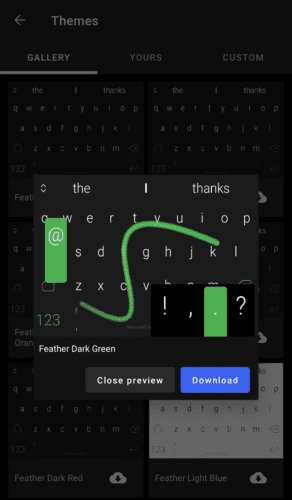
Use the “Gallery” tab to search for a pre-configured theme that you like.

If you change your mind on a theme that you have downloaded, you can delete it from the “Yours” tab by pressing and holding it, then tapping “Delete”.

Delete themes you don’t want any more by pressing and holding them in the “Yours” tab.

Categories: Android

Author Mel Hawthorne

You Might Also Like

  • Samsung Galaxy S20: How To Restart and Power Off

    MonaAndroid
  • How to Hard and Soft Reset Samsung Galaxy Z Fold Galaxy Z Fold 4

    Andrew MyrickAndroid
  • Android Apps

    Android: How to Close Apps

    Aaron KimAndroid

Comments

  1. Steven says:
    May 10, 2023 at 10:10 pm

    I have several different themes downloaded for my Android phone, but no matter which one I select, only the basic B&W is actually usable. My phone is refusing to use any of the other ones I downloaded. This sucks.

Leave a Reply

Your email address will not be published. Required fields are marked *

  • browser screen goes black

    Browser Screen Goes Black Intermittently 

  • computer heating up in hyper v

    Computer Heating Up When Using Hyper-V – How to Fix 

  • clipchamp unexpected application error

    Clipchamp Unexpected Application Error: Here’s the Solution 

  • winload.efi file missing error

    Winload.EFI File Missing Error on Boot – How to Fix

  • fix error 0x9cfc7550

    How to Fix Error 0x9cfc7550 (We Couldn’t Create a New Partition) in Windows 

profile pic

The Experts Behind Technipages

My name is Mitch Bartlett. I've been working in technology for over 20 years in a wide range of tech jobs from Tech Support to Software Testing. I started this site as a technical guide for myself and it has grown into what I hope is a useful reference for all.

Learn More

technipages logo white
linkedin icon

Technipages is part of Guiding Tech Media, a leading digital media publisher focused on helping people figure out technology. Learn more about our mission and team here.

© 2025 Guiding Tech Media All Rights Reserved

  • About Us
  • Contact
  • Terms of Use
  • Privacy Policy

© 2025 Guiding Tech Media All Rights Reserved

Information from your device can be used to personalize your ad experience.
Do not sell my personal information.

Last Updated on August 6, 2020 by Mitch Bartlett