
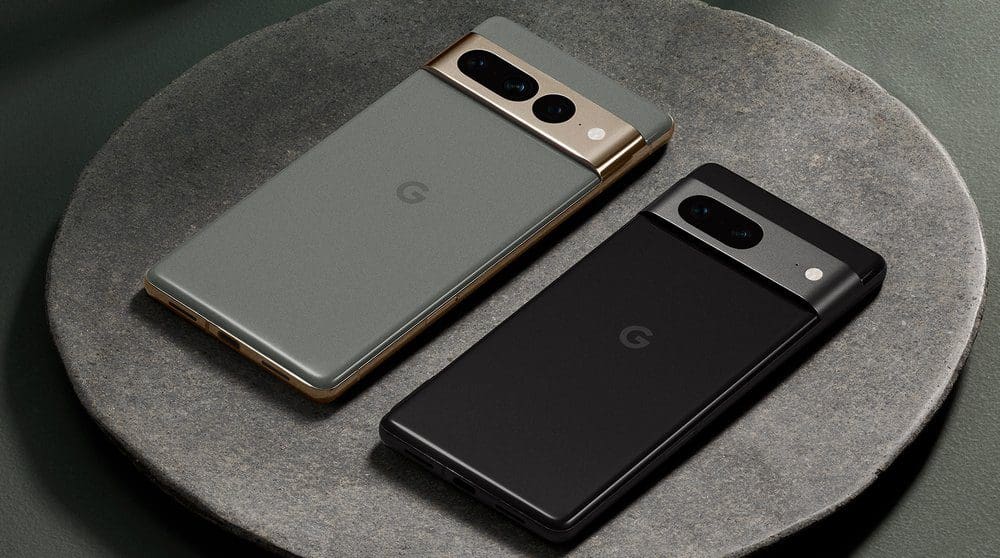
One of the most important things you can do with any device that you own is to make sure that your data and information is backed up to a secondary location. The primary location is always locally on whatever device you are using, regardless of whether it’s a computer or a smartphone.
And there are quite a few different cloud solutions that you can use to keep your information safely backed up. It’s also important in the event that you find yourself needing to reset your phone, or if your phone is broken and you can no longer access the information on your device.
How to Back Up Pixel 7
The need to back up your devices is extremely important, and that’s why we’re going to walk you through the steps to properly back up Pixel 7. Google makes it very easy to back up your phone, including any pictures, documents, files, and pretty much anything else that is on your phone. With that in mind, here’s how you can back up the Pixel 7 or Pixel 7 Pro:
- Open the Settings app on your Pixel 7 or Pixel 7 Pro.
- Scroll down and tap System.
- Tap Backup.
- Wait for the page to finish loading, then look for the Backup by Google One section.
- Make sure this is toggled to the On position.
- When you’re ready, tap the Back up now button.
Depending on the speed of your internet connection and the amount of data that needs to be backed up, this process might take a little while. However, something to point out is that Backup by Google One should be enabled by default on your Pixel 7 or Pixel 7 Pro. With this enabled, your Pixel 7 will automatically be backed up “over Wi-Fi after it’s been idle and charging for 2 hours”.
Nevertheless, we still recommend going through the steps above, just to make sure that everything is backed up if you need to reset Pixel 7. Additionally, Google points out that there are some things that won’t be backed up, such as your screen lock PIN, pattern, or password. Plus, some applications will automatically back up information, so you’ll just need to log back into the app when the time comes.
How to Back Up Pixel 7 With A Different Account
In some cases, you might have multiple Google accounts, one that has plenty of storage available, while another might still be using the free data given with each new account. But did you know that you can actually back up Pixel 7 with a Google account that differs from the one you use to download apps? Here’s how you can switch over to another account if you need to back up Pixel 7 or Pixel 7 Pro:
- Open the Settings app on your Pixel 7 or Pixel 7 Pro.
- Scroll down and tap System.
- Tap Backup.
- Select Account storage.
- From the Choose backup account prompt, select the Google account that you want to use instead.
- If the correct Google account is not listed, tap the Add account button.
- Follow the on-screen instructions to finish adding (or creating) another Google account to use for backups.
Of course, this isn’t something that will apply to everyone, but it’s nice to see that Google thought about pretty much everything. And as always, if you have enough storage, you can use things like Google Photos or Dropbox to keep backups of photos or other pieces of data from your phone.



No, this did not help me. I purchased a Google Pixel 7 phone with 256 GB. It tells me that my storage is FULL with only 42 GP used. The software in the phone directs all my photos, and texts to Google storage that is limited to 15GB. There is a consistent (in RED) message stating that my account is full, and that I need to purchase more space. I want my pictures saved to my phone and not Google storage and I can’t find the “button” to turn on that feature. I am frustrated and about to return this phone. I purchased a phone with lots of space for this very reason. Please help.