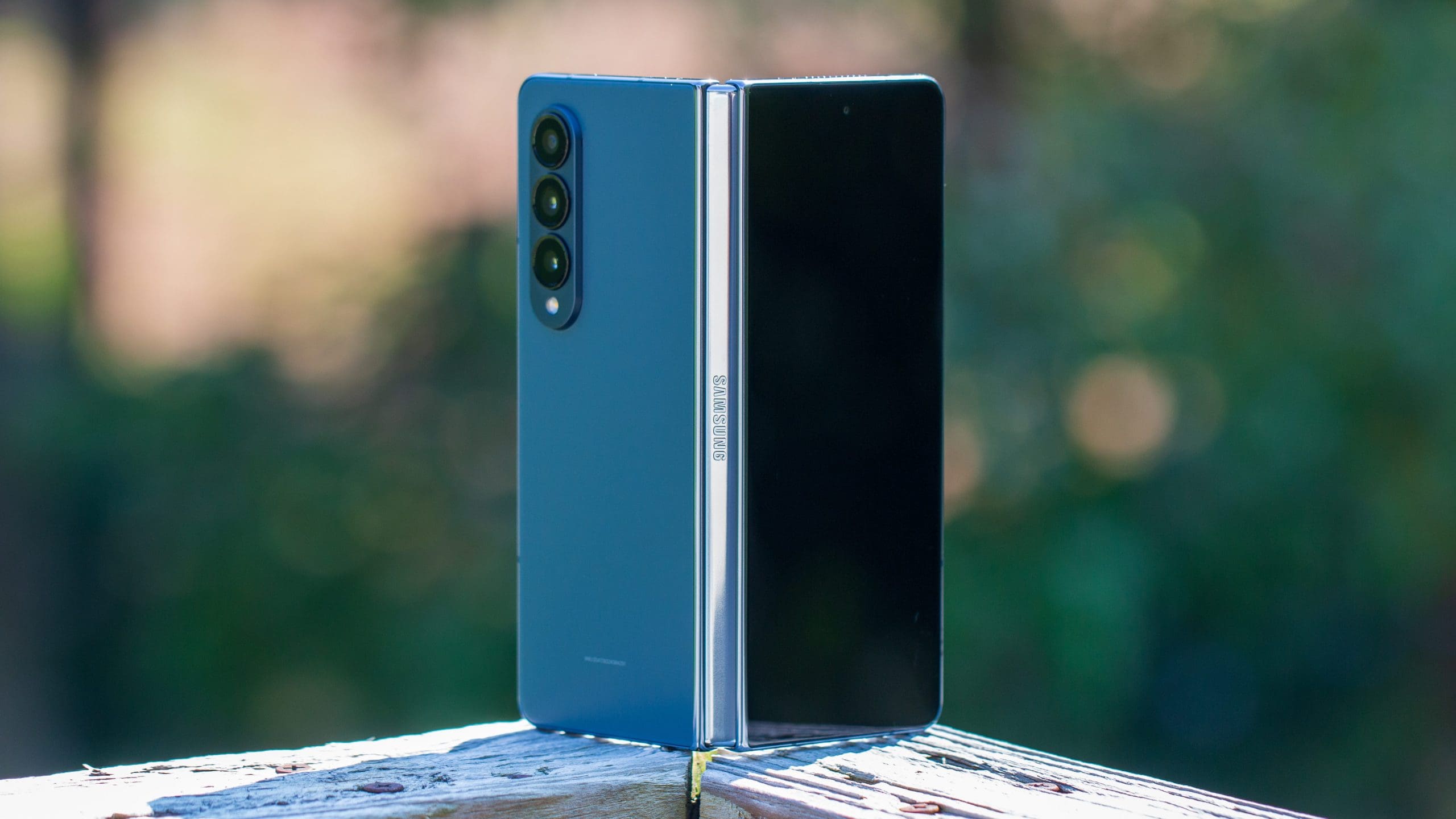
Whenever a new smartphone is released, the device has the potential to feature different methods for trying to restart, power off, or troubleshoot. This includes the all-new Galaxy Z Fold 4, despite it being one of the fastest, most powerful, and most unique smartphones on the market today. If you run into issues and find your Galaxy Z Fold 4 unresponsive, there are a few different ways to force restart the Galaxy Z Fold 4.
Contents
Make Sure Your Galaxy Z Fold 4 Has Enough Battery Life
Before proceeding with any of the methods listed below, you’ll want to ensure that the Galaxy Z Fold 4 has enough battery life. Otherwise, it might not respond or even turn on when you try to force restart the Galaxy Z Fold 4. Samsung finally upped the ante in the charging speeds department with the Galaxy Z Fold 4, as these phones can reach up to 45W wired charging speeds. However, you’ll want to make sure you have a compatible charger, and we’ve listed a few of our favorites below.
- Samsung 45W USB-C Super Fast Wall Charger: Although Samsung no longer includes a charger in the box, the company still offers its USB-C wall charger. This includes both the charging brick and USB-C to USB-C cable while being able to charge your Galaxy Z Fold 4 at the fastest speed of 45W.
- Anker 713 Nano II 45W: It should be no surprise that the latest Anker wall charger is on the list of the best Galaxy Z Fold 4 chargers. The Anker 713 Nano II is a GaN charger, providing up to 45W of power while being one of the smallest chargers we’ve ever seen.
- Satechi 100W GaN USB-C PD Wall Charger: Satechi makes quite a few different charging accessories, and while most of them are designed for the iPhone and Mac, this one works with all devices. There’s a single USB-C charging port with Power Delivery support that can reach up to 100W charging speeds.
Don’t be alarmed if your phone doesn’t turn on immediately. Let your Galaxy Z Fold 4 sit connected to the charger for at least 30-minutes to an hour to ensure that it has plenty of juice. Then, you can try and turn the phone on again.
Bring Back The Power Menu
As with many other Galaxy phones, Samsung tries to “force” you into using Bixby right out of the box. Instead of having a traditional Power Menu when you press and hold the Power button, Samsung opts to use this as the default method for activating Bixby. It’s an extremely frustrating proposition that can easily be remedied if you don’t mind jumping into the Settings app.
- Open the Settings app on your Galaxy Z Fold 4.
- Scroll down and select Advanced Features.
- Tap Side Key.
- Under Press and hold, select Power off menu.
After you disable Bixby from the Side Button, you’ll be presented with the traditional Power Menu whenever you press and hold down the Side button. This transforms it back into the Power Button we’ve been accustomed to for years.
- Press and hold the Power Button for up to three seconds.
- Tap the Power Off button on the screen.
- Tap the Power Off button again to confirm.
- Wait until the Galaxy Z Fold 4 is powered down.
- Press and hold the Power button until the startup logo appears.
Force Restart
After just a few moments, your Galaxy Z Fold 4 will finish restarting, allowing you to continue doing whatever it was you wanted to. However, there are times when you might not be able to interact with the screen. These don’t happen as frequently nowadays, but it’s still possible. Thankfully, you can force restart Galaxy Z Fold 4 without worrying about dealing with the software.
- Press and hold the Side and Volume Down buttons at the same time.
- Continue holding both buttons for about 15 seconds.
- Let go of the buttons when you see the Samsung Galaxy logo appear on the screen.
If you aren’t getting any response from your Galaxy Z Fold 4, try plugging it in. Even if the battery wasn’t depleted, there are times when you can’t force restart the phone until it’s plugged into power.
Boot Into Safe Mode to Diagnose Problems
While the Galaxy Z Fold 4 is an incredible beast, there are times when an app could bring it to its knees. In the past, we’ve seen instances when a single app soft-bricked a phone. If this happens to you and your Galaxy Z Fold 4 won’t turn on, you can boot the phone into Safe Mode.
- Press and hold the Volume Down and Power Key at the same time.
- When the Power Menu appears, touch and hold the Power Off button.
- Your phone will vibrate, and a new menu will appear.
- Tap the Safe mode button.
Safe Mode essentially removes all of the extra cruft you usually see, providing a more basic interface. Doing so allows you to troubleshoot potential issues without needing to take it to someone to look at them. But we recommend checking for any software updates that need to be installed.
- Open the Settings app on your Galaxy Z Fold 4.
- Scroll down and tap Software Update.
- Tap Download and install.
- If an update is available, tap the Install button.
Once the update is finished downloading, your Galaxy Z Fold 4 should automatically restart. Then, you will be taken back to the non-Safe Mode version of the interface so you can get back to using your phone.
Force Restart Galaxy Z Fold 4 With Android Recovery
The last option that we can recommend if your Galaxy Z Fold 4 won’t turn on is to try and boot into the Android Recovery. This is baked into every Android phone and integrated into the core operating system. Here’s how to access Android Recovery:
- Turn your tablet off, if possible. If not, press and hold the Side and Volume Down buttons until the screen is black.
- Once your tablet is turned off, press and hold the Volume Up and Side buttons until the Samsung logo appears.
- After the Samsung logo appears, release the Side button, but continue holding the Volume Up button.
- From the Android Recovery interface, press the Volume Down button until Reboot system now is highlighted.
As a reminder, you will not be able to navigate the Android Recovery interface with the touchscreen. Instead, you’ll need to use the Volume Up and Down buttons and use the Power button to make your selections.