Skip to content
LogoTechnipages
LogoTechnipages
  • Topics
        • Android
        • Browsers
        • Gaming
        • Hardware
        • Internet
        • iPhone
        • Linux
        • macOS
        • Office
        • Reviews
        • Software
        • Windows
        • Definitions
        • All Recent Posts
  • Product Reviews
  • About

How Do I Fix Error Code 0x800f0950 on Windows 11?

Madalina DinitaOctober 8, 2021 Comments (1)
windows-11-error-0x800f0950

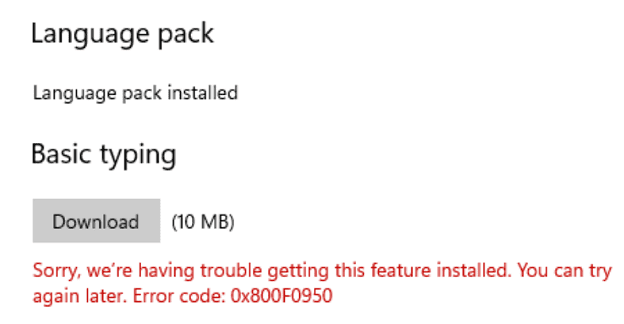
Many Windows 11 users complained about getting error code 0x800f0950 when trying to install a new language pack. The error reads as follows: “Sorry, we’re having trouble getting this feature installed. You can try again later. Error code: 0x800F0950“. If you already restarted your computer but the error persists, pursue the troubleshooting steps below.

Contents

  • 1 How to Fix Windows 11 Error 0x800f0950
    • 1.1 Download the Language Pack Again
    • 1.2 Check Your Connection
    • 1.3 Check Your Date and Time Settings
    • 1.4 Run DISM and SFC
    • 1.5 Conclusion

How to Fix Windows 11 Error 0x800f0950

Download the Language Pack Again

Try downloading the problematic language pack again after restarting your computer. Maybe Microsoft’s servers were 0verloaded when you first tried to download the pack. Try again and check if you’re luckier this time around.

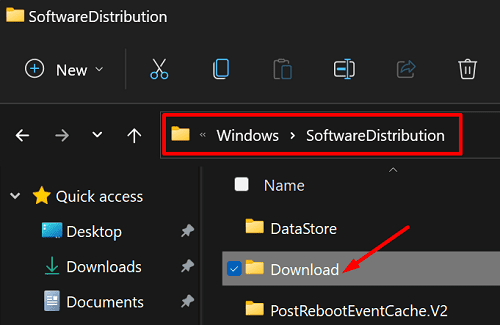
  1. Navigate to C:\Windows\SoftwareDistribution\Download.
  2. Then delete all the files and folders from the Download folder.windows-11-SoftwareDistribution-folder
  3. Make sure to delete all the files from the SoftwareDistribution Folder as well.
  4. Try to download the problematic language pack again.
Check Your Connection

This error seems to occur more frequently on computers connected to a Wi-Fi network than on devices using a cable connection. So, if you’re on a Wi-Fi connection, switch to a cable connection and check if the error persists.

Additionally, unplug your router and leave it unplugged for one minute. Then power up the device and make sure to disconnect all the other devices using the same connection. Try using a different connection, such as a mobile hotspot, and check the results.

Check Your Date and Time Settings

Make sure your date and time settings are correct. If they’re incorrect, Microsoft’s servers will block the connection request for security reasons.

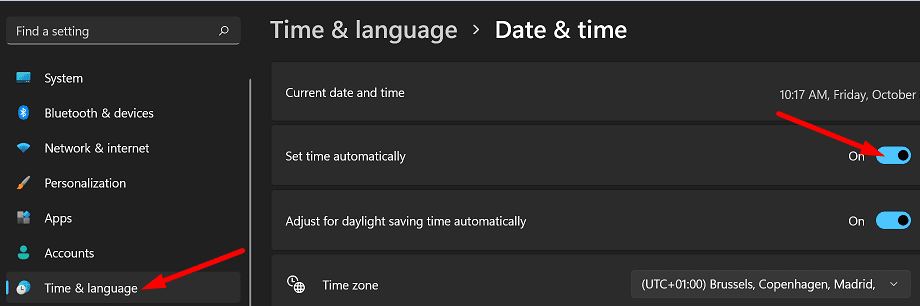
  1. Go to Settings, and select Time and Language.
  2. Then select Date and time.
  3. Let your computer set up the date and time settings automatically.windows-11-date-and-time-settings
  4. Restart your machine and check if you can install the language pack now.

Run DISM and SFC

Run DISM and SFC to detect and repair disk and system file errors.

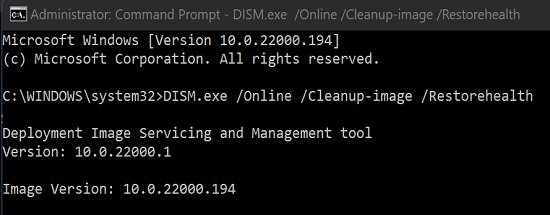
  1. Launch Command Prompt with admin rights.
  2. Then run the following commands one by one, and press Enter after each command:
    • sfc /scannow
    • DISM.exe /Online /Cleanup-image /Scanhealth
    • DISM.exe /Online /Cleanup-image /RestorehealthDISM-RestoreHealth-Windows-11
  3. Restart your computer and check if the issue is gone.

Conclusion

If error 0x800f0950 is preventing you from installing a new language pack on Windows 11, restart your computer and router. Then go to the SoftwareDistribution folder and delete all the files from the Download folder. Additionally, let your computer set up the date and time settings automatically. If the issue persists, run DISM and SFC to repair your disk and system files.

Did you manage to get rid of error code 0x800f0950? Which of these methods worked for you? Let us know in the comments below.


Categories: Windows

Author Madalina Dinita

Madalina has been a Windows fan ever since she got her hands on her first Windows XP computer. She is interested in all things technology, especially emerging technologies -- AI and DNA computing in particular.

You Might Also Like

  • Remote Desktop Won’t Save Username and Password

    MonaWindows
  • Windows Settings Header

    Windows 11: Fix “This publisher has been blocked from running software…”

    Mitch BartlettWindows
  • TP Gear Header

    Fix: Unpinned Apps Keep Reappearing on Windows 11

    Madalina DinitaWindows
  • vmware-keyboard-not-working-windows-10

    Fix: VMWare Keyboard Not Working on Windows

    Madalina DinitaWindows

Comments

  1. 'Bhuck'ta says:
    February 21, 2023 at 3:47 pm

    Nothing has worked! Can’t install additional language pack features due to this error.

Leave a Reply

Your email address will not be published. Required fields are marked *

  • unable to create notebook error in onenote

    We Were Unable to Create Your Notebook Error in OneNote – Common Fixes 

  • error code 0x800704f8 fix

    Error Code 0x800704f8 – How to Fix 

  • back button in browsers doesnt work

    What to Do if the Back Button in Browser Doesn’t Work 

  • could not find this item

    “Could Not Find This Item” When Trying to Remove Files

  • no graphics signal on first boot

    No Graphics Signal on First Boot – How to Fix

profile pic

The Experts Behind Technipages

My name is Mitch Bartlett. I've been working in technology for over 20 years in a wide range of tech jobs from Tech Support to Software Testing. I started this site as a technical guide for myself and it has grown into what I hope is a useful reference for all.

Learn More

technipages logo white
linkedin icon

Technipages is part of Guiding Tech Media, a leading digital media publisher focused on helping people figure out technology. Learn more about our mission and team here.

© 2026 Guiding Tech Media All Rights Reserved

  • About Us
  • Contact
  • Terms of Use
  • Privacy Policy

© 2026 Guiding Tech Media All Rights Reserved

Information from your device can be used to personalize your ad experience.
Do not sell my personal information.

Last Updated on October 8, 2021 by Mitch Bartlett