Parents who want to control better what websites their kids can access on their Chromebooks have plenty of options at their disposal. The web is full of websites promoting content that is not appropriate for certain age categories.
Blocking these websites allows parents to protect their kids from harmful content. Besides, accessing any websites makes kids more prone to procrastination. Follow the steps below if you want to filter out the content your kids can access on their Chromebooks.
Contents
How to Block Websites on Chromebook
Set up a Separate Child’s Account with Family Link
Google has a dedicated family parental controls service called Family Link that you can use to control your children’s Google account. You can decide what Google services and websites they can access on their device.
Children won’t be able to browse in private mode, and you can manage which websites they can visit and which not. You can also prevent them from granting permissions to websites and instruct Chrome to block specific websites.
Use Family Link to Manage Your Child’s Browsing Options on Chromebook
- Launch the Family Link app, and select your child’s account.
- Then go to Settings and select Manage settings.

- Go to Filters on Google Chrome.

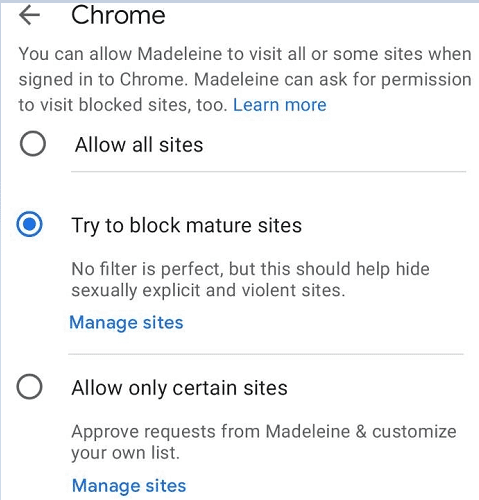
- There are three options that you can choose from:
- Allow all sites: The only websites your kids won’t be able to visit are those you specifically blocked.
- Try to block mature sites: This option blocks sexually explicit and violent sites. However, the filter may sometimes fail to block this type of content.

- Only allow certain sites: Create a list of websites that your kids can visit.
- Select Manage sites if you want to allow or block web pages manually.
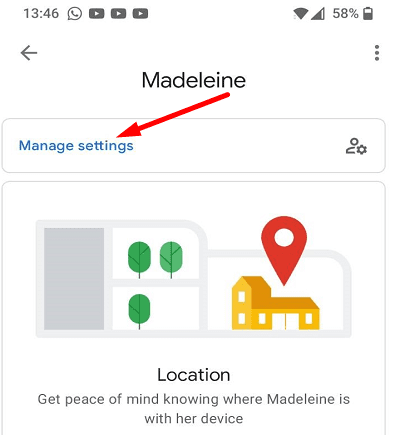

How to Block Websites with Family Link
- Open the Family Link app and select your child’s account.
- Go to Settings, select Manage settings, select Filters on Google Chrome.
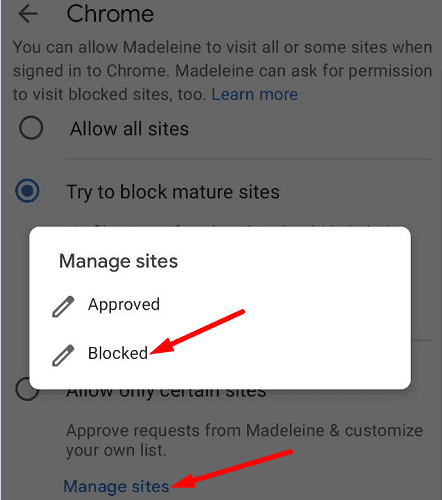
- Go to Manage sites and select Blocked.

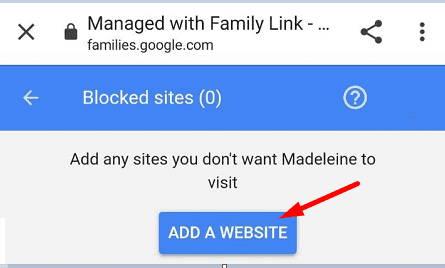
- Select Add a website.

- Add the website(s) or domain(s) that you want to block. Save the changes, and exit the app.
Use SafeSearch
You can also use Google SafeSearch to block websites. This feature filters out explicit content such as pornography and violence-related results in Google’s search results. However, keep in mind that SafeSearch is not 100 percent accurate.
This option works only on Google’s search results. In other words, users can bypass these limitations by switching to a different search engine or navigating directly to the websites they’re interested in.
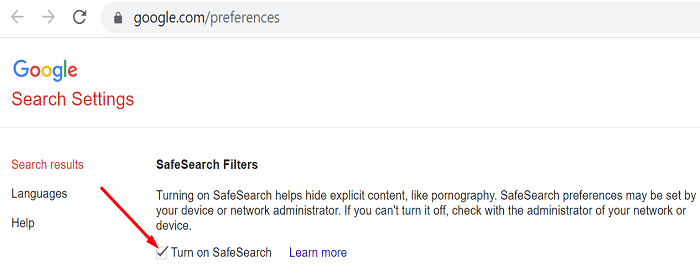
- To enable SafeSearch on Google Chrome, open a new browser tab and go to https://www.google.com/preferences.
- Tick the Turn on SafeSearch option.
- Then scroll down to the bottom of the page and hit the Save button.
Use a Chrome Extension to Block Websites
You can also use a dedicated Chrome extension to block websites. There are plenty of website blocking extensions available in the Chrome Web Store.
We’ll list three of the most popular ones below:
- BlockSite: Block Websites & Stay Focused (3-day free trial)
- Block Site
- Site blocker
Download one of these extensions, and add them to Chrome. Edit your settings, and start adding websites to your list of blocked web pages.
Conclusion
If you want to block certain websites on your child’s Chromebook, you can use the Family Link app. Family Link allows you to manage your child’s browsing options and filter out websites. As a quick reminder, You can also use SafeSearch to block search results promoting pornographic or violent content.
Alternatively, you can use a third-party Chrome extension to block websites. Which of these methods works best for you? Let us know in the comments below.