Roblox is a popular gaming platform where creators launch obstacle courses, survival games, and shooters for other members to enjoy. Unfortunately, it’s not without its glitches. Occasionally, you may experience an error message that prevents you from playing. Roblox error 280 is essentially a notice that your app is out of date.
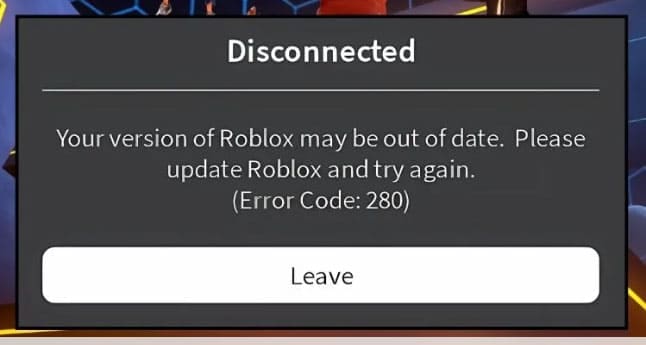
Follow the steps below to update your app or uninstall and reinstall it so you can get back to playing or creating.
Contents
Updating Your App to Fix Roblox Error 280
Step 1. Open the Microsoft Store. You can search for it using the search bar from your computer’s home screen, or press the Windows key + S to initiate a search.

Step 2. Go to “Library,” which you can find in the bottom-left corner.
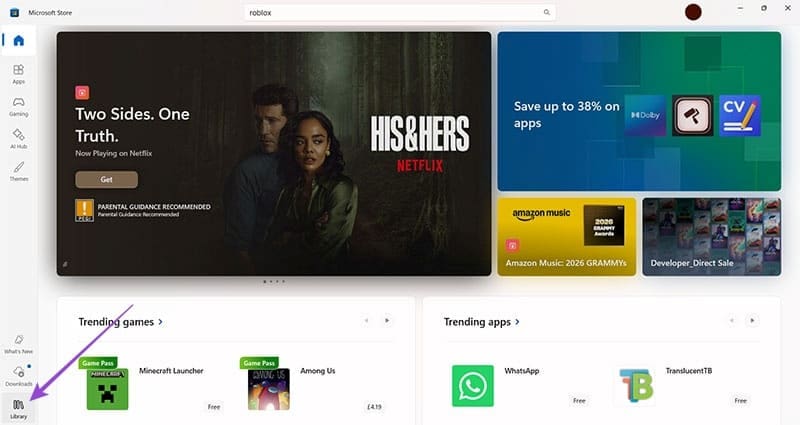
Step 3. In the Library, look for a button that says “Get Updates” at the top of the screen. If you don’t see this, as in the image below, it means that all your apps are up to date. In this case, go to the next method of fixing Roblox error 280, which is deleting and reinstalling the app. But if you do see this button, click it and follow the on-screen prompts.
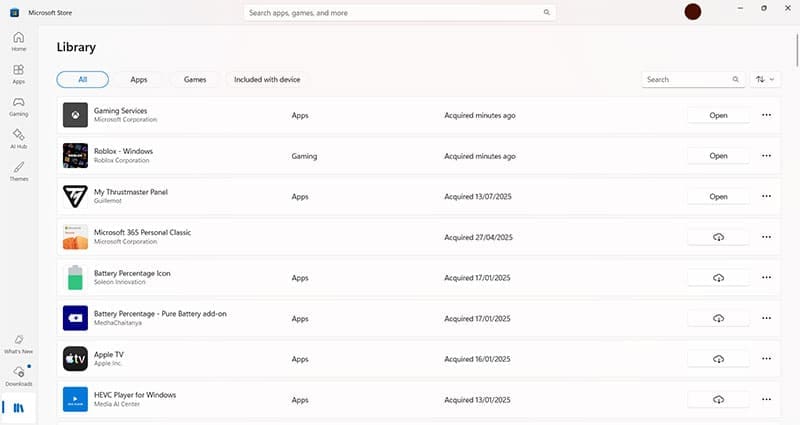
Note: On a smartphone or video games console, such as Xbox or PlayStation, you can click the options button from the home screen and check for updates manually. Mac users, check the App Store for any updates to your apps.
Deleting and Reinstalling Roblox: Windows PC or Laptop
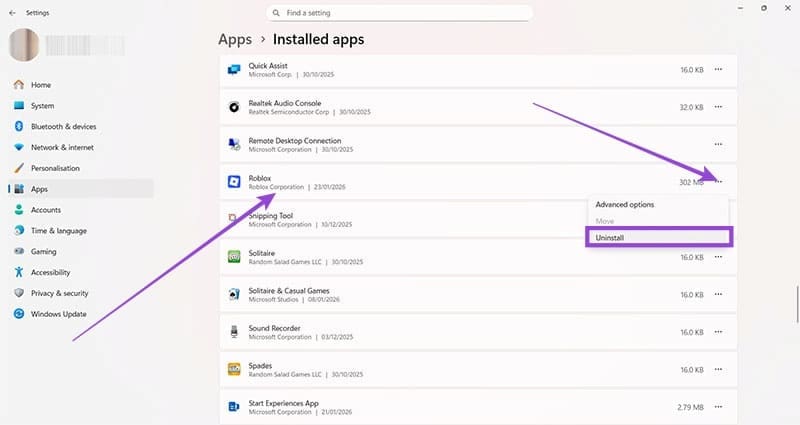
Step 1. Open Settings by pressing the Windows key + I or using the search bar. Head to “Apps,” then “Installed apps.”
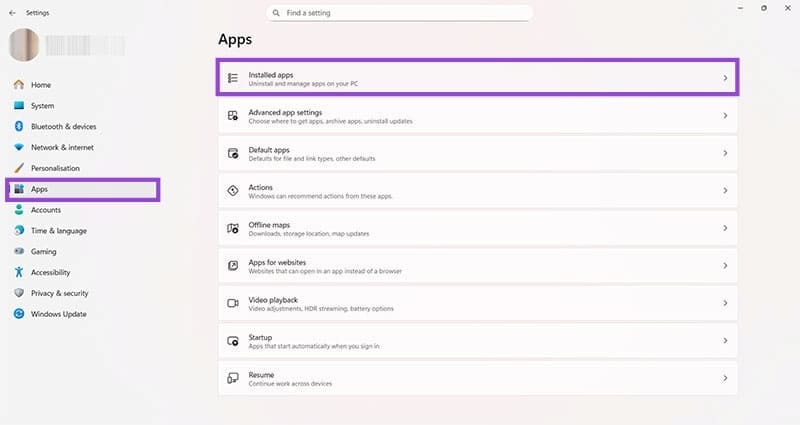
Step 2. Scroll until you find Roblox. Click the three dots next to the app details, and click “Uninstall.”
Step 3. Once the uninstall process has completed, open the Microsoft Store again.

Step 4. Search for Roblox.

Step 5. Click the blue “Get” button, which may appear as “Install” in some regions.

Step 6. Click “Download” when prompted. You may also need to confirm that you’re OK with the app making changes to your computer.
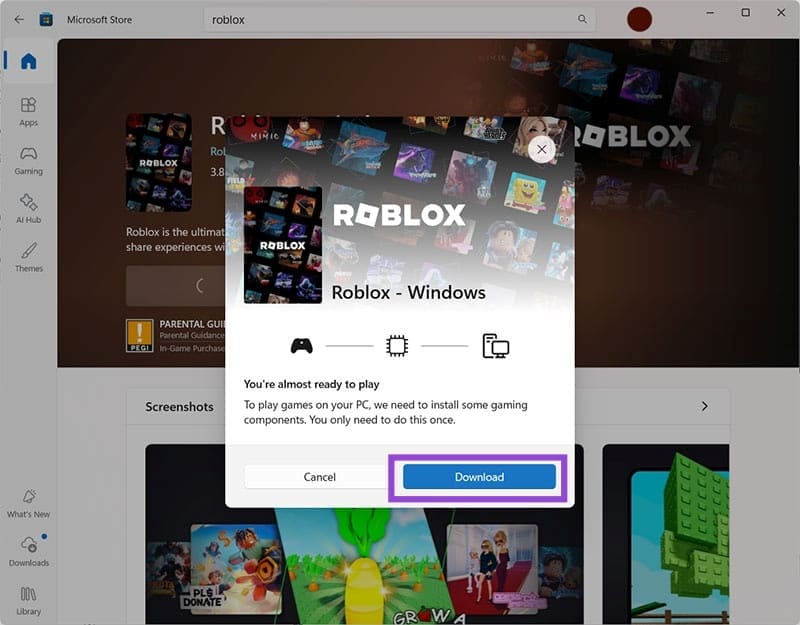
Step 7. Once downloaded, you’ll be prompted to install the app. Just click “Install” and wait for the process to finish, which can take a few minutes.

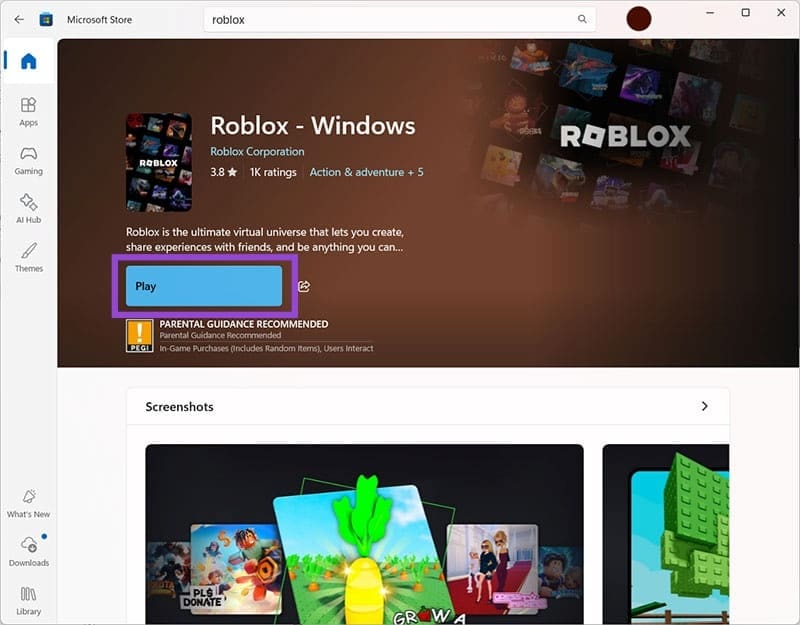
Step 8. Press the blue “Play” button.
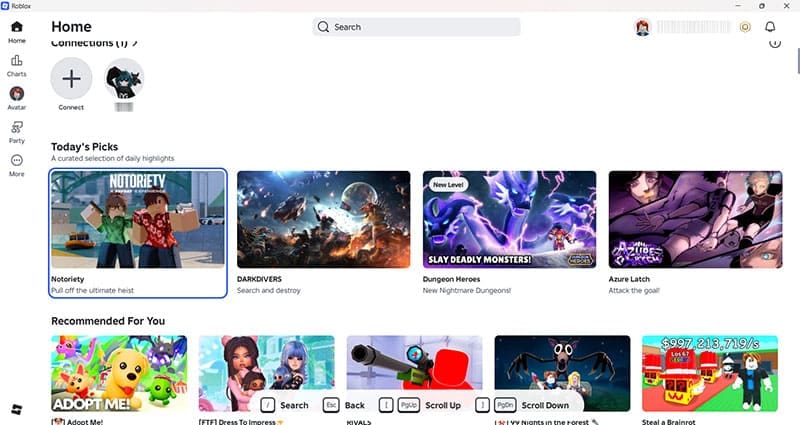
Step 9. Enter your Roblox credentials when prompted to do so. On a Windows PC, these will normally be the same as your Microsoft account or Xbox account.

Step 10. Check you can use the app as expected. You’ve successfully fixed Roblox error 280.
Mac users: You will follow a similar process, but using the App Store instead of the Microsoft Store.
Deleting and Reinstalling Roblox: iPhone
Step 1. Find the app on your iPhone’s home screen and hold your finger on it for a few seconds. You’ll see several options appear, including “Remove App.” Tap on this.

Step 2. Once the app has vanished from your phone, head to the App Store and search for Roblox. Click the download button, which looks like an arrow coming out of a cloud.

Step 3. Wait until the download and install has completed. A circular progress bar will fill during this time.
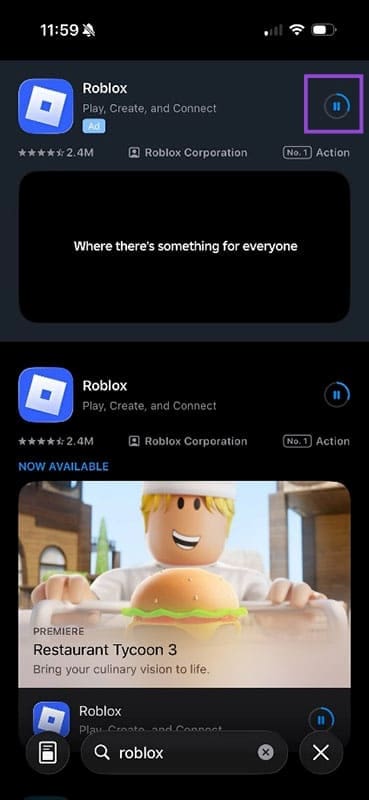
Step 4. Find the icon for the app and open it. Once you’ve entered your credentials, you should find that the app works as normal.

Note: Android users, follow the same process, but re-download the app from the Google Play Store.