No one likes to be blocked, regardless of the social network or messaging app. But, since no one is perfect, there will come a time when you might get on someone’s nerves and as a result, be blocked.
But, how can you be sure that you’ve been blocked? What signs will make it clear that you’ve been blocked? The things you need to watch out for are easy to spot. Keep reading to find out how to if you’ve been blocked on WhatsApp, Instagram, and Facebook.
Contents
How to Tell If You’ve Been Blocked on WhatsApp
There are various things you can look out for when you’ve been blocked on WhatsApp. For example, when you send the person a message, the message will always only have one checkmark, and it won’t turn blue.
This could also mean that the person doesn’t have an Internet connection for some reason. But, if this stretches out longer than other times that this may happen to you, you may have been blocked.
You won’t be able to see the person’s profile image (this also applies for calls as well), and when you try to add the person to a group, you will get a message saying that adding that person was not possible.

Another sign to watch out for is that you can’t see they’re last seen and that you’ve been staring at the same profile picture for ages. This could also mean that the person simply doesn’t care about updating their profile picture, but it’s something to watch out for. Your calls won’t go through as well.
These last tips won’t guarantee that you’ve been blocked, but if you add them to the previously mentioned ones, they is a good chance that you’ve been blocked.
One sure way to know that you’ve been blocked is that you can’t see their online status when you know for sure that they’re online.
To test this out, you’re going to need a friend’s help. With the other phone, see if the person is online, if they are, open the contact on your phone, can you see their online status? Still can’t see that they are online? Then I’m afraid that you’ve been blocked.
How to Tell If You’ve Been Blocked on Instagram
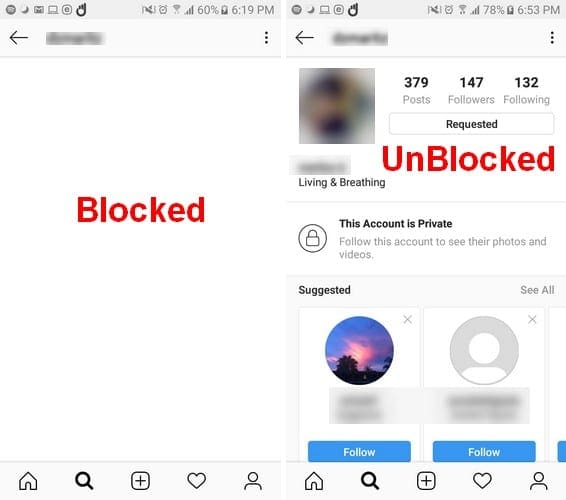
If you suspect that you’ve been blocked on Instagram, there are things you can look out for. For example, if you type the entire username and they don’t appear in the search results, that could indicate that you’ve been blocked (if their account is private).
Even if you have a history with the account, their info will disappear. If the account is public, the person you think blocked you will show up in the search results, but you will see a blank photo grip and No Post Yet, you’ve been blocked.
Another way you can check to see if you’ve been blocked is by going to the Instagram page of someone who knows the person you think blocked you.
If this person usually posts pictures of the person who blocked you won’t have a hard time finding a picture that has the offender tagged. By clicking on this tag, you should see photos of the person you think blocked you.

If you see the words No Post Yet, then that’s a sign that you’ve been blocked. If you can’t find a picture, they are tagged in but did find a section where they have commented, click on their name, and if you’ve been blocked, you will see the words No Post Yet. Also, the stories that usually appeared when you first launch Instagram will also disappear.
How to Tell If You’ve Been Blocked on Facebook
The things you need to watch out for to see if you’ve been blocked on Facebook are also easy to spot. The most essential tip you can try is to search for that person’s name. If they used to appear in the search results, but don’t anymore, you’ve been blocked.
If you can remember a friend both of you have in common, go to their friend’s list and search for the person you think blocked you. If you don’t see the name, that’s a sign you’ve been blocked, but keep in mind that this is only going to work if the friend list is public.
Also, if you can’t click on their name and you see a default profile pic, that can also indicate that you’ve been blocked. You can also try the tip you tried in WhatsApp to see if you’ve been blocked. Search for the person using someone else’s Facebook account, and if can easily access their account, then there is no doubt that you’ve been blocked.
Conclusion
No one liked to be blocked, but it’s something that will happen whether you like it or not. At least now you know how to tell if you’ve been blocked on either WhatsApp, Instagram, or Facebook. On what social network do you think you’ve been blocked on? Share your thoughts with us in the comments.