
Being able to instantly see when you spell a word incorrectly in Google Docs is invaluable. It saves a lot of time and headaches in the long run. I type so fast that I sometimes type things absolutely wrong. I do not know what I would do if Google were not right there, underlining things along the way for me.
Recently, a commenter asked about this. Apparently, the spell check built into Google Docs can just… stop working. What is a typist to do? How can we fix this? Never fear: there are answers to help and I am here to give them to you.
Fix Google Docs Spell Check in Tools
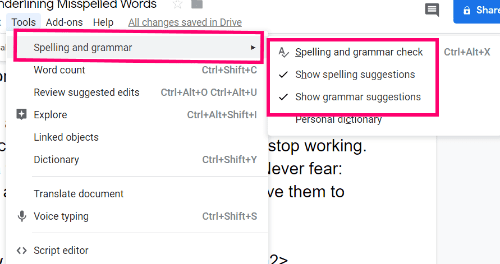
The first thing you need to do is have a Document open and click on ”Tools” and then ”Spelling and Grammar.” Be sure there are checkmarks next to all three options:
Fix Google Docs Spellcheck with Formatting
If these are checked, the next thing to do is figure out whether you are trying to spell check a new Doc you created, or if it is one you copied and pasted something into. Sometimes, the formatting from another page or document can mess with the settings in your Google Docs. In this case, I suggest you start a new Doc and then re-copy and paste the material using ”CTRL,” ”SHIFT” and the letter ”V.” This will paste the original material into your new Google Doc without the original formatting or code, and allow all of your settings – including Spell Check – to work properly.
Fix Google Docs Spell Check with Reset
Your last resort is to reset all of your Chrome settings completely. To do this:
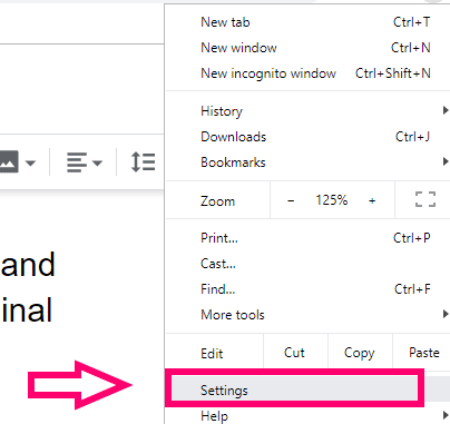
At the top-right of the page, click the three dots and then choose ”Settings.”
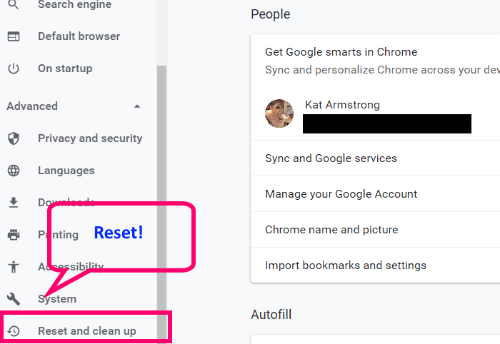
On the left side of the Settings page, click the down-arrow next to ”Advanced,” and then choose ”Reset and Clean Up.”
In the box, choose ”Reset settings to their original defaults.” You will then receive a confirmation box, letting you know what will and won’t be changed or removed.
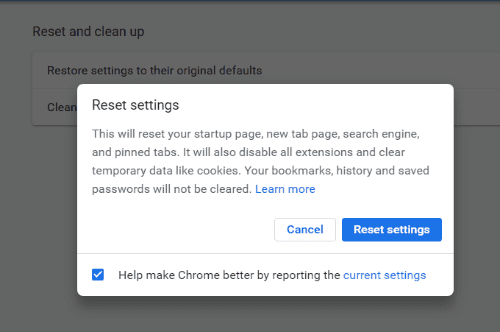
Once finished, close Chrome completely, open it back up and head to a fresh Google Doc. Check the settings there first to be sure they are all enabled (the first set of instructions I gave you) and you should be good to go!
What other Google Docs questions can I help you with?
Happy creating and editing!




OGM, the last step actually worked. Thank you so much for providing these helpful tips. I appreaciate it very much.
This worked for me, so thank you very much!
This fix also did not work for me, unfortunately.
So many people have added misspellings to their dictionaries that Google thinks these are new words.
I followed each of the steps, whenever I type a wrong word, there is not underline and when I perform the spelling and grammar check it says there is no spelling errors.
I followed your directions to fix my spell check by resetting my Chrome settings as you suggested. But it did not work. I now have the red underline appearing, but there is no ability to click and get suggested corrections. What can I do?