Skip to content
LogoTechnipages
LogoTechnipages
  • Topics
        • Android
        • Browsers
        • Gaming
        • Hardware
        • Internet
        • iPhone
        • Linux
        • macOS
        • Office
        • Reviews
        • Software
        • Windows
        • Definitions
        • All Recent Posts
  • Product Reviews
  • About

Enable or Disable JavaScript in Google Chrome

Mitch BartlettNovember 10, 2018 Comments (2)
Chrome header

JavaScript is a handy feature that allows more interaction with web pages in Google Chrome and many other web browsers. Some people may publish websites that use the scripting language maliciously though. For your protection, you can disable or enable JavaScript in Chrome with these steps.

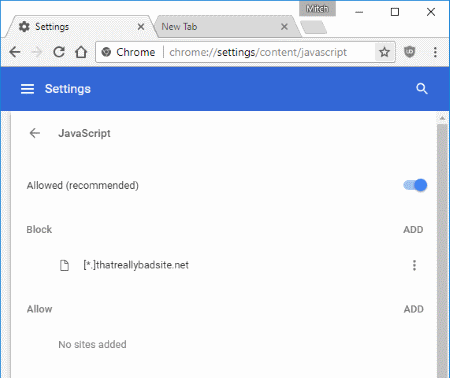
From Chrome Settings

  1. Perform one of the following sets of steps in Chrome:
    • In Chrome, select “Menu”  > “Settings“> “Advanced” > “Content settings…” > “JavaScript“.
    • Type “chrome://settings/content/javascript” in the address bar, then press “Enter“
  2. Scroll down and select the “Adv” option, then select the “Content settings…” button.
  3. Toggle the setting to “Allowed” or “Blocked” as desired. Optionally, you can allow or block JavaScript on specific websites by selecting the “Manage exceptions…” button and adding the URL of the website under the “Hostname Pattern” field. From there, set the “Behavior” to “Block” or “Allow“. You can even block partial sections of websites.

Create Shortcut Icon to Disable JavaScript

If you want to create a special icon that disables JavaScript for certain browsing sessions, you can use the -disable-javascript switch. For example, Windows users can right-click their Desktop, then go to “New” > “Shortcut” to create an icon that points to:

C:\Users\yourusername\AppData\Local\Google\Chrome\Application\chrome.exe -disable-javascript
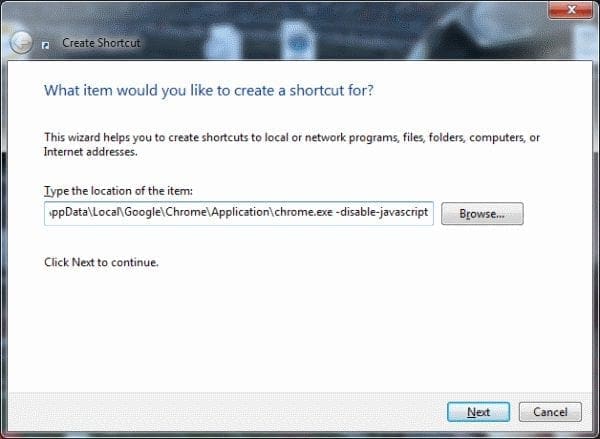
Command switch to disable JavaScript in Chrome

Note: For some reason it seems that using this switch doesn’t completely turn JavaScript off. I still experienced some instances in my testing where it worked and others where it didn’t. You’re better off using the first method listed in this tutorial.


Categories: Software

Author Mitch Bartlett

Through my career that spans over 20 years I have become an expert in Microsoft Systems Administration, Android, and macOS. I started this site as a technical guide for myself and it has grown into what I hope is a useful knowledgebase for everyone.

You Might Also Like

  • iTunes: Can’t Change Song Name, Artist, or Album on Get Info Screen

    Mitch BartlettSoftware
  • cant-login-to-nordvpn-fix

    What to Do if You Can’t Login to NordVPN

    Madalina DinitaSoftware
  • lastpass-invalid-response-error-fix

    How to Fix LastPass “Invalid Response” Error

    Madalina DinitaSoftware
  • powerpoint reverts to first slide fix

    How to Turn Text Upside Down in Microsoft PowerPoint

    Judy SanhzSoftware

Comments

  1. Robin G Kruse says:
    May 8, 2020 at 7:19 am

    i followed your instructions javascript is enabled but it will still not allow me to access my aol mail keeps saying javascript is disable when it is in fact enabled. Further instructions needed to fix this issue.

  2. John Soltis says:
    December 22, 2018 at 1:12 pm

    NO! I try to allow JavascrIpt per your instructions – BUT Google Chrome does NOT allow me to complete task! JavaScript remains BLOCKED!! Something in Google is blocking it! Further instructions needed to fix this issue!

Leave a Reply

Your email address will not be published. Required fields are marked *

  • browser screen goes black

    Browser Screen Goes Black Intermittently 

  • computer heating up in hyper v

    Computer Heating Up When Using Hyper-V – How to Fix 

  • clipchamp unexpected application error

    Clipchamp Unexpected Application Error: Here’s the Solution 

  • winload.efi file missing error

    Winload.EFI File Missing Error on Boot – How to Fix

  • fix error 0x9cfc7550

    How to Fix Error 0x9cfc7550 (We Couldn’t Create a New Partition) in Windows 

profile pic

The Experts Behind Technipages

My name is Mitch Bartlett. I've been working in technology for over 20 years in a wide range of tech jobs from Tech Support to Software Testing. I started this site as a technical guide for myself and it has grown into what I hope is a useful reference for all.

Learn More

technipages logo white
linkedin icon

Technipages is part of Guiding Tech Media, a leading digital media publisher focused on helping people figure out technology. Learn more about our mission and team here.

© 2025 Guiding Tech Media All Rights Reserved

  • About Us
  • Contact
  • Terms of Use
  • Privacy Policy

© 2025 Guiding Tech Media All Rights Reserved

Information from your device can be used to personalize your ad experience.
Do not sell my personal information.

Last Updated on November 10, 2018 by Mitch Bartlett