Skip to content
LogoTechnipages
LogoTechnipages
  • Topics
        • Android
        • Browsers
        • Gaming
        • Hardware
        • Internet
        • iPhone
        • Linux
        • macOS
        • Office
        • Reviews
        • Software
        • Windows
        • Definitions
        • All Recent Posts
  • Product Reviews
  • About

Galaxy Tab S8: Reset Network Settings

Andrew MyrickMarch 18, 2022 Comments (0)

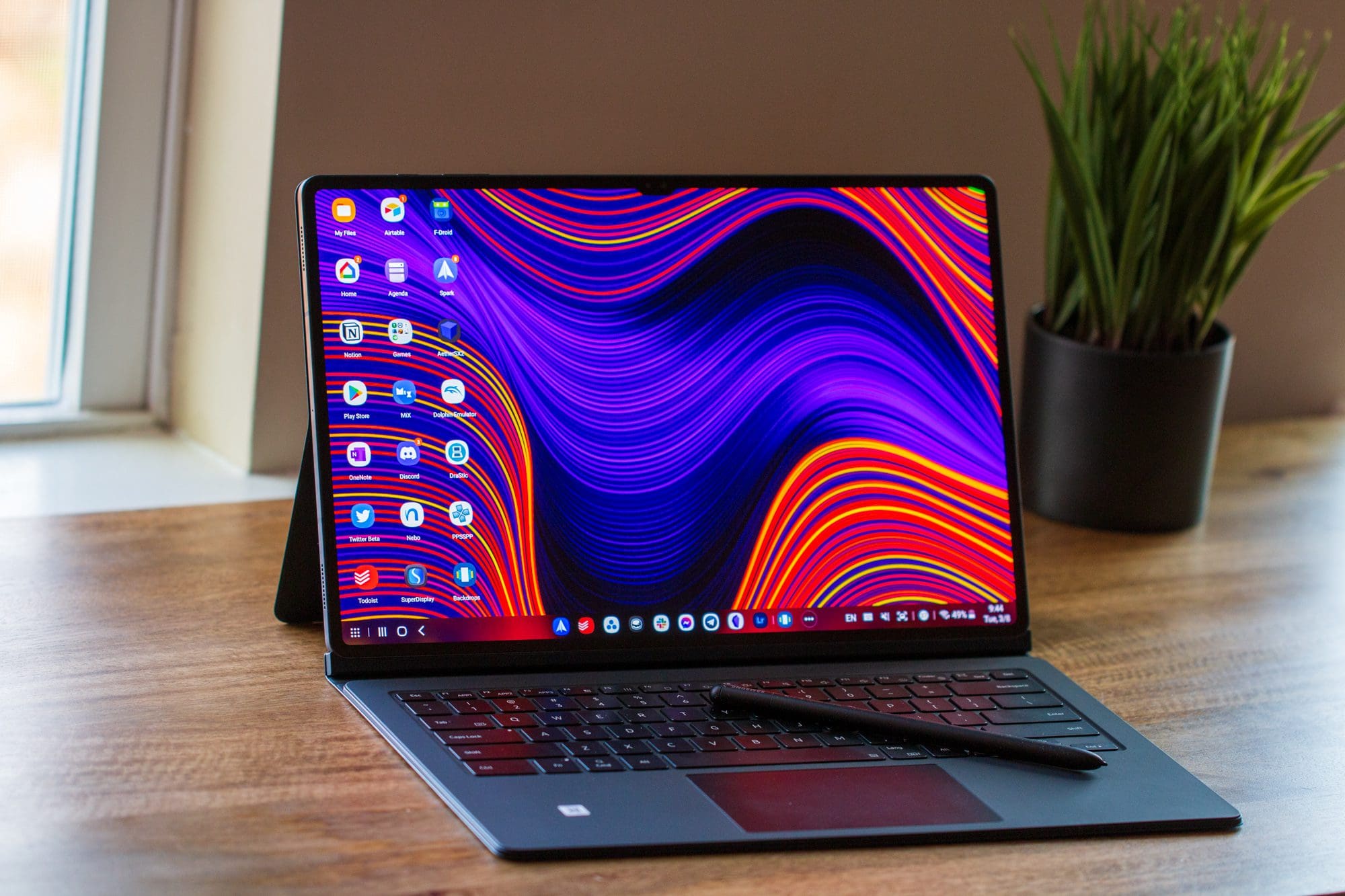
Not only did Samsung surprise everyone by releasing three new tablets alongside the Galaxy S22, but these tablets are much more capable than you might have thought. In addition to the Wi-Fi-only versions, you can also get models with a cellular connection. This can transform your tablet into the ultimate portable workstation, complete with a network connection wherever you might be.

Galaxy Tab S8: Reset Network Settings

Unfortunately, things can end up breaking every once in awhile, but that doesn’t mean that you need to completely factory reset the Galaxy Tab S8. Instead, you can try and reset the network settings if you’re experiencing issues with your data connection or even if Bluetooth accessories are causing problems. Here’s how you can reset network settings on the Galaxy Tab S8:

  1. Open the Settings app on your Galaxy Tab S8.
  2. In the left-side panel, scroll down and tap General Management.
  3. On the right side of the screen, tap Reset.
  4. Tap Reset network settings.
  5. Tap the Reset settings button to confirm.
  6. If prompted, enter your PIN or password.

The above steps apply to all three models of the Galaxy Tab S8, so you won’t have to worry about finding different steps based on a different device. As a reminder, if you reset all of the network settings, then you will have to sign back into your Wi-Fi networks, along with pairing any of your Bluetooth accessories with the tablet.

What’s Next?

Unfortunately, resetting the network settings doesn’t always mean that the issues and problems are going to be fixed. In the event that this happens to you, your next course of action is to perform a factory data reset. As the name suggests, this completely resets your Galaxy Tab S8 to its factory settings, while also wiping all of the storage clean from your device. On the bright side, the steps for resetting your tablet couldn’t be easier.
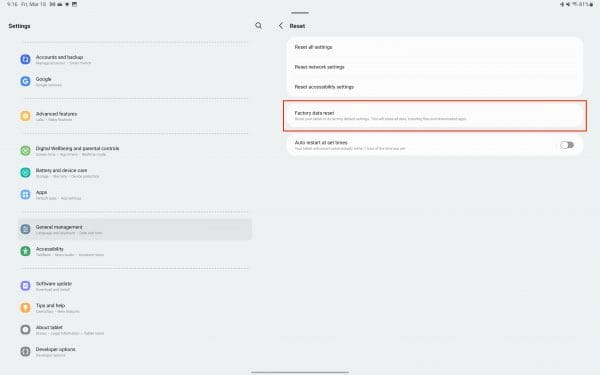
  1. Open the Settings app.
  2. Scroll down to, and select, General Management.
  3. Scroll down and tap Reset.
  4. Tap Factory data reset.
  5. If prompted, enter your PIN or passcode.
  6. Tap the button to confirm after reviewing the information provided.

Thanks to the ultra-fast storage used in the Galaxy Tab S8, the process of resetting shouldn’t take too long. Once your tablet is back up and running, you’ll be able to go through the setup process just like you did when you took it out of the box for the first time. Hopefully, this will solve any of those pesky problems that you’ve been dealing with, and fixes your network and Bluetooth connections.


Categories: Android

Author Andrew Myrick

Andrew Myrick is a freelance writer based on the East Coast of the US. He enjoys everything to do with technology, including tablets, smartphones, and everything in between. Perhaps his favorite past-time is having a never-ending supply of different keyboards and gaming handhelds that end up collecting more dust than the consoles that are being emulated.

You Might Also Like

  • Chrome header

    Chrome: How to Delete Stored Passwords

    Mitch BartlettAndroid
  • Galaxy Note8 & S8: Set Text Message Ringtone

    Mitch BartlettAndroid
  • 10 Best and Free Apps to Read Books

    Judy SanhzAndroid
  • android-phone-vibrates-for-no-reason

    Why Does My Android Phone Vibrate for No Reason?

    Madalina DinitaAndroid

Leave a Reply

Your email address will not be published. Required fields are marked *

  • why is ram so expensive

    Why Is RAM Suddenly So Expensive?

  • how to fix error code 0x800f0922 windows 11

    How to Fix Error Code 0x800f0922 in Windows 11

  • service outage message on Xbox

    What to Do With a Service Outage Message on Xbox

  • signs your hdd is failing

    Signs That Your HDD Is Failing

  • how to fix error code 0x800705b4 in windows 11

    How to Fix Error Code 0x800705b4 in Windows 11

profile pic

The Experts Behind Technipages

My name is Mitch Bartlett. I've been working in technology for over 20 years in a wide range of tech jobs from Tech Support to Software Testing. I started this site as a technical guide for myself and it has grown into what I hope is a useful reference for all.

Learn More

technipages logo white
linkedin icon

Technipages is part of Guiding Tech Media, a leading digital media publisher focused on helping people figure out technology. Learn more about our mission and team here.

© 2026 Guiding Tech Media All Rights Reserved

  • About Us
  • Contact
  • Terms of Use
  • Privacy Policy

© 2026 Guiding Tech Media All Rights Reserved

Information from your device can be used to personalize your ad experience.
Do not sell my personal information.