
At the end of the day, our phones are really nothing more than pocketable supercomputers. They can handle so many different tasks at the same time and are actually more powerful than many laptops and computers. But because phones like the Galaxy S23 are still computers, you might come across a situation where your phone is acting up and you can’t figure out why.
Contents
What Is Safe Mode?
Chances are you’ve come across Safe Mode at some point in time throughout your usage of various computers, tablets, and phones. But did you know that Android has a built-in Safe Mode that you can access? It essentially makes it easier to try and troubleshoot any problems that may be plaguing your phone in an effort to get things back in working order.
Safe mode lets you run your Android device using its basic interface, with simplified menus and without most third-party applications. You can think of it as a diagnostic tool to help identify and fix problems on your device.
Considering the popularity of Samsung phones, it only makes sense for the company to integrate this feature into their phones. This includes the likes of the Galaxy S23, which is the company’s latest and most powerful smartphone to date. And if you need to start Galaxy S23 in Safe Mode, you’re in luck.
Start Galaxy S23 in Safe Mode If Your Phone Is Responsive
If you are having problems with your phone, your best course of action will be to start Galaxy S23 in Safe Mode. There are two different methods for doing so, with the first being accessible provided that you can still interact with your phone. Here’s how you can start Galaxy S23 in Safe Mode if your phone is still responsive:
- Press and hold the Volume Down and Power Key at the same time.
- When the Power Menu appears, touch and hold the Power Off button.
- Your phone will vibrate and a new menu will appear.
- Tap the Safe mode button.
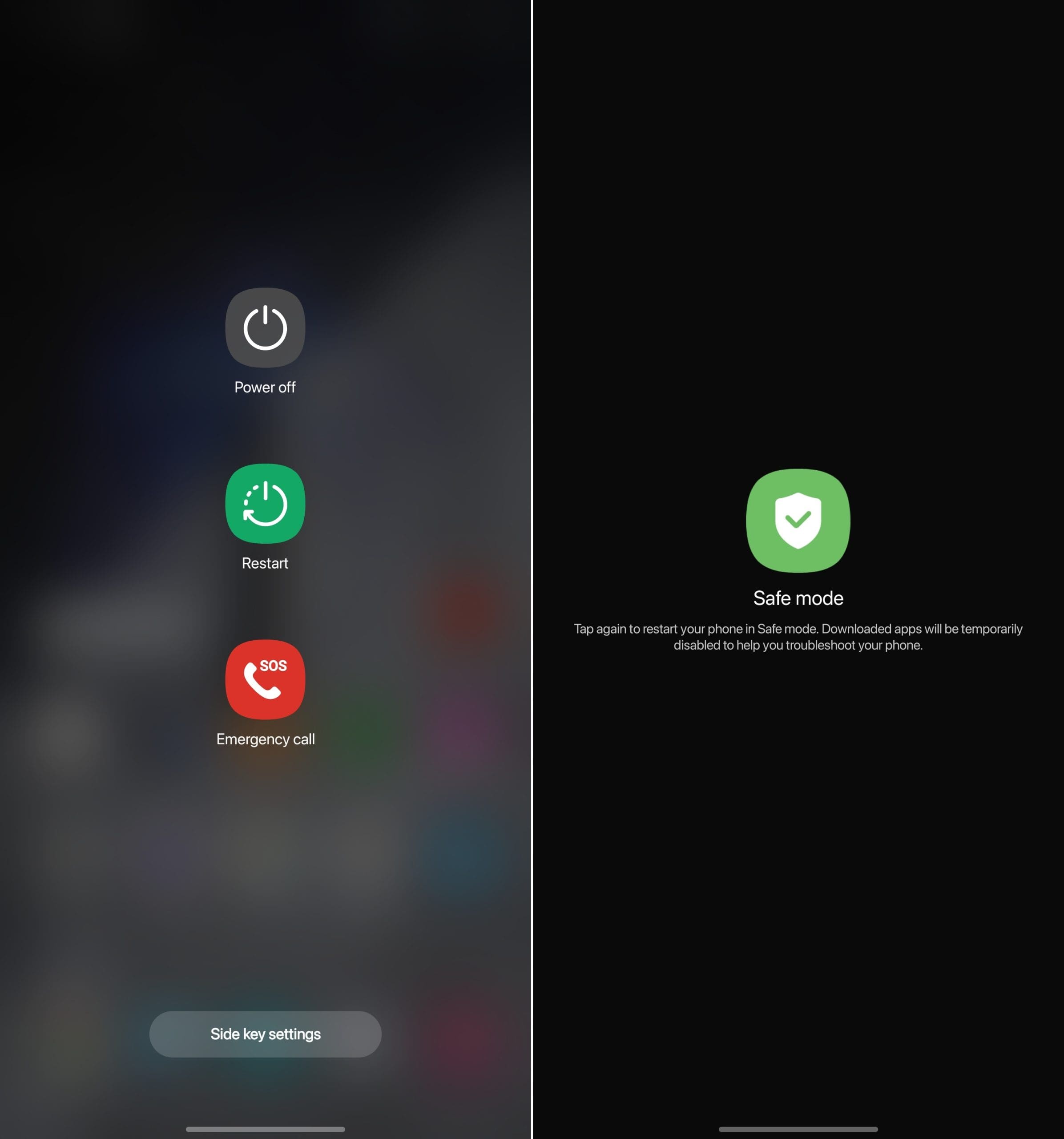
It’s recommended that after you boot into Safe Mode, double-check and make sure that Airplane Mode is turned off. This will help in the troubleshooting process, as your network connections are restored, so you can get a full picture of what the problem could potentially be.
Start Galaxy S23 in Safe Mode If Your Phone Is Not Responsive
Unfortunately, there are times when you need to get your Galaxy S23 into Safe Mode, but the steps above are not possible. This can happen if your phone is completely frozen, and will not register any taps. Luckily, you can still get into Safe Mode even if you can’t access the Galaxy S23’s Power Menu.
- If your Galaxy S23 is powered off, press and hold the Side Button (Power button) until the Samsung logo appears.
- Once the Samsung logo appears, press and hold the Volume Down button.
- Continue holding the Volume Down button until “Safe Mode” appears in the bottom left corner.
- Release the Volume Down button.
The same rules apply to those who need to get into Safe Mode even if their phone is responsive. From here, you’ll be able to troubleshoot any problems in an effort to try and determine whether there’s an app wreaking havoc, or if you need to perform a factory data reset.
How To Exit Safe Mode
After you have identified (and hopefully fixed) the problem with your Galaxy S23, you’ll need to exit Safe Mode. This is just about as easy as it gets since you just need to pull up the Power Menu again.
- Press and hold the Volume Down and Power Key at the same time.
- When the Power Menu appears, press the Restart button.
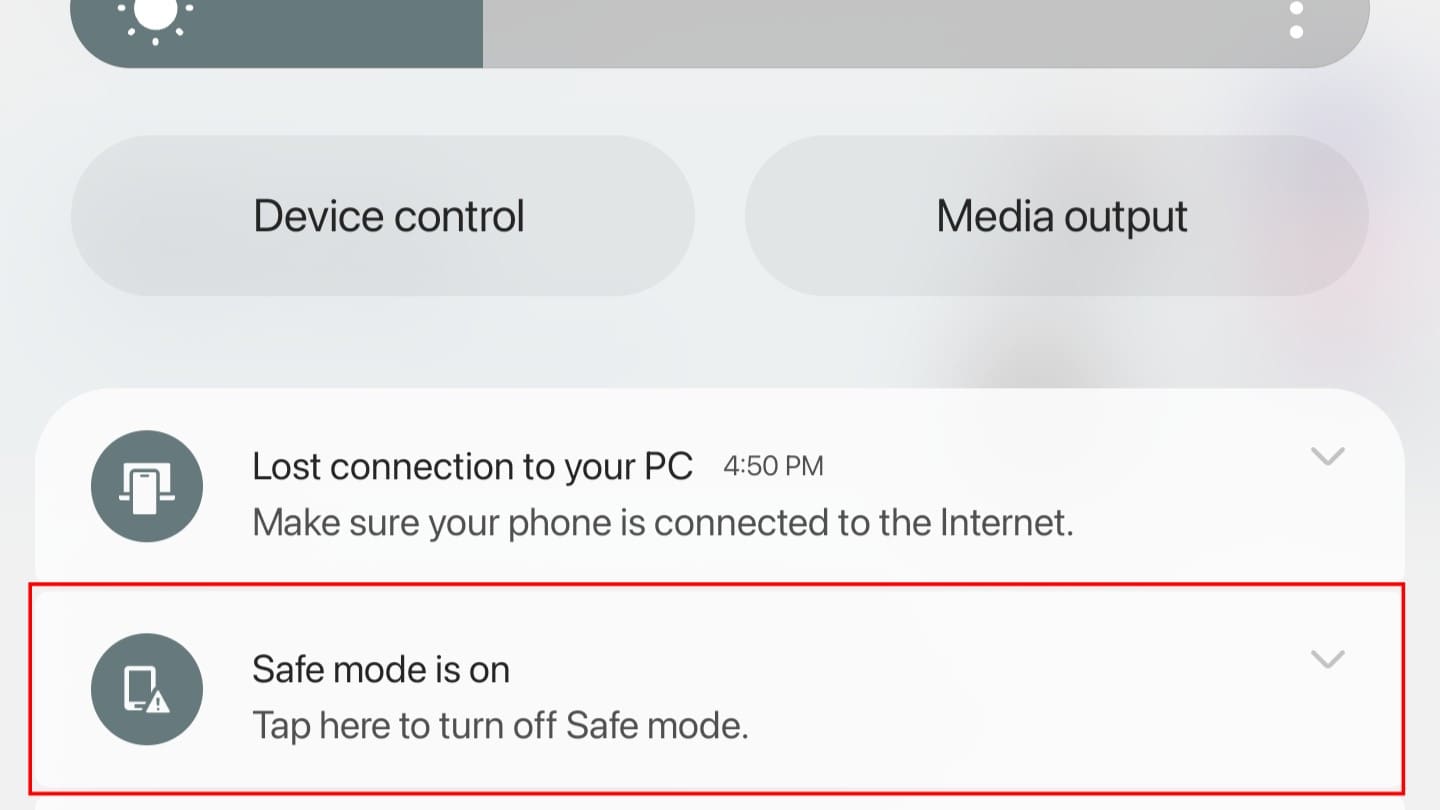
After a few moments, your phone should boot back into the “normal” mode. You will be able to identify whether the Galaxy S23 is still in Safe Mode after the phone reboots and the Safe Mode message is gone from the lock screen or home screen.





The process seems to have worked
my little brother’s phone is still in safe mode and we have tried everything and it won’t turn off safe mode
I tried everything and it’s stil in safe mode. I am lost and am upset. The volume down button is still stuck.
I am going to try it out ,mine is A5 but is getting worst I have almost try most of the prosedure I want to install some of the apps and I see.
it did not help at all. my phone wont turn on it keep saying am stuck in safe mode because my phone is not turning on properly
I did all of that but the phone won’t turn off
hell yeah the volume down button was stuck on and i have now got my phone back, thanks guys!
Thank you! This helped a lot l. My volume down button was stuck! Right on guys thanks.
yes it helped