Skip to content
LogoTechnipages
LogoTechnipages
  • Topics
        • Android
        • Browsers
        • Gaming
        • Hardware
        • Internet
        • iPhone
        • Linux
        • macOS
        • Office
        • Reviews
        • Software
        • Windows
        • Definitions
        • All Recent Posts
  • Product Reviews
  • About

How to Remove Apps From Samsung Galaxy S23

Mitch BartlettMay 1, 2023 Comments (1)
Galaxy Remove Apps Header

It’s good practice to regularly uninstall unused or infrequently used apps can free up valuable storage space, allowing the device to run more efficiently and making room for new apps, media, or files. Removing apps can help improve the overall performance and speed of the phone by reducing the number of background processes competing for system resources, such as CPU, RAM, and battery life.

How to remove apps from Samsung Galaxy S23

You also might want to remove apps from Samsung Galaxy S23 that send intrusive notifications or display unwanted advertisements can result in a less cluttered and more enjoyable user experience. Uninstalling pre-installed bloatware, which often comes with carrier-branded or manufacturer-specific devices, can help streamline your app collection, enabling easier access to the apps you truly need and use.

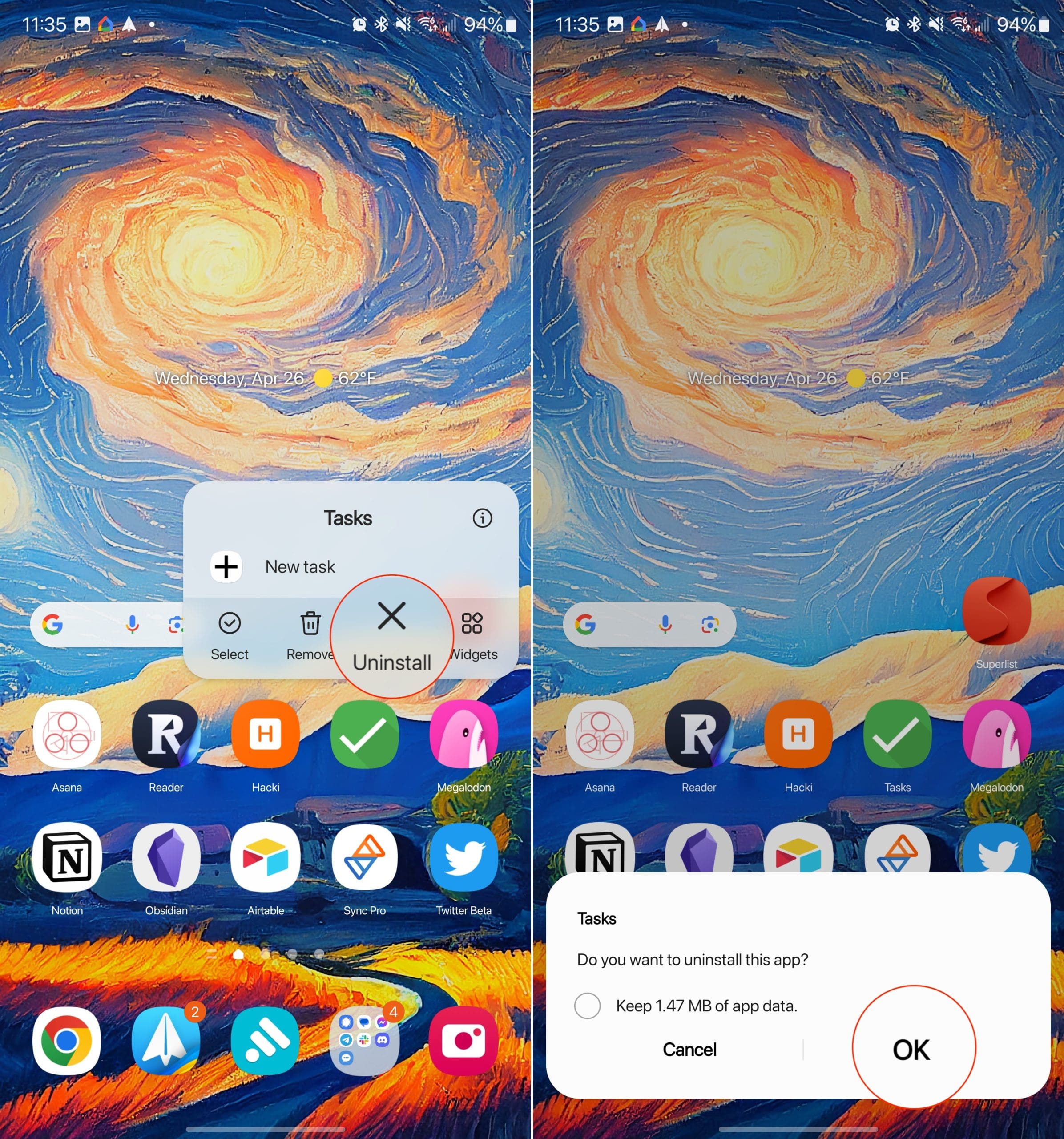
  1. Unlock your Galaxy S23.
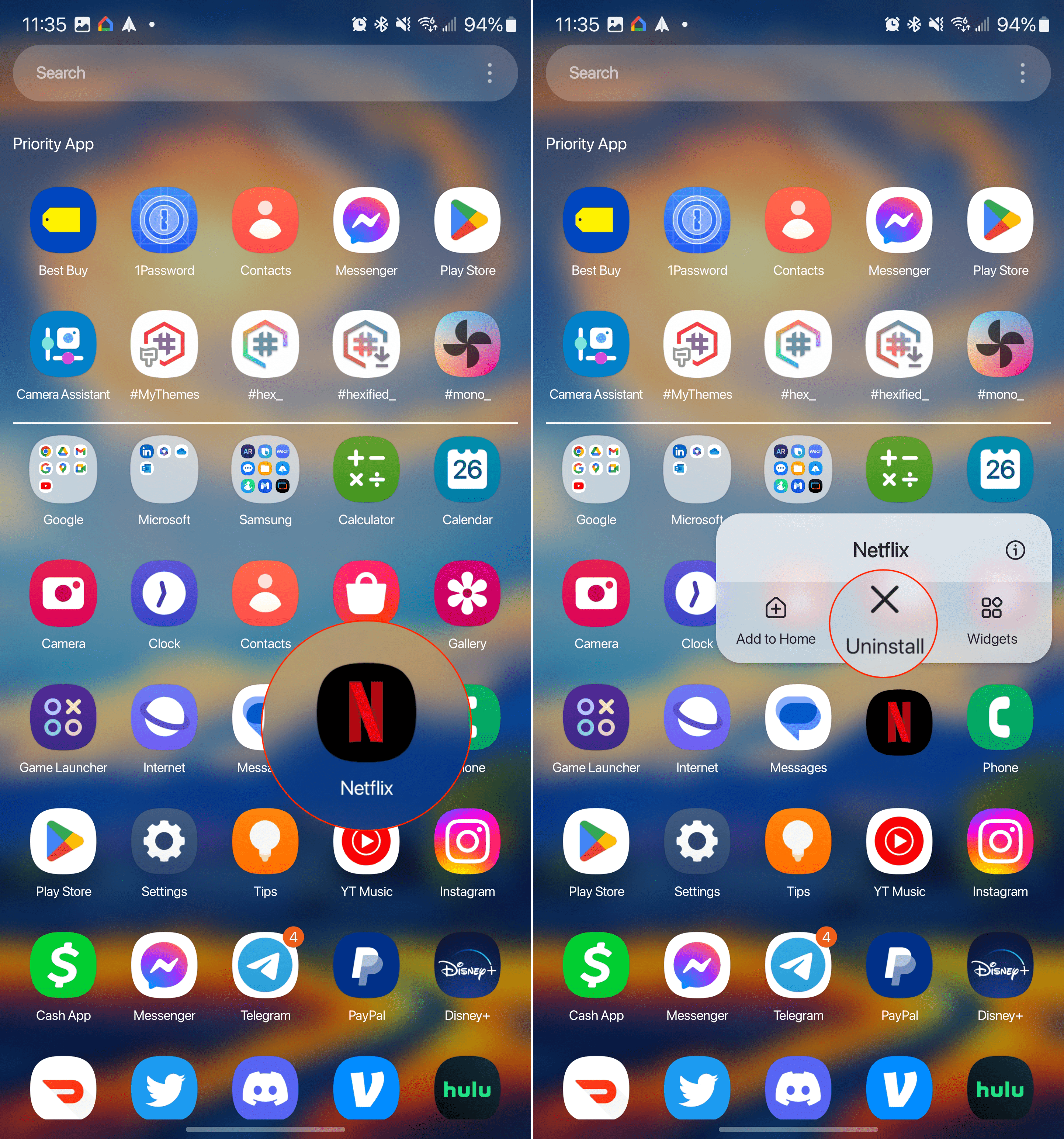
  2. Locate the app on your Home Screen, or swipe up to reveal the App Drawer.
  3. Long-press on the app icon.
  4. From the menu that appears, tap the Uninstall button.
  5. When prompted, tap the OK button.

How to remove apps from Samsung Galaxy S23 - 1

The other method to remove apps from Samsung Galaxy S23 allows you to do so from the Settings app. This might not be the preferred method, but if you are planning to remove multiple apps at the same time, it might just be easier to do so using this method.

  1. Open the Settings app on your Galaxy S23.
  2. Scroll down and tap Apps.
  3. Under the Your apps section, locate the app you want to remove. Alternatively, you can tap the Search icon in the top right corner if you know the name of the app you are removing.
  4. From the App Info page, tap the Uninstall button.
  5. When prompted, tap the OK button.

How to remove apps from Samsung Galaxy S23 - 2

In some instances, you’ll be asked whether you want to “keep the data” that was generated when using the app in question. This is helpful for those who might want to reinstall the app in the future, without losing access to the application’s data.

Categories: Android

Author Mitch Bartlett

Through my career that spans over 20 years I have become an expert in Microsoft Systems Administration, Android, and macOS. I started this site as a technical guide for myself and it has grown into what I hope is a useful knowledgebase for everyone.

You Might Also Like

  • How to Schedule a Text Message on Any Android Device

    Judy SanhzAndroid
  • Galaxy Note8: How to Uninstall Apps

    Mitch BartlettAndroid
  • Does Wi-Fi Data Count Toward Wireless Plan Data Usage?

    Mitch BartlettAndroid
  • Samsung Galaxy: “Samsung Keyboard has stopped” Fix

    Mitch BartlettAndroid

Comments

  1. D Byrd says:
    November 10, 2020 at 9:22 pm

    I installed messenger lite and cannot uninstall it. Home page was changed

Leave a Reply

Your email address will not be published. Required fields are marked *

  • browser screen goes black

    Browser Screen Goes Black Intermittently 

  • computer heating up in hyper v

    Computer Heating Up When Using Hyper-V – How to Fix 

  • clipchamp unexpected application error

    Clipchamp Unexpected Application Error: Here’s the Solution 

  • winload.efi file missing error

    Winload.EFI File Missing Error on Boot – How to Fix

  • fix error 0x9cfc7550

    How to Fix Error 0x9cfc7550 (We Couldn’t Create a New Partition) in Windows 

profile pic

The Experts Behind Technipages

My name is Mitch Bartlett. I've been working in technology for over 20 years in a wide range of tech jobs from Tech Support to Software Testing. I started this site as a technical guide for myself and it has grown into what I hope is a useful reference for all.

Learn More

technipages logo white
linkedin icon

Technipages is part of Guiding Tech Media, a leading digital media publisher focused on helping people figure out technology. Learn more about our mission and team here.

© 2025 Guiding Tech Media All Rights Reserved

  • About Us
  • Contact
  • Terms of Use
  • Privacy Policy

© 2025 Guiding Tech Media All Rights Reserved

Information from your device can be used to personalize your ad experience.
Do not sell my personal information.

Last Updated on May 1, 2023 by Mitch Bartlett