
Having a smart assistant right on your Android phone is extremely helpful, and useful. From turning lights on and off in your home to sending messages when your hands are full, the possibilities are practically endless.
Although Google, Apple, and Amazon have a significant lead in the smart assistant department, some companies have tried to combat the big boys. Samsung is arguably the largest company to try and take on the trifecta of smart assistants with Bixby. But even though it’s built into your phone, you will probably want to turn off Bixby on the Galaxy S22 in favor of Google Assistant
Disable Bixby From Side Button
As is the case with last year’s Galaxy S21 (and many other Galaxy phones), Samsung tries to “force” you into using Bixby right out of the box. Instead of having a traditional Power Menu when you press and hold the Power button, Samsung opts to use this as the default method for activating Bixby. It’s an extremely frustrating proposition, but one that can easily be remedied if you don’t mind jumping into the Settings app.
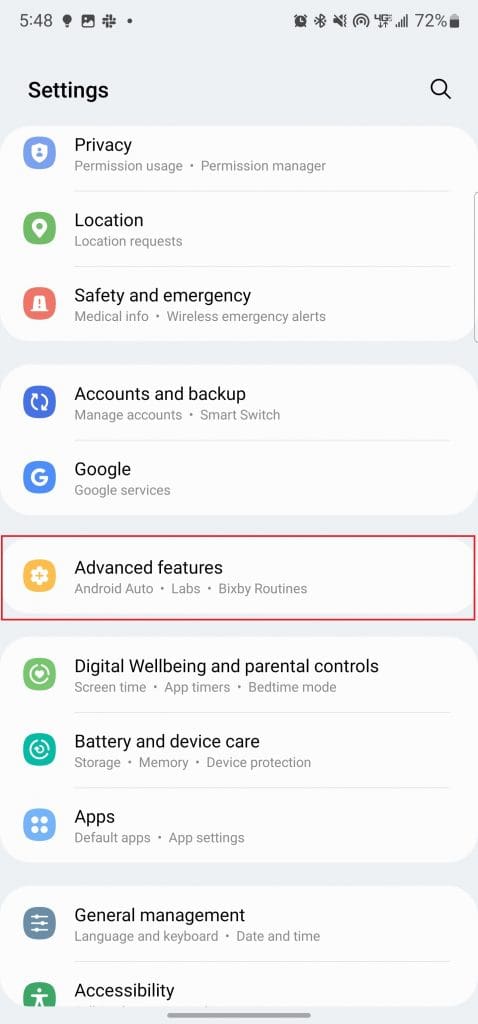
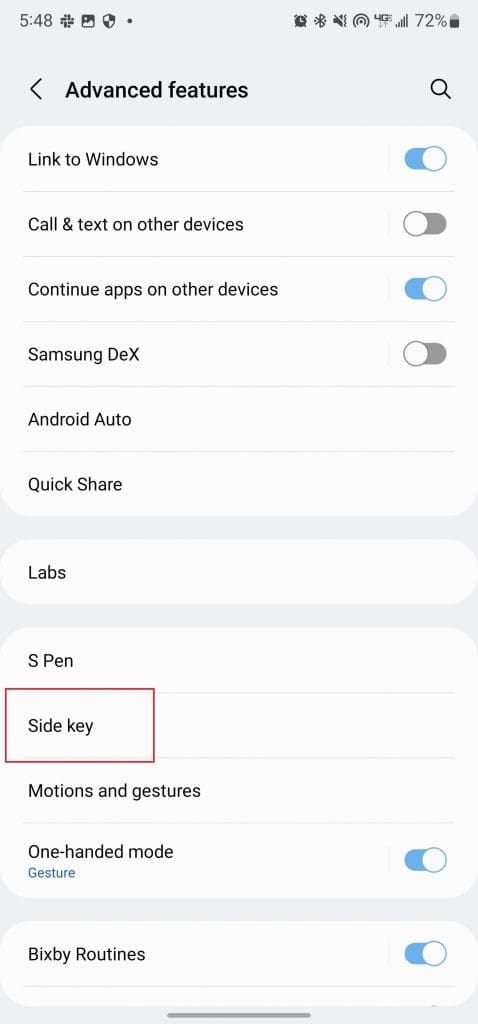
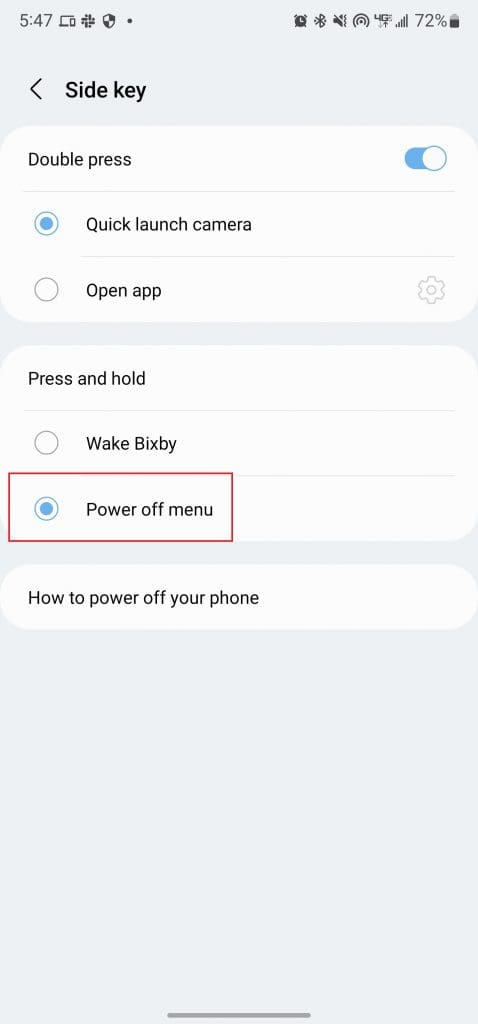
- Open the Settings app on your Galaxy S22.
- Scroll down until you reach Advanced Features.
- Tap Side key.
- Under Press and hold, tap Power off menu.
- Exit the Settings app.
After you disable Bixby from the Side Button, you’ll be presented with the traditional Power Menu whenever you press and hold down the Side button. This transforms it back into the Power Button that we’ve been accustomed to for years.
Disable “Hi Bixby” Voice Detection
Another way that Samsung wants you to use Bixby is with your voice. Much like Apple’s Siri and Google Assistant, you can summon Bixby with a simple “Hi Bixby” phrase. Once your Galaxy S22 recognizes the request, a little pop-up menu will appear at the bottom, ready for you to ask Bixby some questions. here’s how you can disable Bixby from appearing with voice detection:

- Open the Bixby app on your Galaxy S22.
- Tap the browser-looking icon in the bottom right corner.
- In the top right corner, tap the three vertical dots.
- Tap Settings from the drop-down menu.
- Tap the toggle next to Voice wake-up.
Now, you will no longer need to worry about your Galaxy S22 accidentally triggering Bixby with your voice. If you want to try Bixby out, you can still do so by opening the Bixby app on your phone. But it won’t be an “in your face” approach, and you can just use your Galaxy S22 the way that you want.
Conclusion
Samsung really has gone to great lengths to try and improve Bixby since its inception. Bixby Routines are rather impressive, as it’s similar to Apple’s Siri Shortcuts on iOS. But the fact remains that Bixby just isn’t powerful enough to handle the day-to-day needs.
Let us know what you think about Bixby. Have you decided to stick with it? Or did you give up the goose, opting for Google Assistant or Amazon Alexa instead?


Excellent work! Your instructions were precise for an S22+ also.
FB: stands for **** Bixby. In so seriousness, any feature that is forced with better alternatives and doesn’t give you a choice is unattractive entirely. If I could protest or cancel Bixby I would. The next winner in cell phones is one of modularity. We all have our preferred sizes and can do with more or less based off what we want. Gone should be the days of micro-upgrades and lacking innovation. It’s just a money milking machine for something that needs much more than an upgrade from 10 to 12 pixels or 1.7 to 1.9 ghz clock rate.