

It’s not uncommon for Zoom users to constantly hear an echo during meetings. The worst part is when every word you utter echoes back into your ears. Staying focused on your train of thought can be really hard with that annoying echo in your ears.
Troubleshooting this problem is crucial if you don’t want it to affect your productivity more than it has already done. But first, let’s see why this issue occurs in the first place.
Contents
What Causes Echoes on Zoom?
There are several explanations as to why there’s a constant echo on Zoom. If you’re using two devices to connect to the meeting, the speakers and microphone may be placed too close together. If you’re in a conference room and there are multiple devices connected to the same meeting, chances are you’ll hear an echo at a given moment.
How to Stop Echoes on Zoom
Use Headphones
This is by far the quickest and easiest solution to fix Zoom echoes during meetings. Your headphone mic won’t capture sound from your speakers even if you’re using your computers’ built-in speakers or an external speaker. As a quick reminder, you can set different audio output and input devices on Zoom. Or you can simply set your headphones as your main speaker and microphone device.
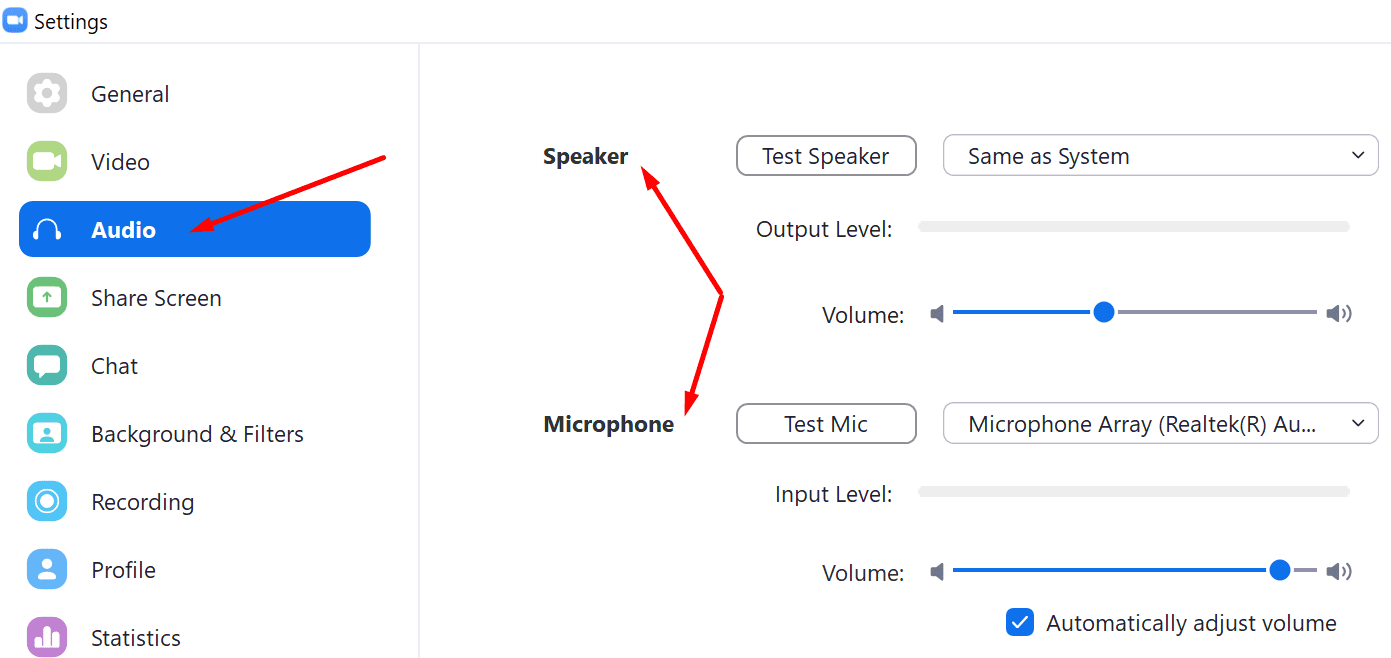
To tweak your audio settings on Zoom, click on your profile picture and select Settings. Then click on Audio and select the device(s) you want to use.
If You’re Using Multiple Devices
If you joined the meeting from your computer but you’re calling from your mobile device, hit the Leave Computer Audio option. Join the audio stream from a single device.

The same is valid if another meeting attendee is close to you. Hit the leave audio option on one of the devices. You can then re-enable audio on that device when that person presents something.
Similarly, if you’re in a conference room with multiple devices connected to Zoom, you should disconnect computer audio from the other devices. Enable audio input only on the device of the host or that of the person who’s speaking.
Additional Tips and Tricks to Avoid Zoom Echoes
- The host should mute all the attendees as soon as the meeting starts. The host or the presenters can then manually unmute the attendees as they’re taking the floor.
- One of the unwritten Zoom meeting rules says the participants should mute themselves when they’re not speaking or presenting.
- Make sure you’re using a high-quality microphone. A bad microphone can often cause echoes on Zoom.
Conclusion
If you’re using two devices to join the same Zoom meeting, you need to disable audio on one of them. Otherwise, one of the devices will channel your audio back creating an annoying echo that will prevent you from focusing on the meeting you’re attending.



Hi there,
Thanks for all the tips but it did not solve my problem.
When I open Zoom, without entering the meeting yet, to do a sound check of my headset: Sennheiser SC75, connected through a Jack on my laptop. I hear my voice echo. Please help in cancelling my own voice echo. This is terrible and embarrassing when I join meetings.
What you’re speaking of here is audio feedback rather than echo.
Echoing is an issue when a speaker is broadcasting from their tiled room, and it sounds like they are broadcasting from a public restroom. Yes, use a headset.
I like your site. in this case, though, the “tweak your audio settings” appears to be out of date. I see nothing close to that when logged in to Zoom on a Windows 10/Chrome desktop.