
Skip to content
LogoTechnipages
LogoTechnipages
  • Topics
        • Android
        • Browsers
        • Gaming
        • Hardware
        • Internet
        • iPhone
        • Linux
        • macOS
        • Office
        • Reviews
        • Software
        • Windows
        • Definitions
        • All Recent Posts
  • Product Reviews
  • About

Fix: Your Organization’s Data Cannot Be Pasted Here

Madalina DinitaDecember 29, 2021 Comments (2)
Your-organizations-data-cannot-be-pasted-here

When you try to paste data into an app, you may sometimes get a strange error that says your organization’s data cannot be posted there. This error seems to affect predominantly new documents and can pop up on computers and mobile devices. Exit the problematic app, restart your device, and check if you’re still getting the same error. If this is the case, follow the troubleshooting steps below to solve the problem.

Contents

  • 1 How to Fix “Your Organization’s Data Cannot Be Pasted Here”
    • 1.1 Make Some Edit and Save the File
    • 1.2 Long Press on Your Screen
    • 1.3 Contact Your IT Admin
    • 1.4 Conclusion

How to Fix “Your Organization’s Data Cannot Be Pasted Here”

Make Some Edit and Save the File

Open a new file, and make some edits. For example, if you open a new Excel spreadsheet, add some text in one of the cells, and then fill in with some color. After you do that, hit the back arrow. When prompted to save the file, select Yes.

Check if you can now paste your organization’s data into the file you just saved. If the issue persists, close the file, exit the app and wait for thirty seconds. Open the problematic file and try to paste your data.

If this error affects one of your Office apps, try copying data from a different Office app. For example, copy data from Word to Outlook and check if the content does paste.

Long Press on Your Screen

If you’re getting this error on Android, long-press the screen area where you want to paste the data and select the Paste option. You should be able to paste your data.

If you’re using Google Keyboard, the “Your data cannot be pasted here” alert is usually a simple suggestion from Gboard. Long pressing on your screen should solve the problem.

Contact Your IT Admin

If the problem persists, contact your admin for further help. Maybe the current device or app management policies prevent you from copying and pasting data between apps.

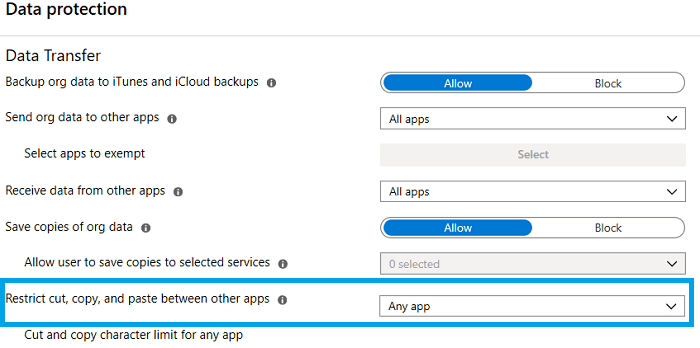
If you’re an admin, check the current Microsoft Intune policies and ensure the cut, copy and paste features are not blocked. Edit the policy settings and let users cut, copy and paste data between different apps.

  1. Navigate to your Microsoft Intune dashboard.
  2. Go to Client apps.
  3. Select App protection policies.
  4. Check the current policy settings.
  5. Go to the Data Transfer section.
  6. Edit the settings under Restrict cut, copy and paste between other apps to allow users to copy and paste data between different apps.
Microsoft-Intune-restrict-cut-copy-and-paste-between-other-apps

Conclusion

If your device says that you cannot paste your organization’s data into a specific app, make quick edits, and save and close the file. Then, open it again and paste your data. Alternatively, long-press the screen area where you want to paste the data and select Paste. If the issue persists, contact your IT admin. The current app management policies may prevent you from pasting data between apps.

Did you manage to solve the problem? Did you find other ways to troubleshoot this issue? Share your ideas in the comments below.


Categories: Software

Author Madalina Dinita

Madalina has been a Windows fan ever since she got her hands on her first Windows XP computer. She is interested in all things technology, especially emerging technologies -- AI and DNA computing in particular.

You Might Also Like

  • How to Disable Word Wrap in Sublime Text 3

    Mel HawthorneSoftware
  • bing redirect took over browser

    Why Is Bing My Default Search Engine?

    Madalina DinitaSoftware
  • 15 Best ChatGPT Alternatives for 2023 for Relevant Answers

    15 Best ChatGPT Alternatives for 2023 for Relevant Answers

    Tamal DasSoftware
  • iMovie Windows Header

    9 Best iMovie Equivalents for Windows 11

    Tamal DasSoftware

Comments

  1. Ahmed AlQubaisi says:
    January 26, 2023 at 11:11 am

    Reset password

  2. Thank You says:
    September 29, 2022 at 12:45 am

    Great

Leave a Reply

Your email address will not be published. Required fields are marked *

  • fix error code 0x80010002 in windows update

    How to Fix 0x80010002 Error in Windows Update 

  • an unexpected error is keeping you from copying files

    How to Fix “An Unexpected Error Is Keeping You From Copying” for Files 

  • fix page fault in nonpaged area bsod

    How to Fix “Page Fault in Nonpaged Area” BSOD 

  • fix ERROR_SYSTEM_SHUTDOWN

    How to Fix ERROR_SYSTEM_SHUTDOWN

  • cant set a new default browser

    Can’t Set a New Default Browser Automatically? Here’s What to Do

profile pic

The Experts Behind Technipages

My name is Mitch Bartlett. I've been working in technology for over 20 years in a wide range of tech jobs from Tech Support to Software Testing. I started this site as a technical guide for myself and it has grown into what I hope is a useful reference for all.

Learn More

technipages logo white
linkedin icon

Technipages is part of Guiding Tech Media, a leading digital media publisher focused on helping people figure out technology. Learn more about our mission and team here.

© 2025 Guiding Tech Media All Rights Reserved

  • About Us
  • Contact
  • Terms of Use
  • Privacy Policy

© 2025 Guiding Tech Media All Rights Reserved

Information from your device can be used to personalize your ad experience.
Do not sell my personal information.

Last Updated on December 29, 2021 by Judy Sanhz