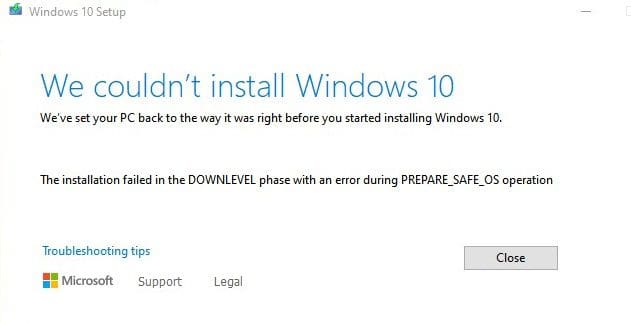
When trying to install the latest Windows updates, the process may sometimes fail in the DOWNLEVEL phase. The installation goes up to around 50 percent; your computer says it will restart in a moment, but then nothing happens, and the installation fails.
When this issue occurs, the following error message pops on the screen: “0x80004005-0x1000A: The installation failed in the DOWNLEVEL phase with an error during PREPARE_FIRST_BOOT operation“. That sounds pretty confusing, isn’t it? Let’s explore what you can do to fix this issue.
Contents
How to Fix Error 0x80004005-0x1000A: The Installation Failed in the DOWNLEVEL Phase
⇒ Quick Checks
- Unplug your peripherals.
- Check your date and time settings; make sure they’re correct.
- Restart your router before checking for updates again.
- Ensure you have at least 20GB of free space on the OS drive.
Uninstall Third-Party Security Software
Third-party antivirus, anti-malware, and firewall solutions can sometimes prevent your computer from installing the latest updates. The quickest solution to solve this problem is to temporarily disable third-party security software.
If this method doesn’t work, uninstall all third-party anti-malware solutions from your computer. By the way, many antivirus programs come with their own removal tools. Restart your computer and leave only Windows Defender. Then go to Windows security, click on Virus and threat protection, and do a full scan. Then check for updates again.
Restart the Update Service
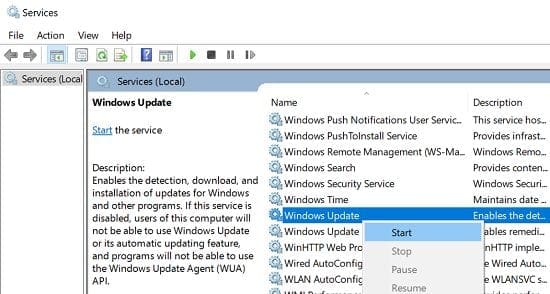
Try restarting the Windows update service, and check if this solution does the trick for you.
- Type services in the Windows taskbar search box.
- Double-click on the Services App.
- Scroll down to Windows Update.

- Right-click on the service and select Restart.
- If the service is not running, right-click on it and select Start.
- Restart the BITS service and the Cryptographic service as well.
- Check for updates again.
Restart the Update Services and Reregister the Windows Update files
Alternatively, you can also restart the update service using Command Prompt.
- Press the Windows and X keys, and select Command Prompt (Admin).
- Then run the following commands, hitting Enter after each one:
net stop bitsnet stop wuauservnet stop cryptsvcDel "%ALLUSERSPROFILE%\Application Data\Microsoft\Network\Downloader\qmgr*.dat"cd /d %windir%\system32regsvr32.exe atl.dllregsvr32.exe urlmon.dllregsvr32.exe mshtml.dllregsvr32.exe shdocvw.dllregsvr32.exe browseui.dllregsvr32.exe jscript.dllregsvr32.exe vbscript.dllregsvr32.exe scrrun.dllregsvr32.exe msxml.dllregsvr32.exe msxml3.dllregsvr32.exe msxml6.dllregsvr32.exe actxprxy.dllregsvr32.exe softpub.dllregsvr32.exe wintrust.dllregsvr32.exe dssenh.dllregsvr32.exe rsaenh.dllregsvr32.exe gpkcsp.dllregsvr32.exe sccbase.dllregsvr32.exe slbcsp.dllregsvr32.exe cryptdlg.dllregsvr32.exe oleaut32.dllregsvr32.exe ole32.dllregsvr32.exe shell32.dllregsvr32.exe initpki.dllregsvr32.exe wuapi.dllregsvr32.exe wuaueng.dllregsvr32.exe wuaueng1.dllregsvr32.exe wucltui.dllregsvr32.exe wups.dllregsvr32.exe wups2.dllregsvr32.exe wuweb.dllregsvr32.exe qmgr.dllregsvr32.exe qmgrprxy.dllregsvr32.exe wucltux.dllregsvr32.exe muweb.dllregsvr32.exe wuwebv.dllnetsh winsock resetnet start bitsnet start wuauservnet start cryptsvc
Rebuild BCD
If the Windows boot configuration data is corrupted, you won’t boot your computer properly or install the latest updates. Boot to an external drive, and then go to Command Prompt. Run the Bootrec /rebuildBCD command, and keep your fingers crossed.
Manually Install the Updates
When installing Windows updates, you’ve got two choices: either use the built-in update service or manually install the updates. If the update process still fails at the DOWNLEVEL phase, download the update from Microsoft’s website with the help of the Update Assistant. Use the Assistant if you’re installing a feature update.
If you want to install a security or cumulative update, go to the Update Catalog website. Enter the KB number in the search field, locate the update you want to install, and hit the Download button.
Conclusion
If the Windows update process fails in the DOWNLEVEL phase while installing the new OS files, something’s clearly interfering with the update. If you’re using third-party security software solutions, disable or uninstall the programs. Then restart the Windows Update Service. If you’ve got an external bootable drive, connect it to your computer and rebuild BCD. If nothing’s working, you can manually install the updates.
Did these solutions help you fix the problem? Share your feedback in the comments below.