
Skip to content
LogoTechnipages
LogoTechnipages
  • Topics
        • Android
        • Browsers
        • Gaming
        • Hardware
        • Internet
        • iPhone
        • Linux
        • macOS
        • Office
        • Reviews
        • Software
        • Windows
        • Definitions
        • All Recent Posts
  • Product Reviews
  • About

Fix: Together Mode Not Available in MS Teams

Madalina DinitaJune 4, 2021 Comments (1)
fix-together-mode-not-available-teams

You can use various types of galleries during Microsoft Teams video meetings, including Together Mode. This is an exciting layout that displays the participants in a virtual college auditorium format. Unfortunately, many users complained that Together Mode is not always available on their computers. Let’s explore what might be causing this glitch.

Contents

  • 1 Why Is Together Mode Not Available on Teams?
    • 1.1 Check How Many Cameras Are On
    • 1.2 Enable New Meeting Experience
    • 1.3 Clear the App Cache
    • 1.4 Update Teams or Reinstall the App
    • 1.5 Conclusion

Why Is Together Mode Not Available on Teams?

Check How Many Cameras Are On

Keep in mind that Together mode is available only when there are five or more participants streaming video content. For example, let’s say that 15 people are attending the meeting, but only two of them have their cameras on. In this case, Together Mode is not available, or the option is greyed out. So, there’s nothing wrong with the app.

Enable New Meeting Experience

Make sure to turn on the New Meeting Experience option. Go to Teams Settings, and click on General. Then turn on New Meeting Experience. Restart Teams and check if you can enable Together Mode now.
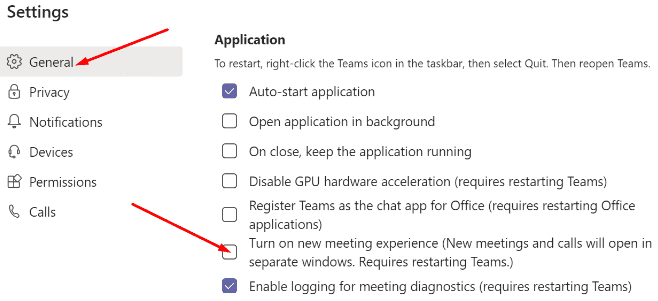
teams-new-meeting-experience
By the way, if the New Meeting Experience is missing, you can use this troubleshooting guide to fix the problem.

Clear the App Cache

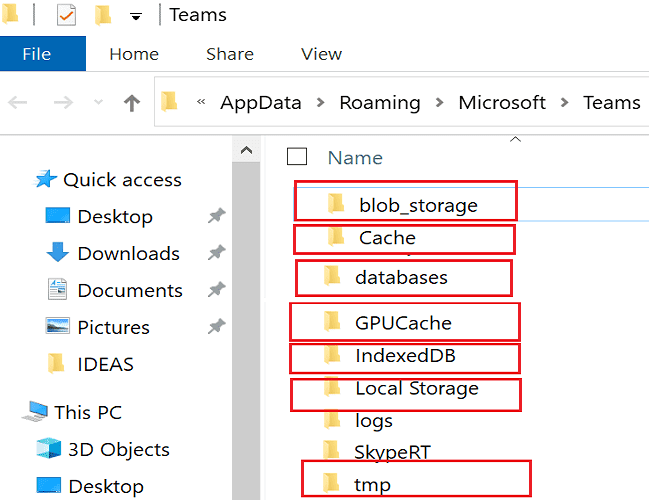
  1. Exit Microsoft Teams completely (right-click the app icon and select Quit).
  2. Then type %appdata%\Microsoft\Teams in the Windows Search bar and hit Enter.
  3. Open the Teams folder and delete all the files stored there.ms teams cache folders windows 10
  4. Restart Teams and check if the issue is gone.
Update Teams or Reinstall the App

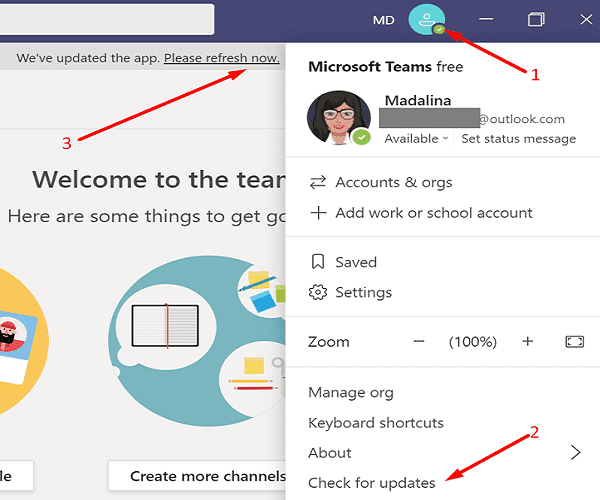
Make sure you’re running the newest Teams app version on your computer. Click on your profile picture and select Check for updates. Restart the app and check the results. update ms teams app
If you still can’t enable Together Mode, uninstall Teams, restart your computer and reinstall the app.

Conclusion

Together Mode is available on Teams only if at least five people have their cameras on. Then make sure to enable the New Meeting Experience option from Settings. If you still can’t use Together Mode, reinstall the app. Did these troubleshooting suggestions work for you? Let us know in the comments below.


Categories: Software

Author Madalina Dinita

Madalina has been a Windows fan ever since she got her hands on her first Windows XP computer. She is interested in all things technology, especially emerging technologies -- AI and DNA computing in particular.

You Might Also Like

  • How To Fix Static On Apples FaceTime

    MonaSoftware
  • fix zoom login issues

    Troubleshooting Zoom Login Errors

    Madalina DinitaSoftware
  • How to Generate a Hash in Notepad++

    Mel HawthorneSoftware
  • Outlook Get Add-ins Button Is Grayed Out Top 5 Solutions in 2023

    Outlook Get Add-ins Button Is Grayed Out: Top 5 Solutions in 2023

    Tamal DasOffice

Comments

  1. Jason says:
    October 6, 2021 at 5:42 am

    Thanks for the advice, but still unavailable here in New Zealand. Could it be region-based as to the release of Together Mode?

Leave a Reply

Your email address will not be published. Required fields are marked *

  • battery issues after windows 11 update

    Battery Issues After Windows 11 Update? Here’s the Fix

  • why is ram so expensive

    Why Is RAM Suddenly So Expensive?

  • how to fix error code 0x800f0922 windows 11

    How to Fix Error Code 0x800f0922 in Windows 11

  • service outage message on Xbox

    What to Do With a Service Outage Message on Xbox

  • signs your hdd is failing

    Signs That Your HDD Is Failing

profile pic

The Experts Behind Technipages

My name is Mitch Bartlett. I've been working in technology for over 20 years in a wide range of tech jobs from Tech Support to Software Testing. I started this site as a technical guide for myself and it has grown into what I hope is a useful reference for all.

Learn More

technipages logo white
linkedin icon

Technipages is part of Guiding Tech Media, a leading digital media publisher focused on helping people figure out technology. Learn more about our mission and team here.

© 2026 Guiding Tech Media All Rights Reserved

  • About Us
  • Contact
  • Terms of Use
  • Privacy Policy

© 2026 Guiding Tech Media All Rights Reserved

Information from your device can be used to personalize your ad experience.
Do not sell my personal information.

Last Updated on June 4, 2021 by Judy Sanhz