

Slack may sometimes fail to detect your camera and microphone. As a result, although you can join video meetings, the other participants can’t see or hear you. Oftentimes, incorrect system settings are to blame for this problem. The good news is that you should be able to quickly troubleshoot the issue by tweaking your settings.
Contents
How to Fix Slack Camera and Microphone Issues
Check Your App Settings
First things first, check your Slack desktop app settings and ensure the app uses the right audio and video devices, especially if there are multiple devices connected to your computer.
- Click on the Slack menu and select File.
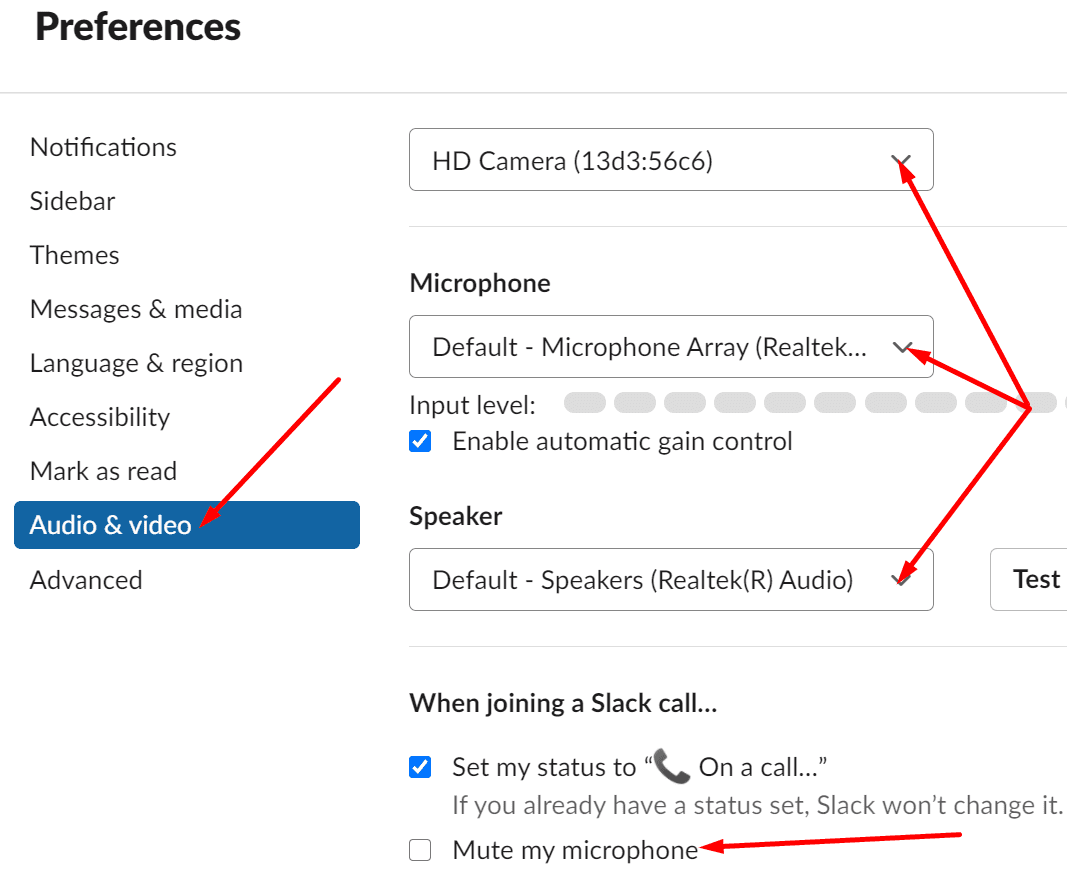
- Then select Preferences and go to Audio and video.
- Go to Camera, Microphone, and Speakers and use the drop-down menu to select the devices you want to use.
- Scroll down to When joining a Slack call and disable Mute my microphone.
Check Your System Settings
Check your system’s privacy settings and make sure they allow the app to access and use your camera and microphone.
Windows 10
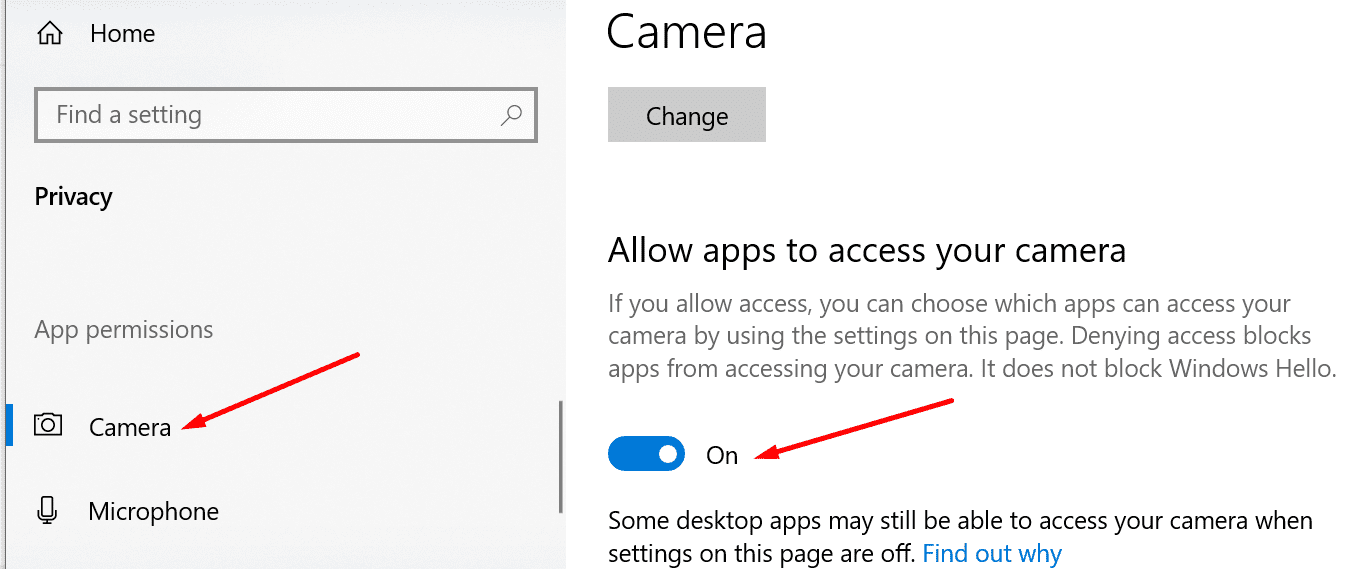
- Navigate to Settings, and select Privacy.
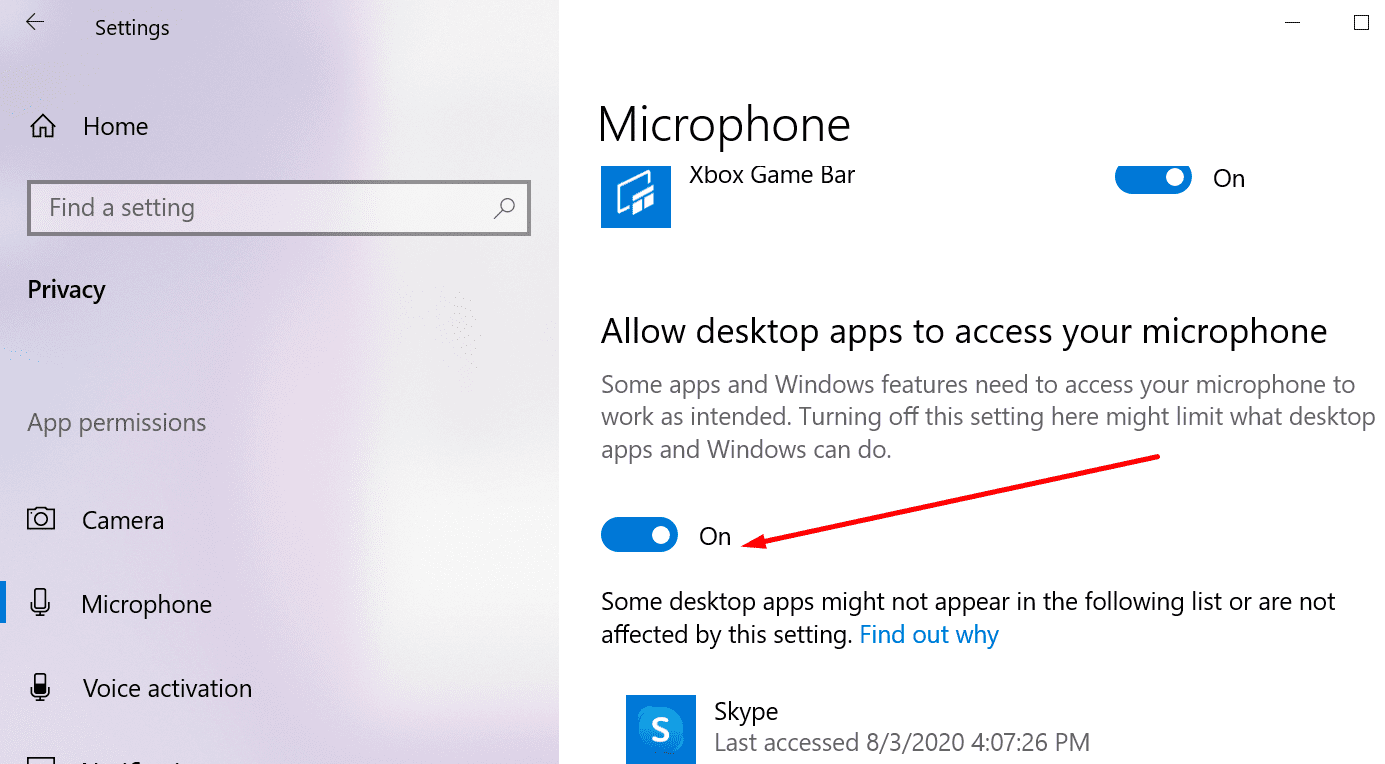
- Then, under App permissions, select Camera and Microphone.
- Allow apps to access your camera and microphone.

- If you downloaded Slack from the Microsoft Store, go to Choose which Microsoft Store apps can access your camera and microphone, respectively, and switch on the option for Slack.
- On the other hand, if you downloaded Slack on your desktop, make sure desktop apps can access your camera and mic.
macOS
If you’re on Mac, click on the Apple menu, select System Preferences, and go to Security and Privacy. Then click on the Privacy tab, select the Camera and Microphone options and make sure Slack is on the list. Then tick the Slack checkbox. This means the app can access and use your built-in camera and mic or external audio and video devices.

Clear the App Cache and Reset Data
Slack comes with a series of handy troubleshooting options that you can use to fix general issues.
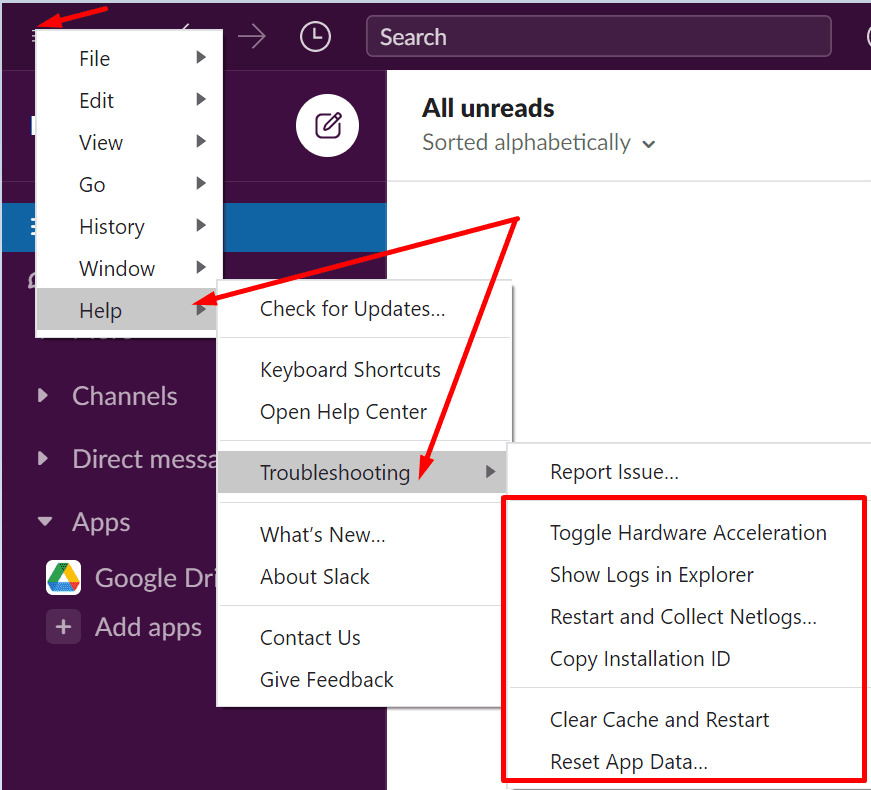
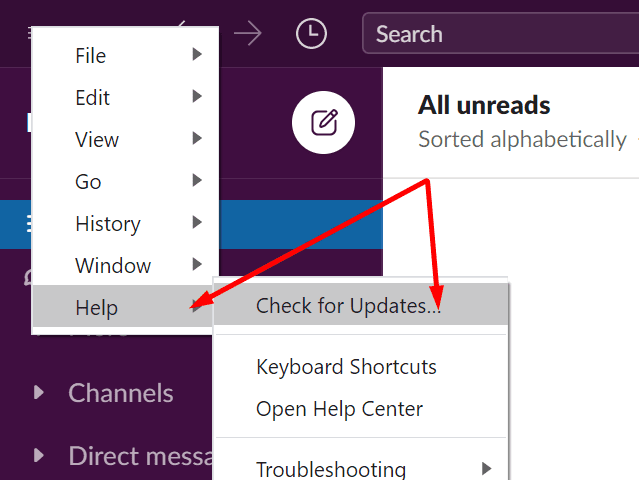
- Launch Slack, click on the app menu and go to Help.
- Navigate to Troubleshooting and clear the app cache. If the issue persists, clear app data as well.
Additionally, click on the app menu, go to Help again and select Check for updates to install the latest app version on your machine.
Exit Other Apps Using the Camera and Mic
Close all the background apps that could potentially access your camera and mic. These apps often compete against Slack for camera and mic access which might explain why the app cannot find your audio and video devices.
Reinstall Slack
If the issue persists and you still can’t use your camera and mic on Slack, uninstall the all. Restart your computer and download Slack again. Install the app and check if the problem is gone.
Conclusion
If Slack fails to detect your camera and mic, check your app settings and make sure you selected the right audio and video devices. Additionally, navigate to system settings, and ensure your privacy settings allow apps to access your camera and mic.
Clearing the app cache and reinstalling Slack may help as well. Are you still experiencing the same problem after following the troubleshooting steps available in this guide? Share your feedback in the comments below.



What can I do If slack is not showing up in the field under privacy?
Type the following (not in your own channel), then hit enter, to see what your call settings are in slack. Note that preceding the word ‘test’ are two dashes (it might appear like one dash in your browser.)
/call –test
Type the following (not in your own channel), then hit enter, to see what your call settings are in slack.
/call –test