Skip to content
LogoTechnipages
LogoTechnipages
  • Topics
        • Android
        • Browsers
        • Gaming
        • Hardware
        • Internet
        • iPhone
        • Linux
        • macOS
        • Office
        • Reviews
        • Software
        • Windows
        • Definitions
        • All Recent Posts
  • Product Reviews
  • About

Fix OneDrive Error “Unable to Move Shortcut”

Madalina DinitaNovember 4, 2021 Comments (0)
onedrive-unable-to-move-shortcut-error

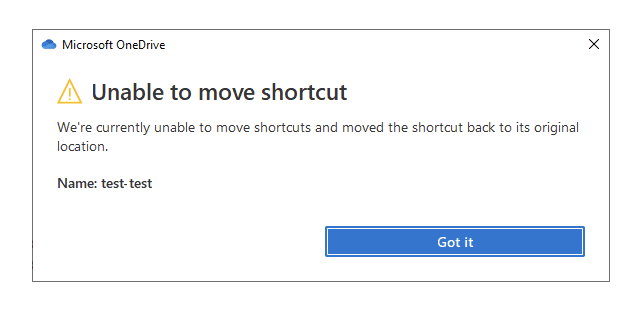
When you click on “Add shortcut to My Files” in OneDrive, the tool automatically creates a shortcut right in the root of your OneDrive folder. But when you try to move that shortcut to another location, you may sometimes get an error message that says OneDrive cannot do that. Let’s explore what you can do to solve the problem.

Contents

  • 1 What to Do If You Can’t Move OneDrive Shortcuts
    • 1.1 Check If the Shortcut Target Was Deleted
    • 1.2 Unlink Your PC
    • 1.3 Update OneDrive
    • 1.4 Reset OneDrive
    • 1.5 Conclusion

What to Do If You Can’t Move OneDrive Shortcuts

Check If the Shortcut Target Was Deleted

This error message usually indicates the target of the shortcut is no longer available. Maybe you deleted it, or the individual file is no longer shared with you. Open a new browser tab, log in to your OneDrive account and simply delete the problematic shortcut. After a few minutes, File Explorer should automatically remove the shortcut.

Unlink Your PC

Try unlinking your PC, and check if you notice any improvements.

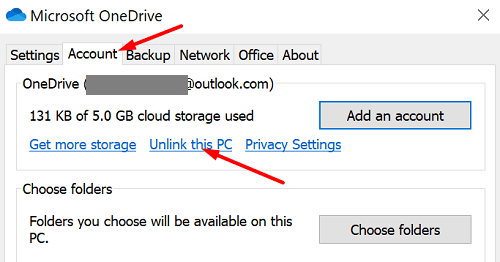
  1. Click on your OneDrive taskbar icon and go to Settings.
  2. Then click on the Account tab.
  3. Select Unlink this PC and then click on Unlink account.onedrive-unlink-this-PC
  4. Wait for one minute, and then link your PC back.
Update OneDrive

Update your app to the latest version. Running an outdated OneDrive app version may cause all sorts of glitches, including this shortcut error we’re covering in this quick guide.

Go to OneDrive Settings, click on the About tab, and check what app version you’re running.

check-onedrive-app-version

Then go to the official OneDrive webpage, and check if there’s a newer version available. If this is the case, click on Download OneDrive for Windows to update your app.

Reset OneDrive

If the problem persists, try resetting the app.

  1. Press the Windows and R keys to open a new Run window.
  2. Paste the following command in the Run window: %localappdata%\Microsoft\OneDrive\onedrive.exe /reset.
  3. Restart the app and check if the error persists.

By the way, if you get an error message that says Windows can’t find the path you mentioned, run the following commands:

  • C:\Program Files\Microsoft OneDrive\onedrive.exe /reset
  • C:\Program Files (x86)\Microsoft OneDrive\onedrive.exe /reset

Conclusion

Suppose you can’t move your OneDrive shortcuts. In that case, this may indicate the target of the shortcut was either deleted or is no longer shared with you. Try unlinking your PC, and update the app. Additionally, reset Onedrive. If the issue persists, open the OneDrive web app and remove the shortcut.

Did you manage to solve the problem? Let us know in the comments below.

Categories: Office

Author Madalina Dinita

Madalina has been a Windows fan ever since she got her hands on her first Windows XP computer. She is interested in all things technology, especially emerging technologies -- AI and DNA computing in particular.

You Might Also Like

  • Enable “Email” Option in Excel & Word 365

    Mitch BartlettOffice
  • Excel Header

    Freeze or Unfreeze Panes, Columns, and Rows in Excel

    Mitch BartlettOffice
  • Excel

    Microsoft Excel: How to Import Data from a PDF File

    Judy SanhzOffice
  • How to Add Holidays to Outlook Calendar on Windows and Web App

    How to Add Holidays to Outlook Calendar on Windows and Web App

    Susan SheffieldOffice

Leave a Reply

Your email address will not be published. Required fields are marked *

  • browser keeps opening hp support

    Browser Keeps Opening HP Support Assistant Tabs 

  • camera not working in vmware

    Camera Not Working in VMware – How to Fix

  • browser screen goes black

    Browser Screen Goes Black Intermittently 

  • computer heating up in hyper v

    Computer Heating Up When Using Hyper-V – How to Fix 

  • clipchamp unexpected application error

    Clipchamp Unexpected Application Error: Here’s the Solution 

profile pic

The Experts Behind Technipages

My name is Mitch Bartlett. I've been working in technology for over 20 years in a wide range of tech jobs from Tech Support to Software Testing. I started this site as a technical guide for myself and it has grown into what I hope is a useful reference for all.

Learn More

technipages logo white
linkedin icon

Technipages is part of Guiding Tech Media, a leading digital media publisher focused on helping people figure out technology. Learn more about our mission and team here.

© 2025 Guiding Tech Media All Rights Reserved

  • About Us
  • Contact
  • Terms of Use
  • Privacy Policy

© 2025 Guiding Tech Media All Rights Reserved

Information from your device can be used to personalize your ad experience.
Do not sell my personal information.

Last Updated on November 4, 2021 by Judy Sanhz