Microsoft Edge may sometimes fail to play YouTube videos. The problem can manifest in a variety of ways. For example, when you switch tabs, the YouTube window turns black. Sometimes, the bottom part of the video becomes black when you move the mouse cursor over the video. Let’s see how you can fix black screen issues on YouTube.
By the way, if you’re also experiencing audio issues while playing YouTube videos on Edge, use this troubleshooting guide to solve the problem.
Contents
Why Is My YouTube Video Screen Black on Microsoft Edge?
Update Your Graphics Driver
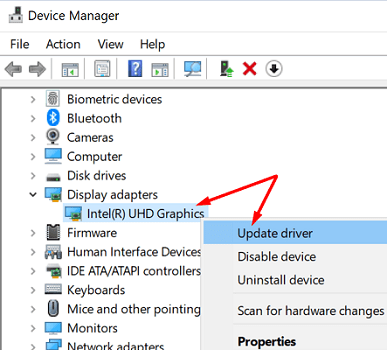
If you’re running an outdated graphics driver version on your Windows 10 computer, don’t be surprised if Edge cannot render video content properly. So, the first step is to install the latest graphics driver for your device.
- Launch the Device Manager, and expand the list of Display Adapters.
- Then right-click on your graphics driver and select Update drive.
- Restart your computer and check if the problem persists.
Check Your Browser Settings
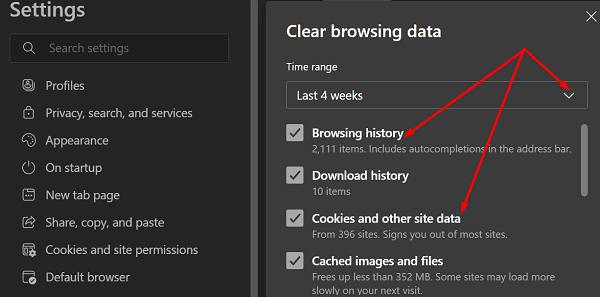
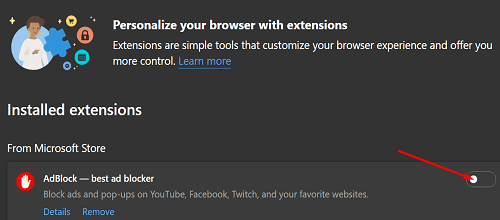
If the problem persists, make sure Edge is working properly. Clear the cache, disable your extensions, and update your browser version.
- Go to More options, click on History and then click again on More options.
- Select Clear browsing data and remove your cache and cookies from the last four weeks.

- If the issue persists, select All time to delete everything.
- Then click again on More options, select Extensions, and toggle off all your extensions.

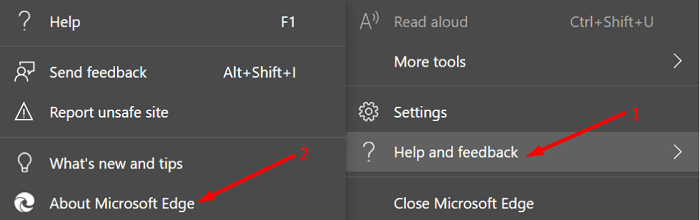
- To update Edge, go to Help and Feedback, and select About Edge to check for updates.
Disable Hardware Acceleration
Many users solved this problem after disabling the hardware acceleration option.
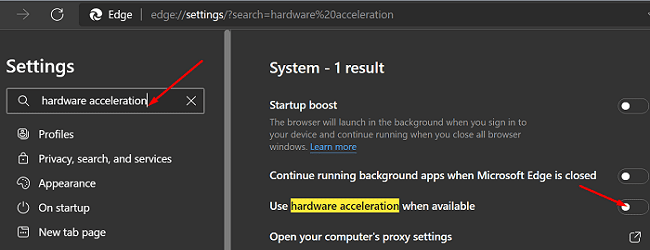
- Go to Edge Settings and type “hardware acceleration” in the search field.
- Then toggle off the option that says, “Use hardware acceleration when available.”

- Refresh your browser and check if you’re still getting a black screen when playing YT videos.
Enable Software Rendering
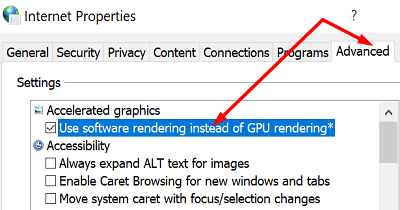
If the issue persists, enable software rendering instead of using GPU rendering.
- Press the Windows and R keys simultaneously to open a new Run window.
- Enter the inetcpl.cpl command.
- Click on the Advanced tab and tick the checkbox that says Use software rendering instead of GPU rendering.

- Restart your computer to apply the changes.
Disable High Contrast Mode
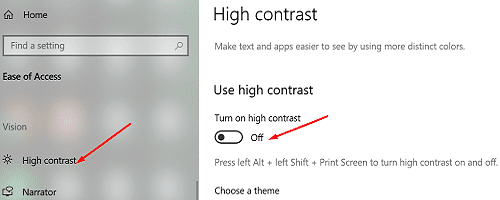
Other users confirmed that disabling the High Contrast mode solved the problem for them. Navigate to Settings, select Ease of Access, click on High contrast and toggle off the option. Windows will then display a “Please wait” screen for a few seconds while changing your settings.
If your YouTube video is still blacked out on Edge, switch to a different browser. Since both YouTube and Chrome are developed by Google, try this combo and check the results.
Conclusion
If the screen keeps blacking out when playing YouTube videos on Edge, clear the cache, disable your extensions and update the browser. Then disable graphics hardware acceleration, and enable software rendering instead of GPU rendering. If the problem persists, disable the High Contrast mode in Windows 10 Settings. Which of these methods helped you fix the problem? Let us know in the comments below.