When you try to join a meeting hosted on Microsoft Teams, you may sometimes get a strange error message that reads, “Still connecting to remote devices. Calling isn’t available yet“. The most confusing part is that this error shows up even if you didn’t connect to other devices. Follow the troubleshooting solutions below to solve the problem.
Contents
Fix Microsoft Teams Error: Still Connecting to Remote Devices
Restart Your Device
Restart your computer and check if the error persists. If it does, unplug your router, and leave it unplugged for two minutes to reset your connection to the servers. Plug the router back in, wait until your computer goes back online, launch Teams, and check the results.
Disconnect All Peripherals
Try disconnecting all your peripherals and check if this workaround solves the problem. Unplug all your peripherals and shut your computer down. Wait for one minute, and then boot up your machine. Launch Teams and check if you’re getting the same error.
If the error is gone, this indicates one of your peripherals is the culprit. Plug them back in one by one and test if the error shows up again.
Reinstall Teams
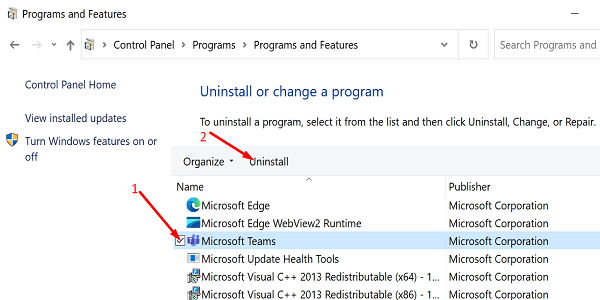
- Go to Control Panel.
- Click on Uninstall a program.
- Select Microsoft Teams.
- Hit the Uninstall button.

- Restart your computer.
- Download Teams from Microsoft’s official website.
- Install the app and check if the issue persists.
If your Teams account and device are managed by an organization, and you’re still getting the same error, contact your IT admin.
⇒ Note: IT admins can follow the troubleshooting suggestions below to fix the issue where Teams says users are still connected to remote devices.
Delete the AAD Device Profile
Try deleting the AAD-managed device profile. Check if this workaround clears the issue.
- Log into the Microsoft Endpoint Manager admin center.
- Go to Devices.
- Then, select All devices.

- Select the device that you want to remove.
- Select Wipe.

It may take up to 15 minutes for the changes to propagate across the network. For more information, see Intune: Remove devices by using wipe, retire, or manually unenrolling the device.
Additionally, check if a quick login and log out from VDI clears up the issue.
Check the Current GPO Policies
If you’re using VMWare, make sure the existing GPO policies don’t block Teams. Check if the Media Optimization for Microsoft Teams policy applies to physical devices. This policy should only be applied to VDIs.
- Go to Computer Configuration.
- Select Administrative Templates.
- Go to VMware View Agent Configuration.
- Then, select VMware HTML5 Features.
- Click on VMware WebRTC Redirection Features.
- Go to Enable Media Optimization for Microsoft Teams.
- If this policy applies to physical desktops, remove it.
Alternatively, you can also tweak the Registry to disable this policy.
- Navigate to
HKEY_LOCAL_MACHINE\SOFTWARE\Policies\VMware, Inc.\VMware WebRTCRedir - Double-click on teamsEnabled in the right-hand pane.
- Then, change the key value to 0 (zero) to disable this option.
Conclusion
If Teams says you’re still connected to a remote device, restart your computer. Additionally, disconnect all peripherals. If the issue persists, reinstall Teams.
If you’re an IT admin, go to the Microsoft Endpoint Manager admin center and delete the AAD device profile. Additionally, if the “Media Optimization for Microsoft Teams” policy applies to physical devices, disable it. This policy should only be applied to VDIs.
Did you manage to solve the problem? Hit the comments below and tell us which of these solutions did the trick for you.